
Managing Admin Users In Site360 - Woolworths Group
Learn how to efficiently add, update, and remove administrative users within your Site360 Admin Portal.
Navigating to Admin Users
1. Sign into the Admin Portal: admin.site360.io
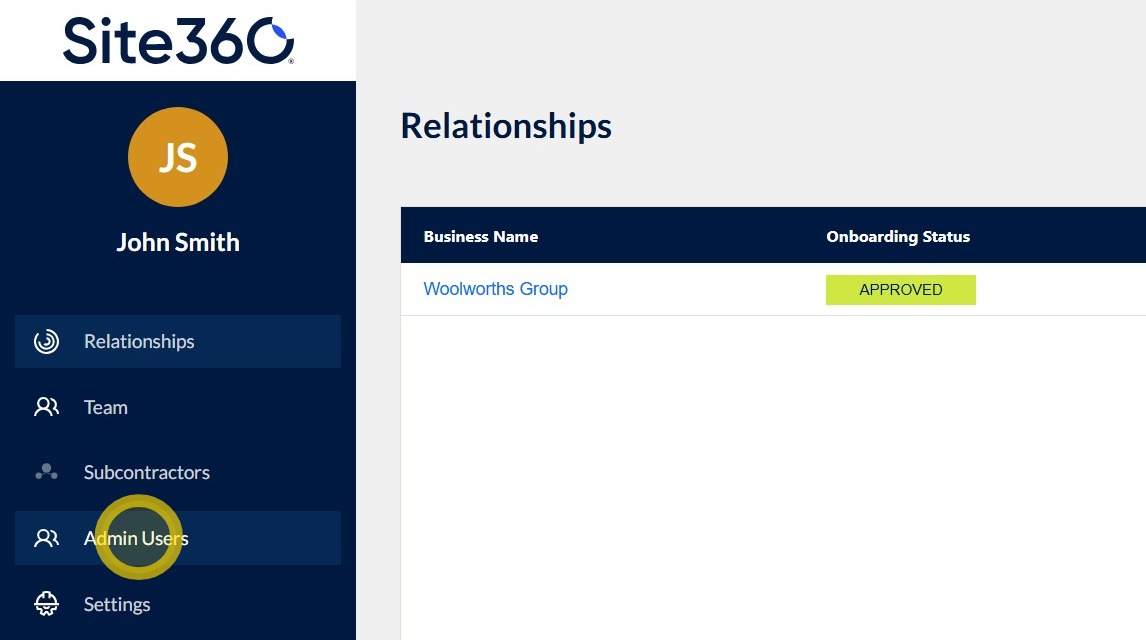
When you sign in it will take you directly to the Relationships tab. Click Admin Users in the left navigation column.
Adding an Admin User
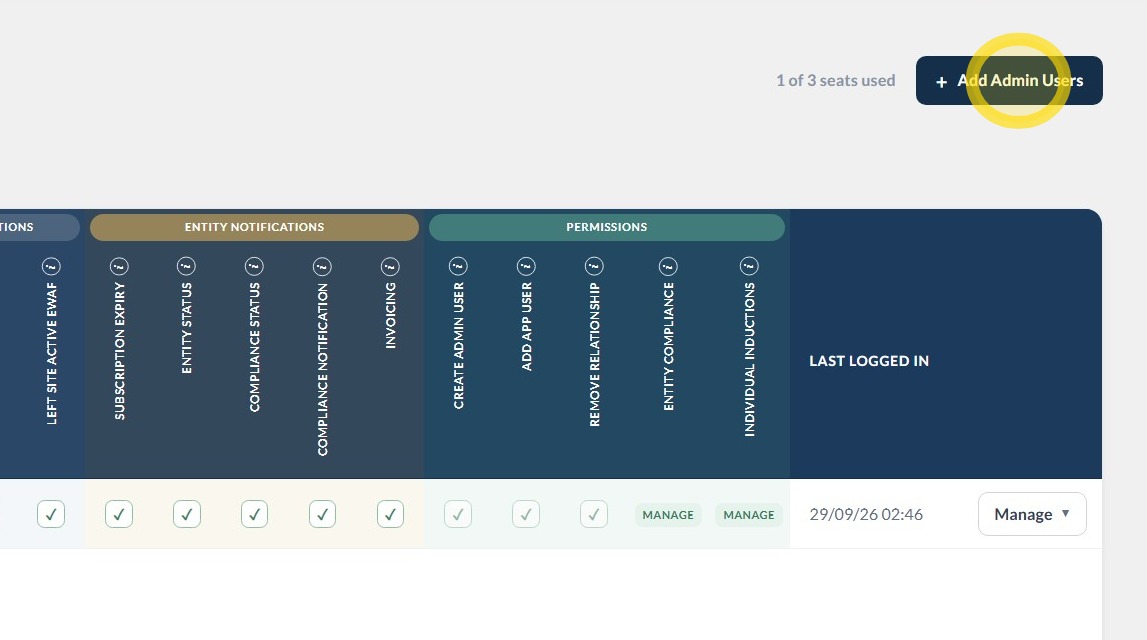
2. Click Add Admin User in the top right corner.
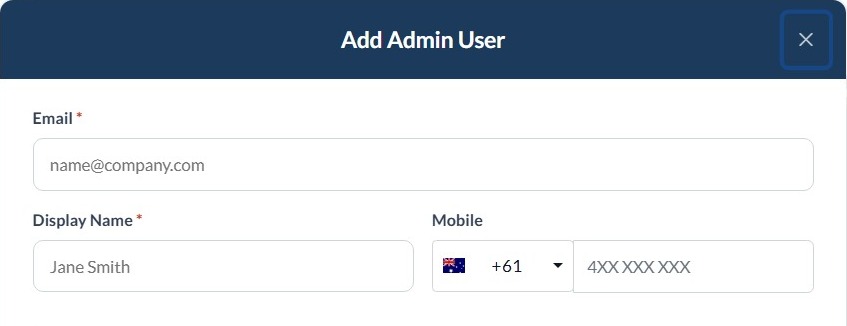
3. Enter the user's information into the required fields.
- Display Name
- Mobile (A mobile number is optional)
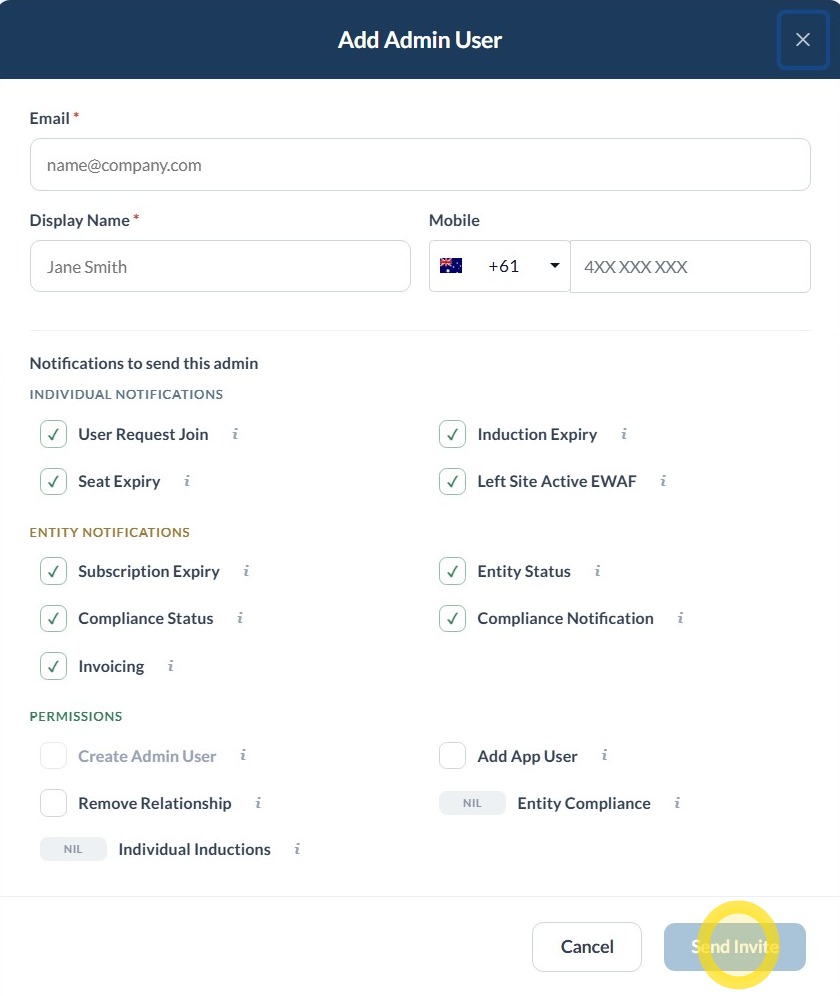
4. Select the permissions and access you would like the Admin User to have by ticking or unticking the relevant checkboxes.
Once all required fields have been completed, click Send Invite to submit the invitation.
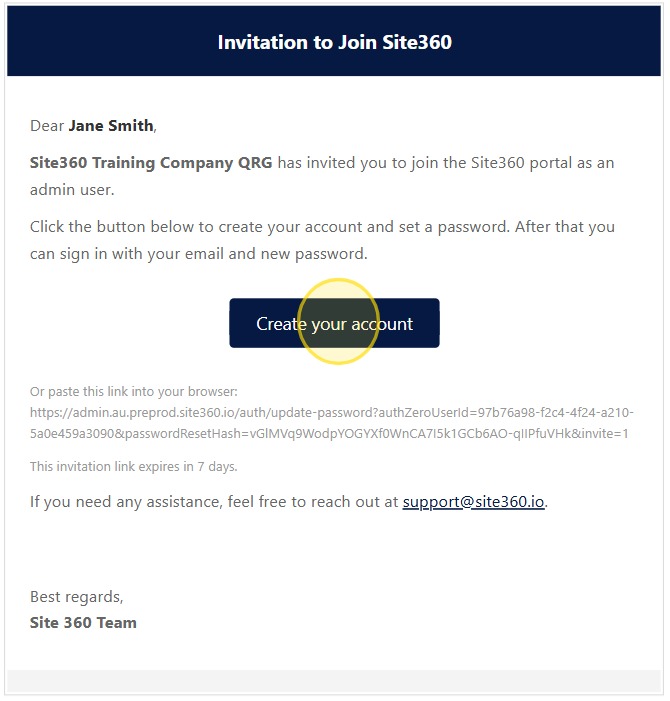
5. The invited user will receive the email shown below. To begin the registration process, click Create Your Account.
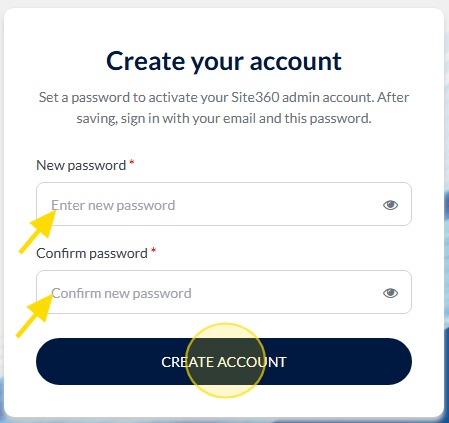
6. Create a password and click Create Account.
Please note your password should contain at-least 8 characters, one special character with letters and numbers.
Once a password has been created you can log in here: admin.site360.io
Edit User Details
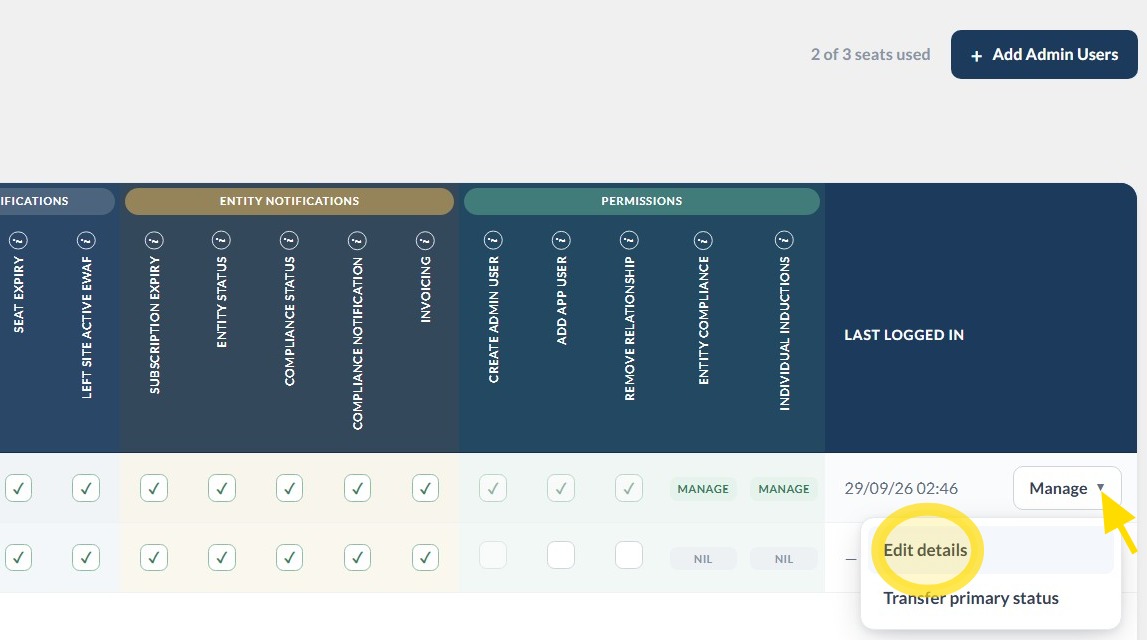
7. To edit an admin users details click the drop-down arrow next to Manage, then click Edit Details.
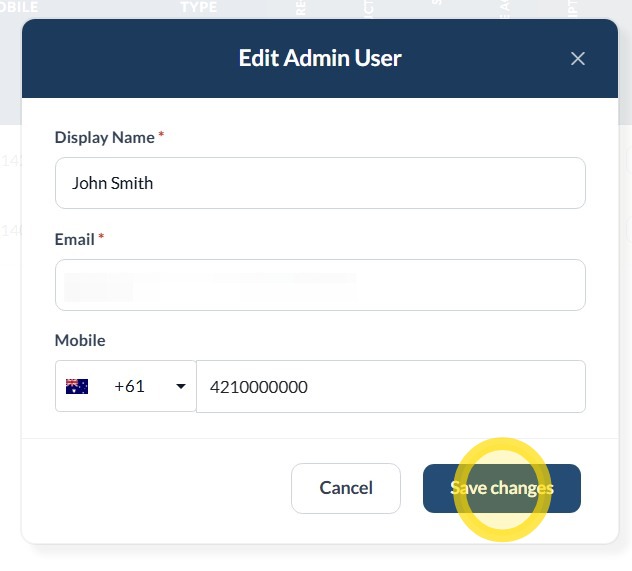
8. Update the required details and click Save Changes.
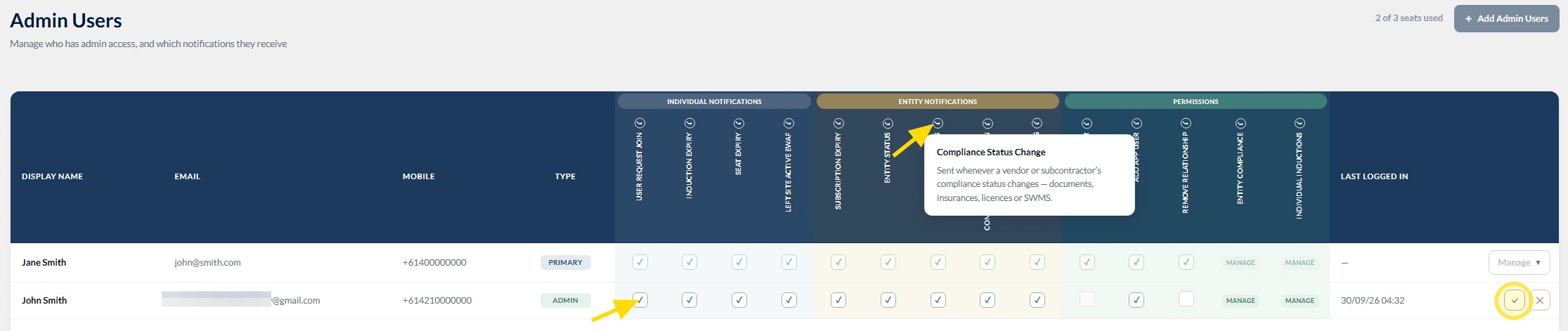
9. You can update your permissions by ticking or unticking the checkbox next to each permission and then clicking the green tick to confirm your changes.
If you would like more information about what a permission allows, click the ⓘ (information) icon next to the permission name to view a brief description.
Please note: Admin users can only update their own account. If an admin user needs another user updated, this can only be done by the Primary Admin.
Transfer Primary Status
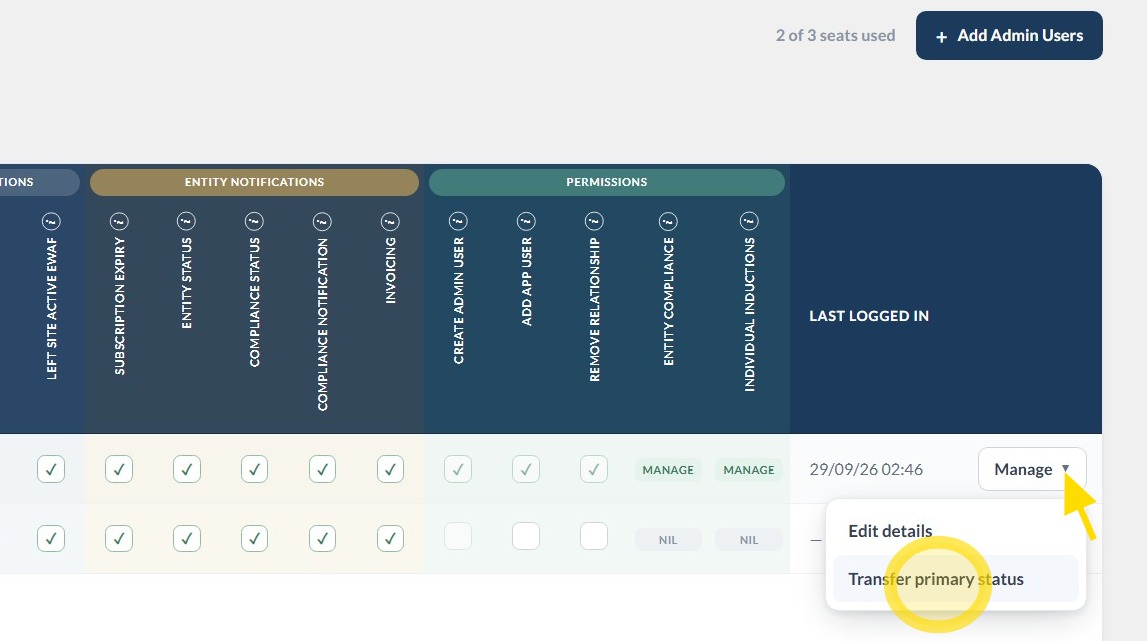
10. To transfer the primary admin user, click the drop-down arrow next to Manage, then click Transfer Primary Status.
Please note: Only the Primary admin user can transfer the Primary Status.
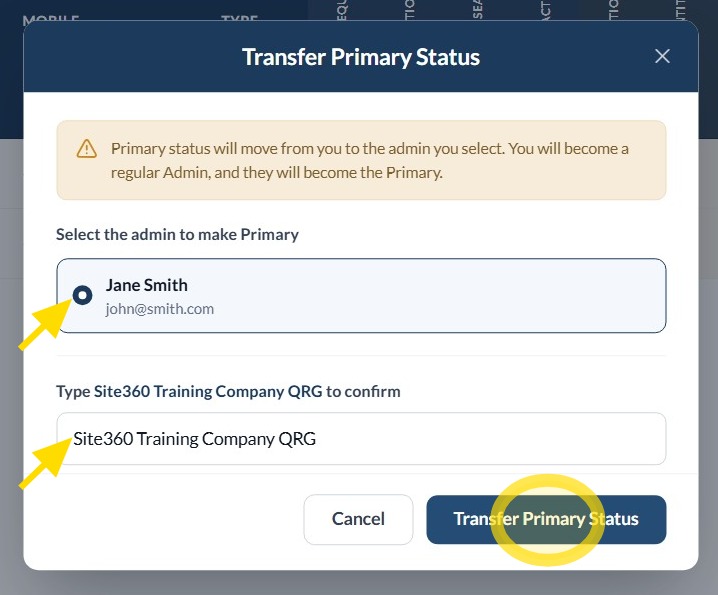
11. Select the dot next to the admin user, type the company name in the box to confirm and then click Transfer Primary Status.
Removing an Admin User
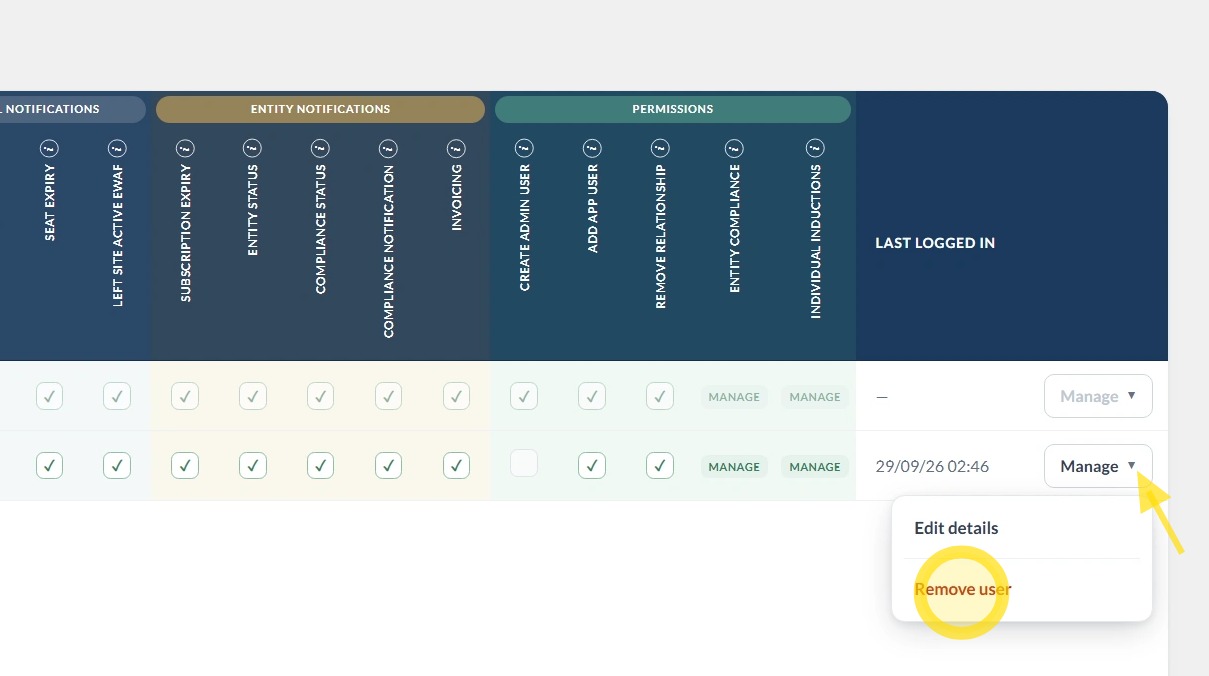
12. To remove an admin user, click the drop-down arrow next to Manage, then click Remove User.
Please note: Admin users can only remove their own account. If an admin user needs another user removed, this can only be done by the Primary Admin.
Technical and Compliance Support
13. If you require help and guidance, you can find more helpful guides on the Help & Resources page found on the wowcontractor.com website, alternatively please contact the team at Site360.
- Technical Support - 1300 853 990 or email support@site360.io
- Compliance and Portal Navigation - 1300 853 990 or email compliance@site360.io