
Updating your Risk Profile
Steps on how to update your Risk Profile in your Site360 admin portal. NOTE: The answers in the screenshots are examples only. Please fill out these questions using information that relates specifically to your own business.
Accessing your Risk Profile
1. Sign into the Admin Portal:admin.site360.io
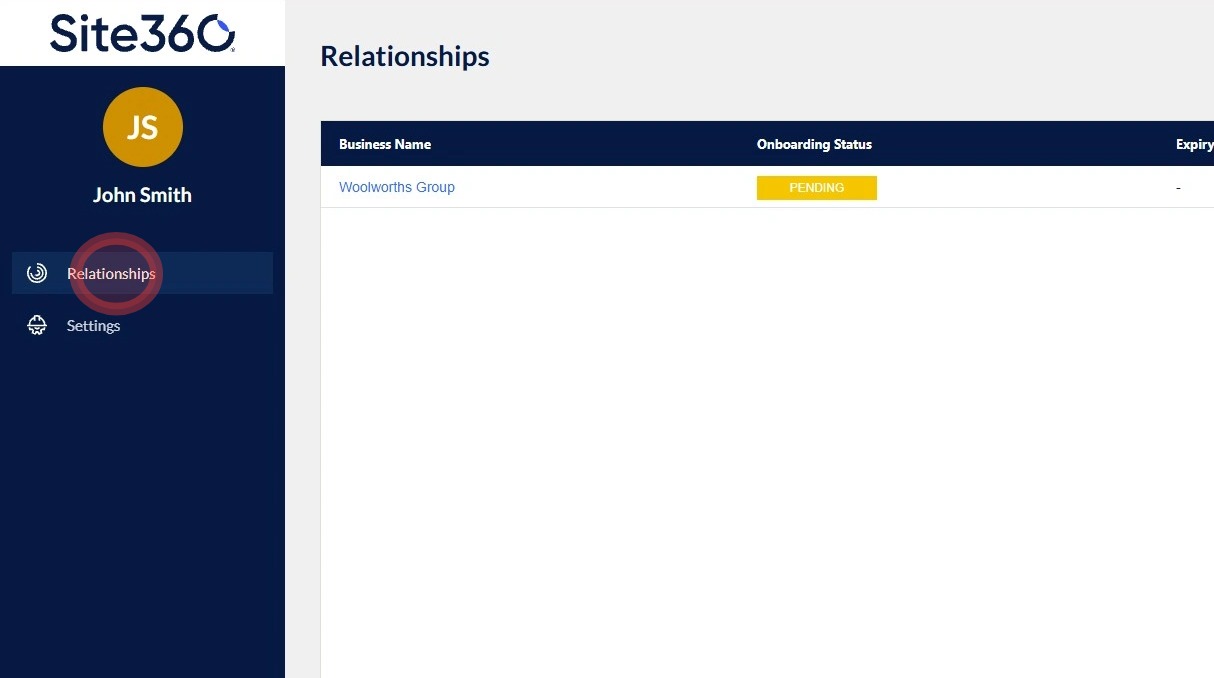
When you sign in it will take you directly to the Relationships tab, if not click "Relationships" in the left side menu.
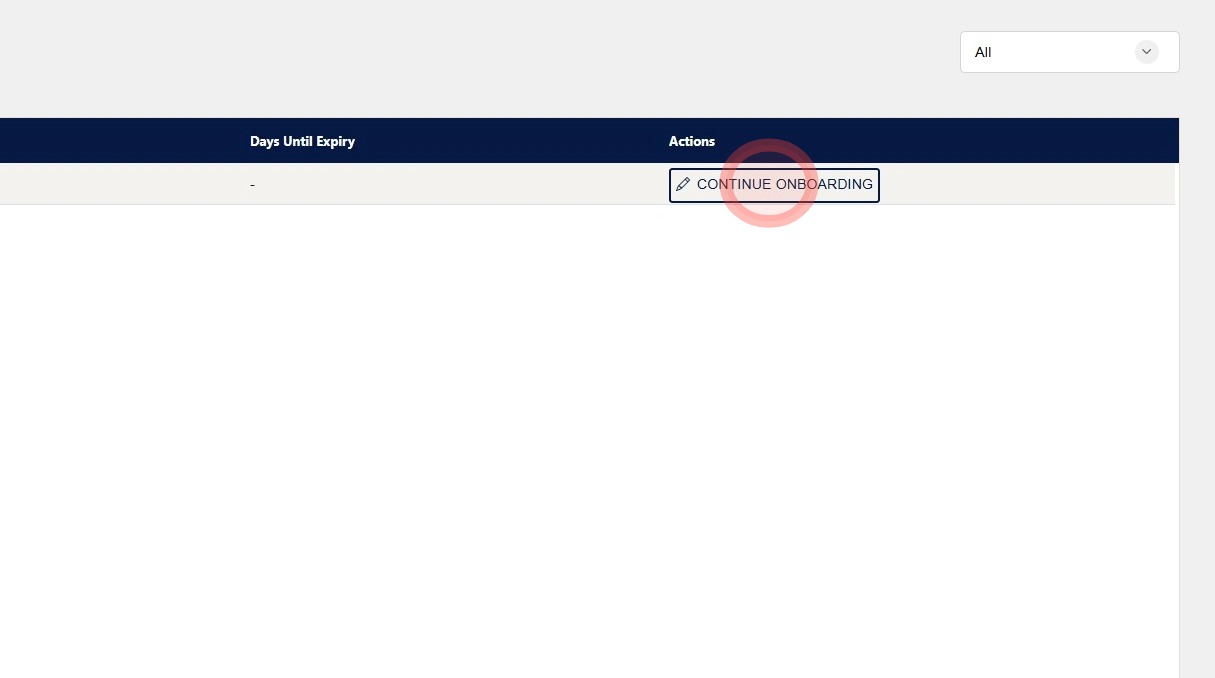
2. Click "CONTINUE ONBOARDING" on the right side under actions.
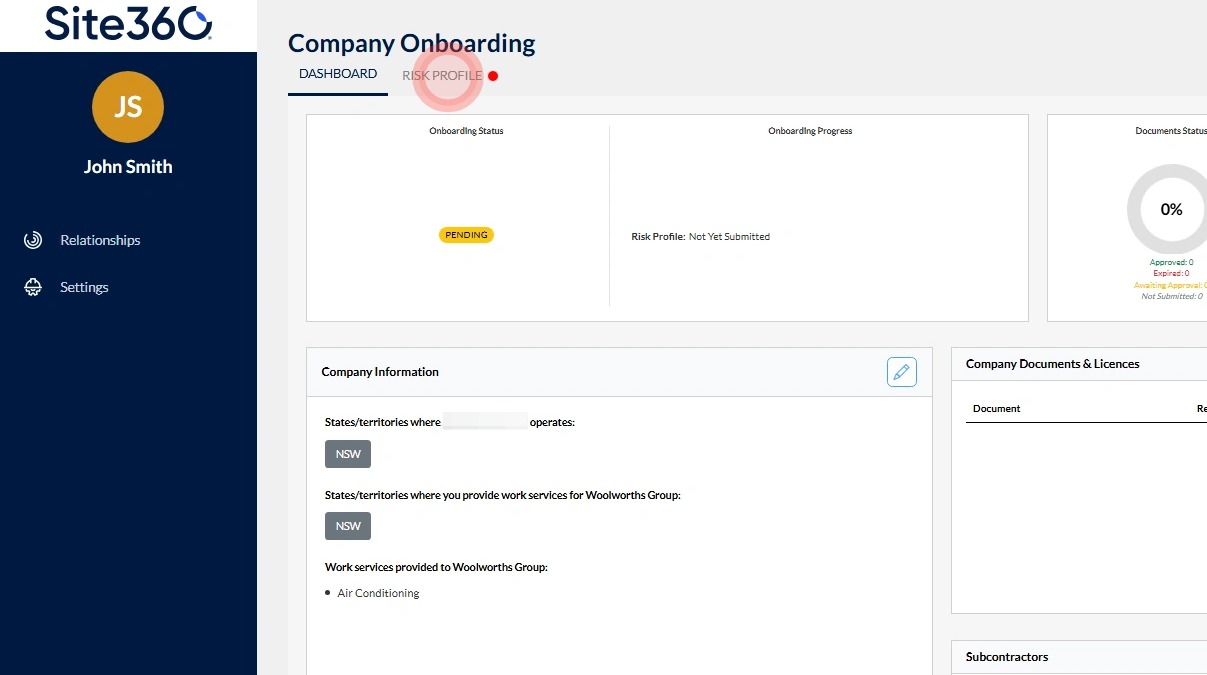
3. Click "Risk Profile"
Work Services Selection
Tip: PLEASE NOTE the answers in the screenshots are EXAMPLES ONLY.
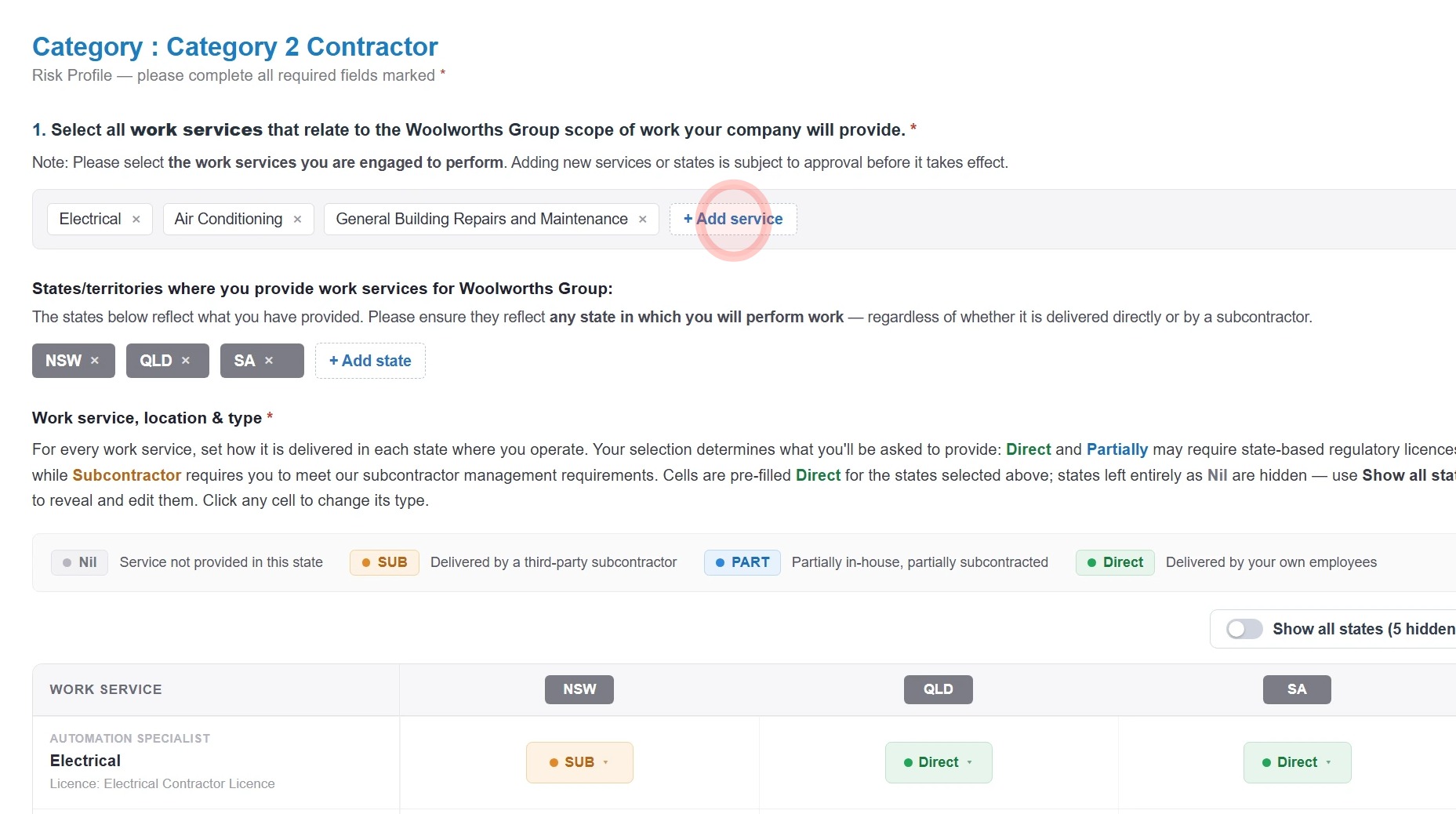
4. Your work services are pre-filled from your registration. To add more, click '+Add service' and select from the list.
State and Territory of Services Provided
5. The states where you work are automatically populated based on your registration. If you need to add more states, click '+Add state'.
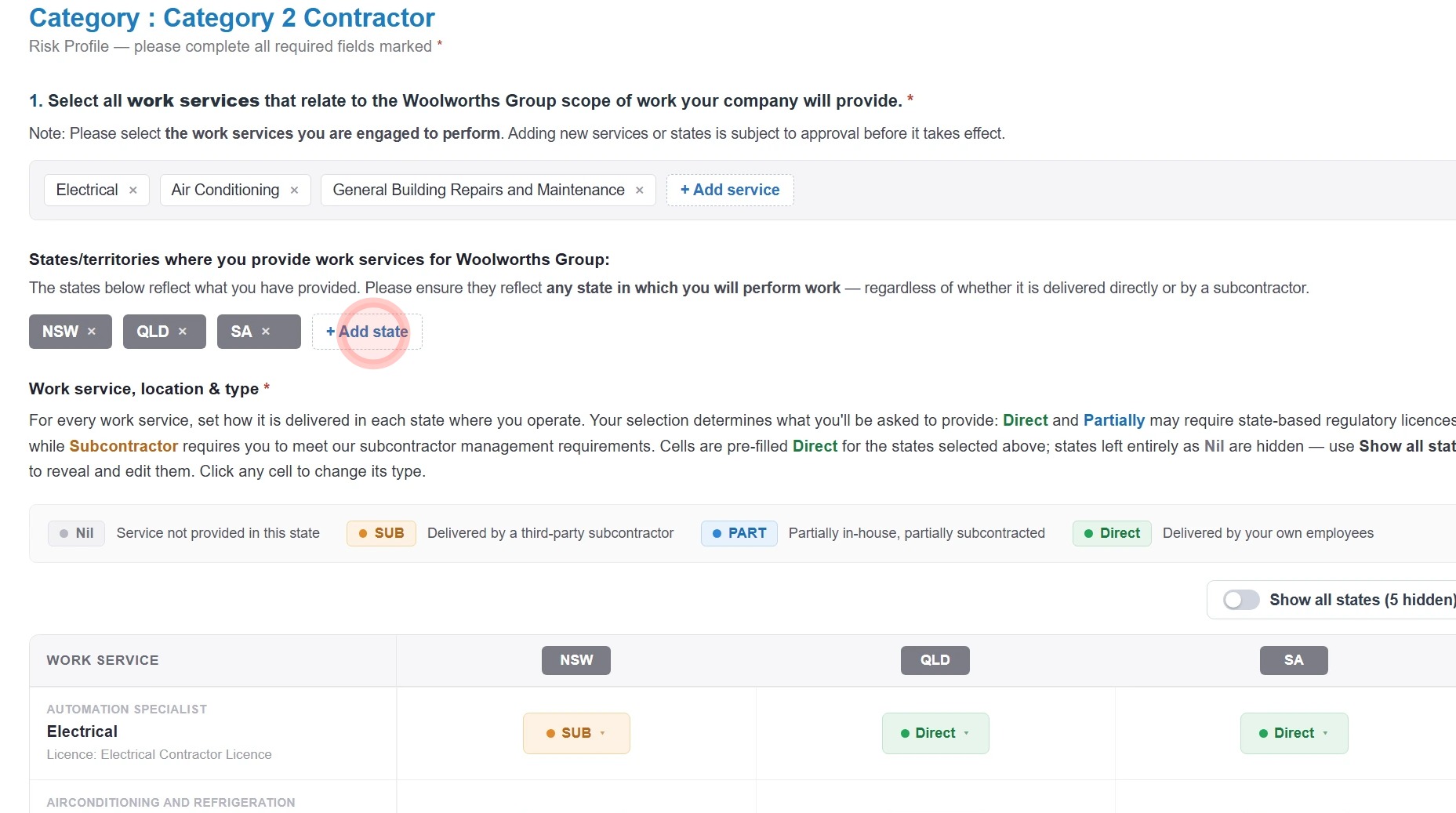
6. To confirm your operating model, click the drop-down arrow for each service/state and select either:
- NIL: Service not provided in this state.
- DIRECT: Delivered by your own employees.
- SUB: If you fully subcontract the service in that state.
- PART: If you partially complete the work yourself and partially subcontract it.
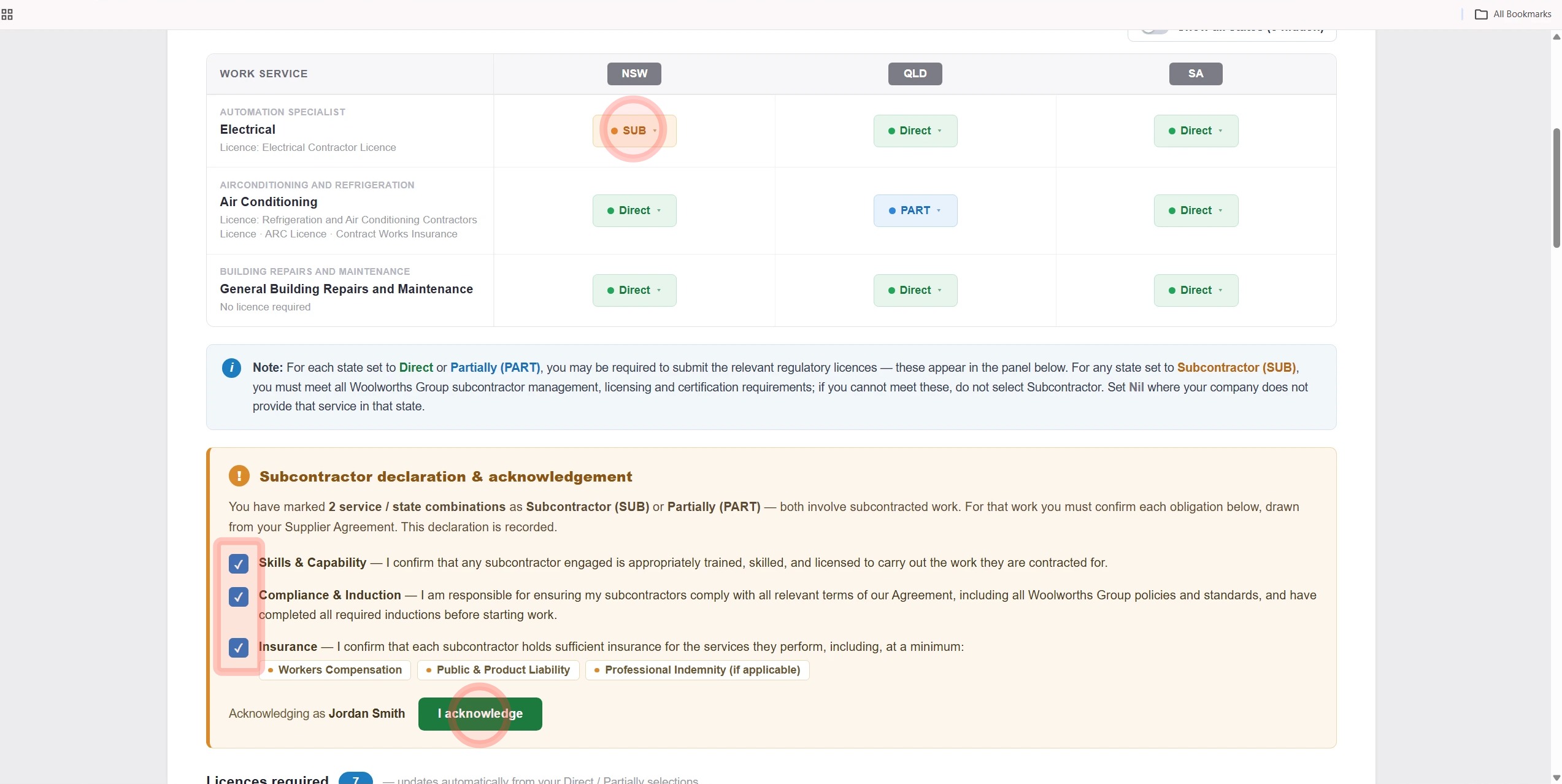
Once updated, complete the Subcontractor declaration and Acknowledgement by ticking the boxes and clicking "I acknowledge".
Please note: Based on your selection, the licence requirements may change.
Brand and Woolworths Contact Details
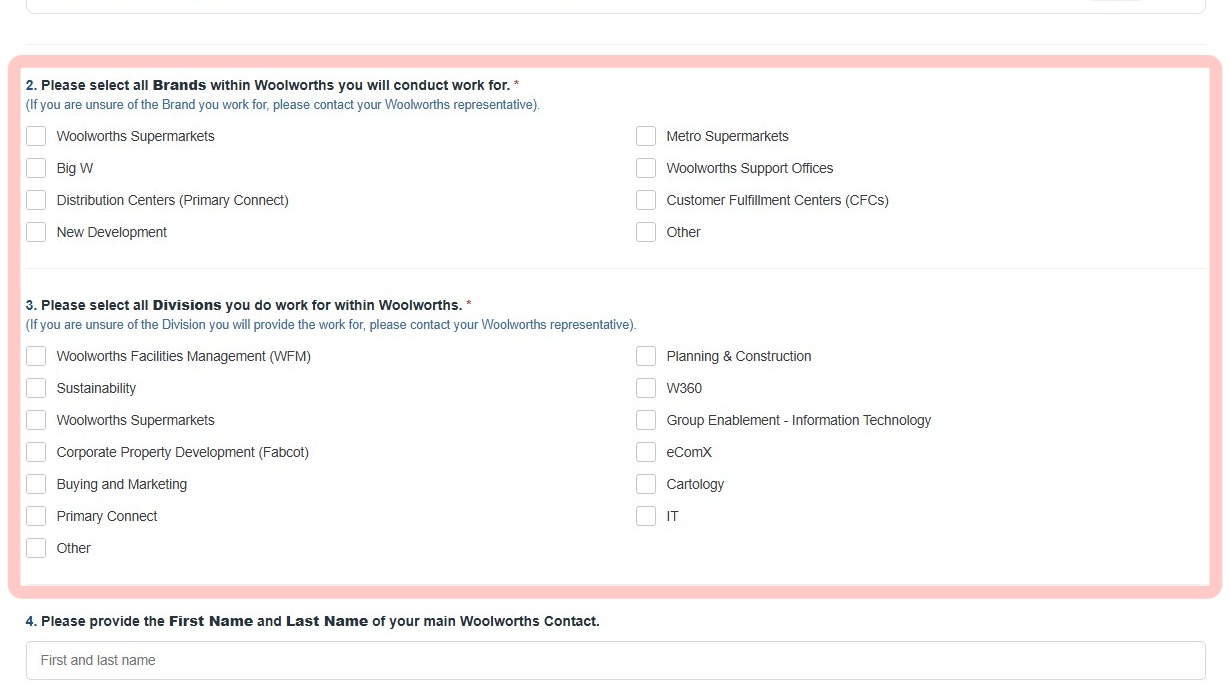
7. Tick the boxes for the brands and divisions you currently perform work for within Woolworths Group.
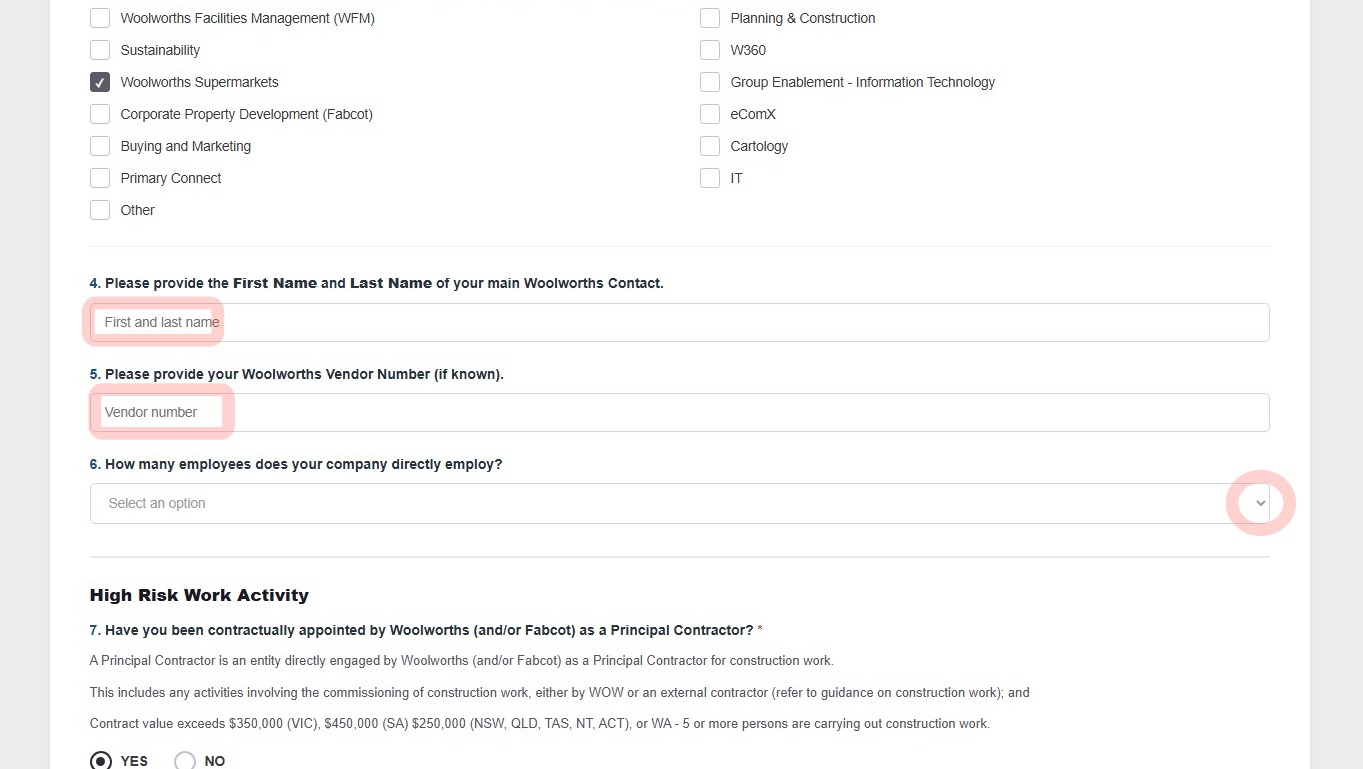
8. Answer questions 4 to 6 with your Woolworths group contact name, Woolworths vendor number and the number of people you directly employ.
High Risk Work Activity Questionnaire
9. Complete/review questions 7 to 24 by clicking YES or NO.
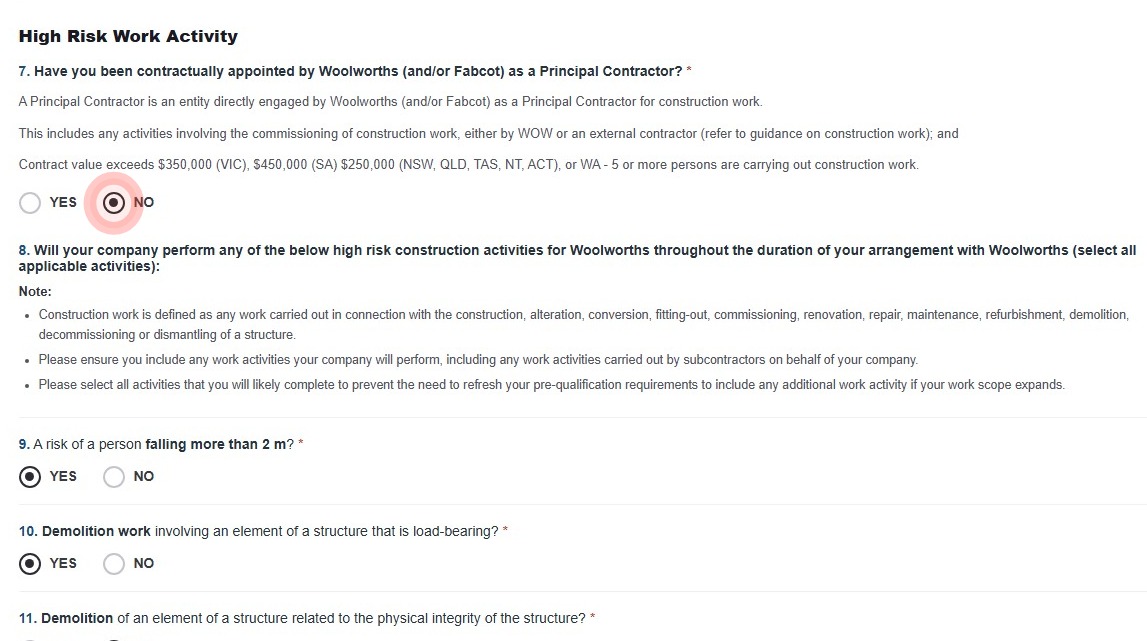
Tip: Note: The answers in the screenshots are examples only. Please fill out these questions using information that relates specifically to your own business.
Final Declaration
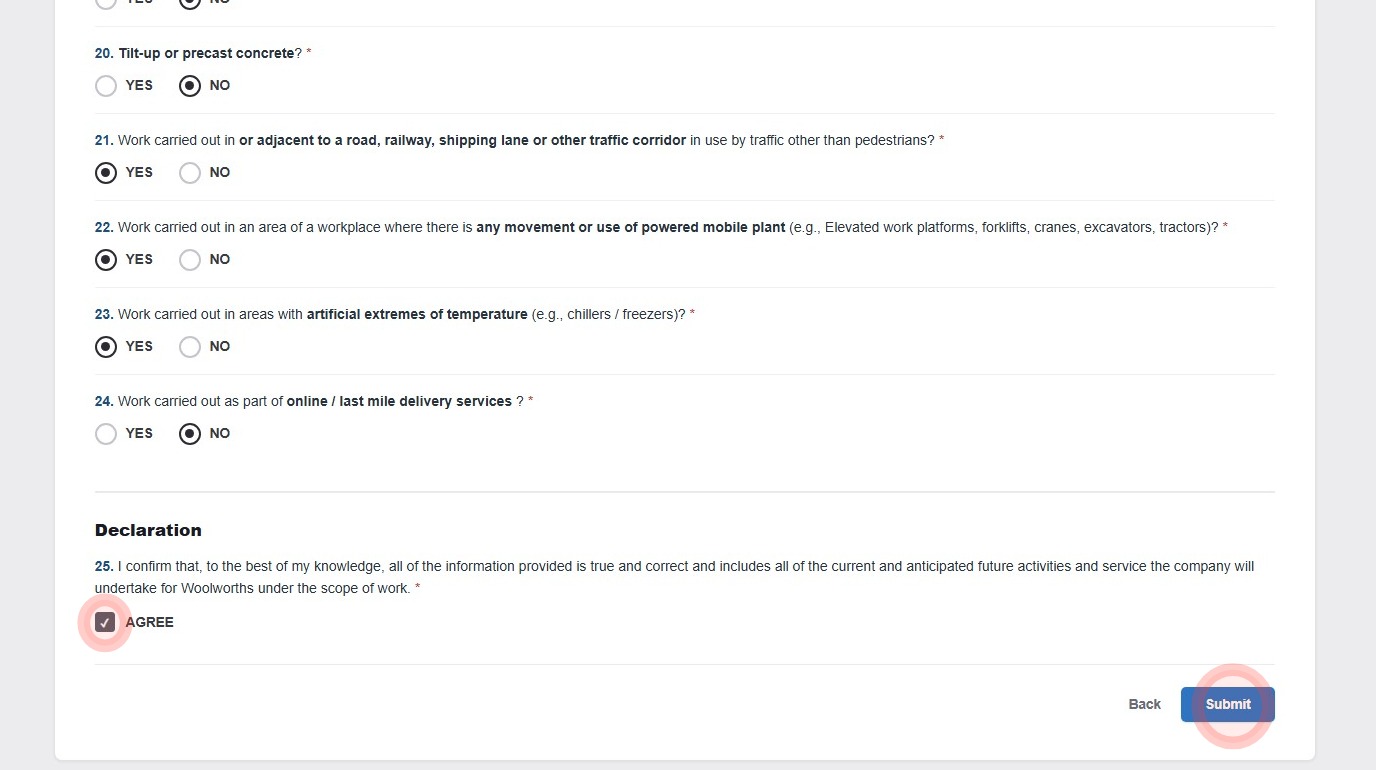
10. Click "Agree" and then "Submit" to finish the form.
Technical and Compliance Support
11. If you require help and guidance, you can find more helpful guides on the Help & Resources page found on the wowcontractor.com website, alternatively please contact the team at Site360.
- Technical Support - AUS 1300 853 990 | NZ 0800 115 710 or email support@site360.io
- Compliance and Portal Navigation - AUS 1300 853 990 | NZ 0800 115 710 or email compliance@site360.io