
How to Complete an EWAF in the Woolworths Group Visitor App
Made by Support Site360 with Scribe
This guide shows how to complete both the Pre and Post EWAF in the Woolworths Group Visitor App so work is authorised, safe, and compliant. It explains linking or manually entering Maximo work orders, adding technicians, selecting PPE and high‑risk activities, and how to sign and submit for Site Access Controller approval. It also covers recording parts, refrigerant handling, reattendance details, and final approval steps.
Completing both sections of the EWAF helps ensure work activities are properly authorised, documented, and completed in accordance with Woolworths Group safety and compliance requirements.
Pre-EWAF
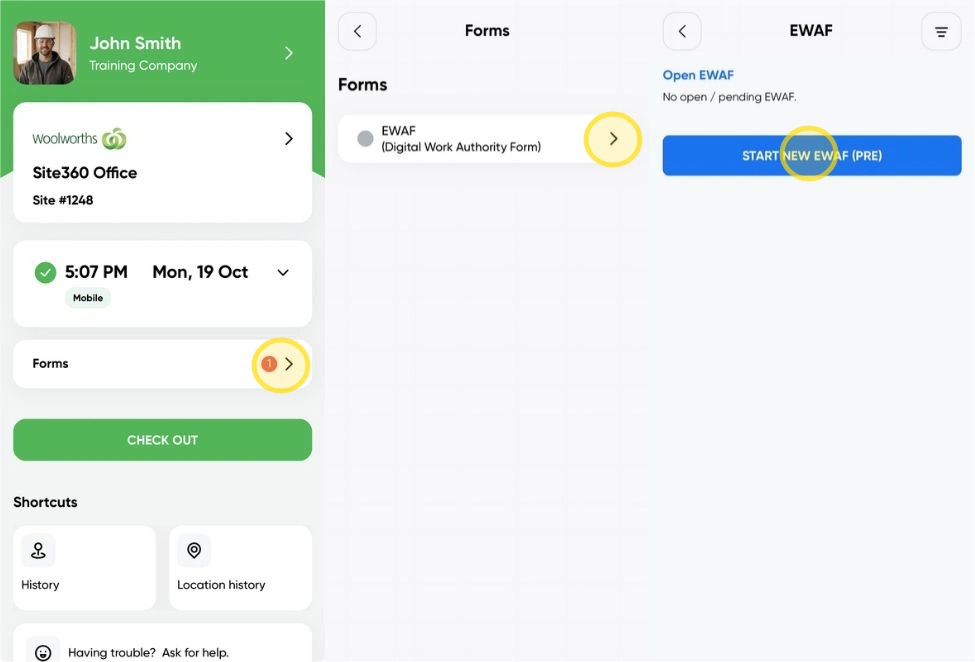
1. Once you have checked in to a site using the Woolworths Group Visitor App, click Forms, then select EWAF, and click Start New EWAF (Pre).
This will open a new EWAF (Pre) form for you to complete before commencing work.
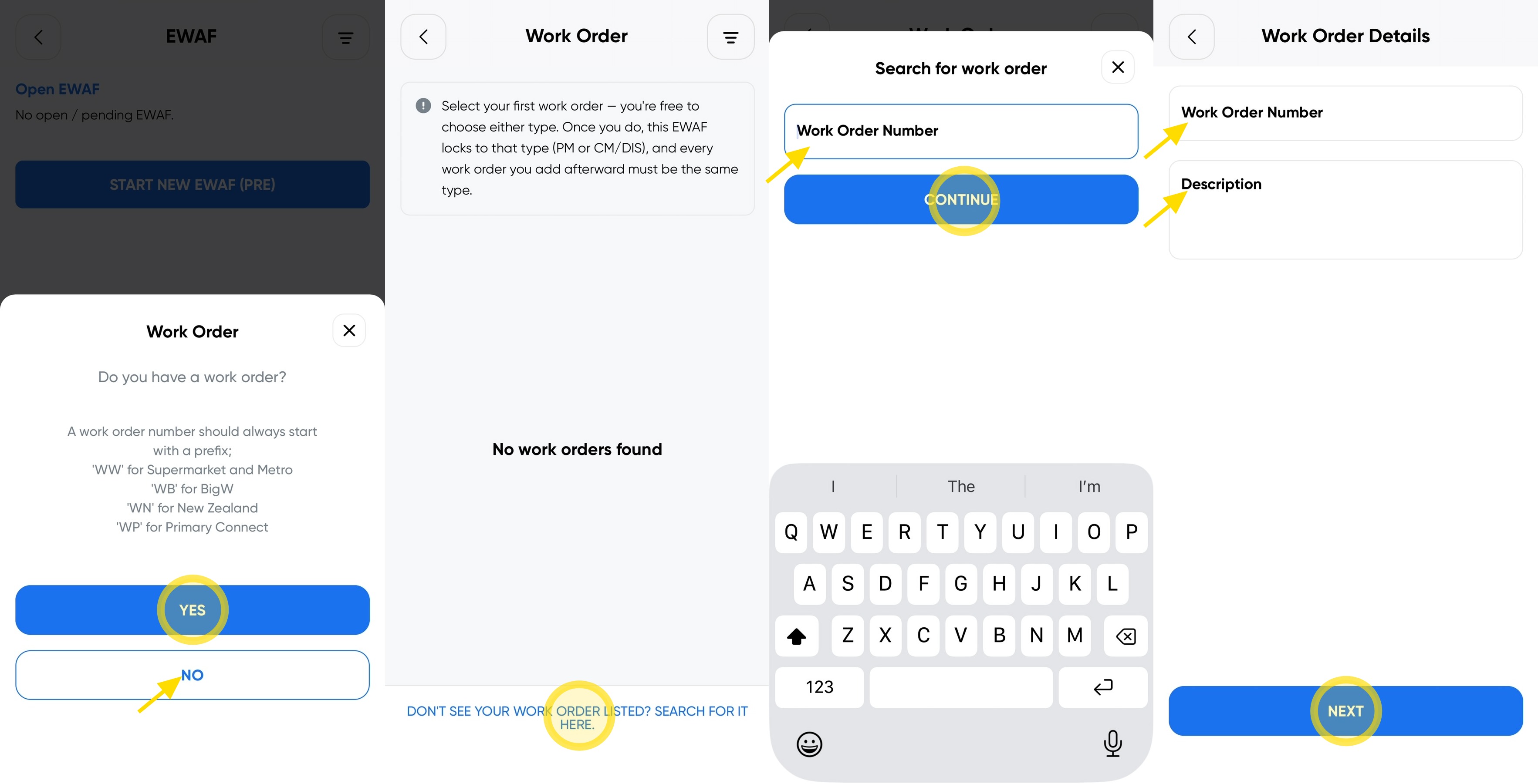
2. If your work is associated with a Maximo Work Order, you can select the relevant Work Order during the EWAF process.
When prompted, indicate whether you have a Work Order Number.
If your work is linked to a Maximo Work Order:
- A list of Work Orders assigned to your company and the selected site will be displayed.
- Select the correct Work Order from the list.
- If you cannot find the Work Order, use the search option at the end of the list and enter the full Work Order Number, including the prefix.
- Once selected, the Work Order Number and Description fields will automatically populate in the EWAF.
- If your unable to locate your Work Order Number, follow the Manual Entry option below.
If your work is not linked to a Maximo Work Order:
- Select No when asked if you have a Work Order Number.
- The Work Order Number and Description fields will become editable.
- Enter the Work Order Number and a brief description of the service your providing.
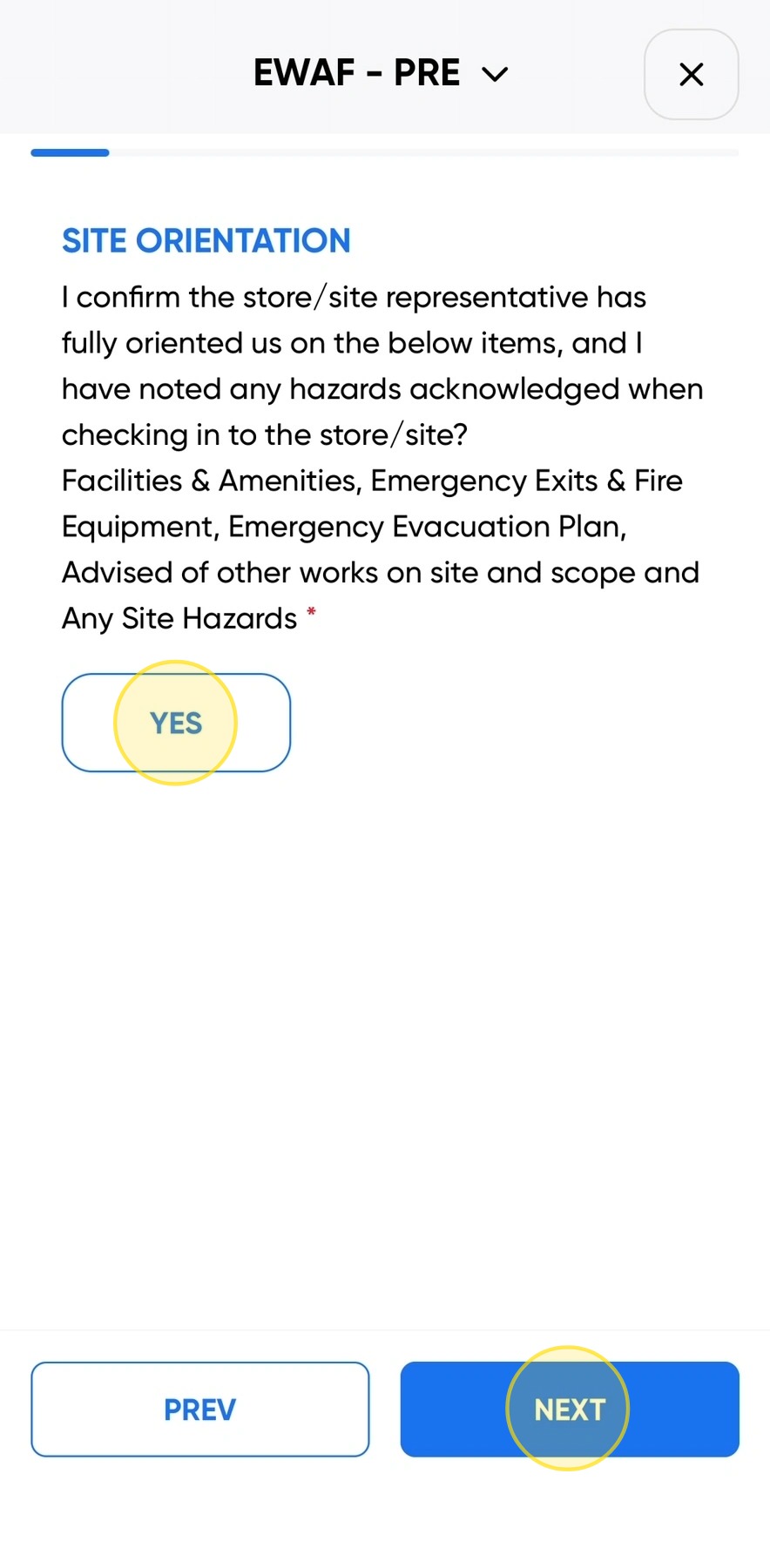
3. Read the Site Orientation and confirm that you have completed the required orientation.
Select Yes, then click Next to confirm and proceed to the next step of the EWAF process.
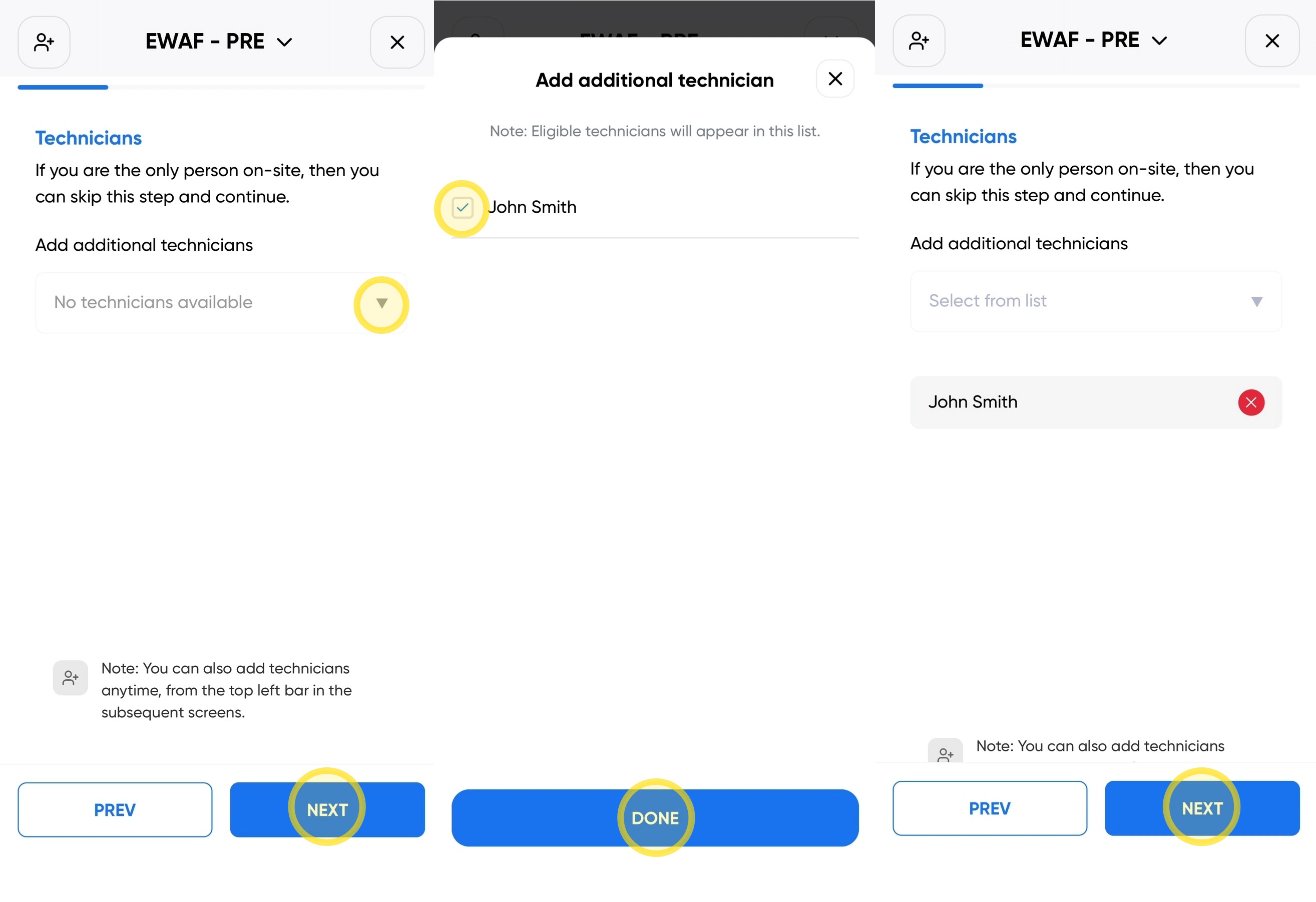
4. You can add additional technicians to an EWAF when multiple people are completing work under the same authority.
Before you can add another technician to the EWAF, they must be checked in to the site using the Woolworths Group Visitor App.
When adding additional technicians:
- Ensure each technician has successfully checked in to the site, prior to starting the EWAF.
- Select the additional technician(s) from the list of checked-in visitors.
- Confirm that all technicians participating in the work have been added to the EWAF.
This ensures everyone involved in the work is recorded against the EWAF and accounted for from a safety, compliance, and site attendance perspective.
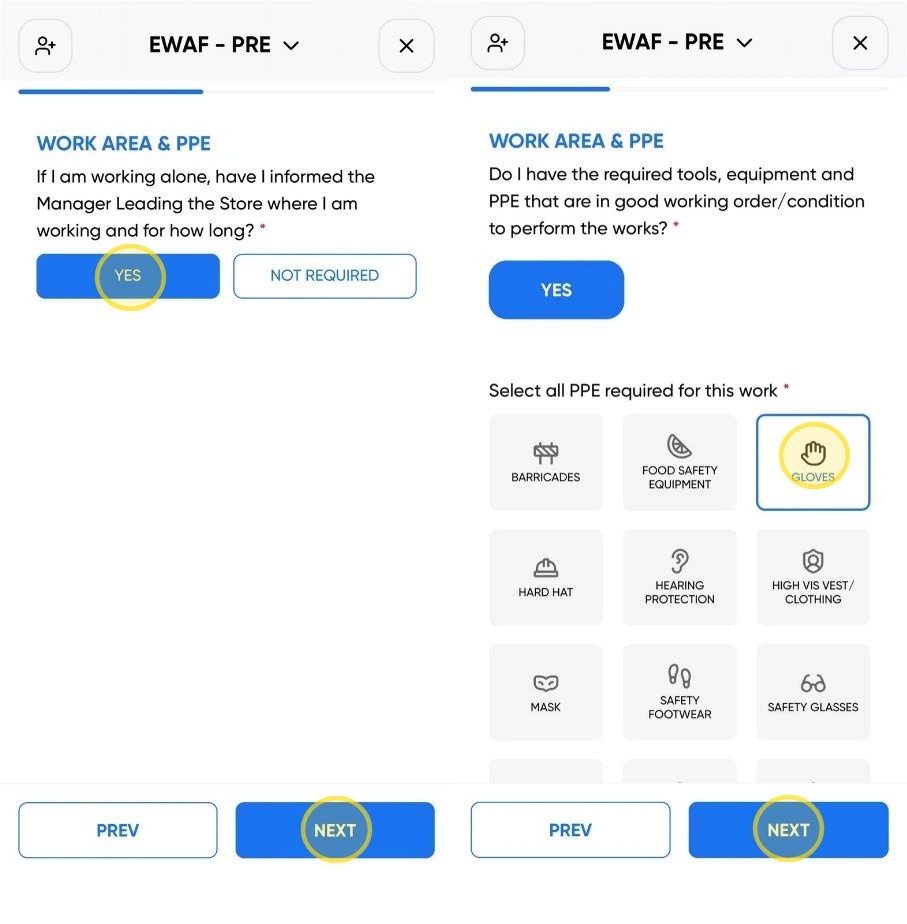
5. Confirm whether you require the appropriate Personal Protective Equipment (PPE) for the work you are completing.
If PPE is required, select Yes, then choose the PPE required for the task and click Next to continue.
If PPE is not required, select Not Required and then click Next to continue.
Please note: Ensure you have access to and are wearing the required PPE before commencing any work activities.
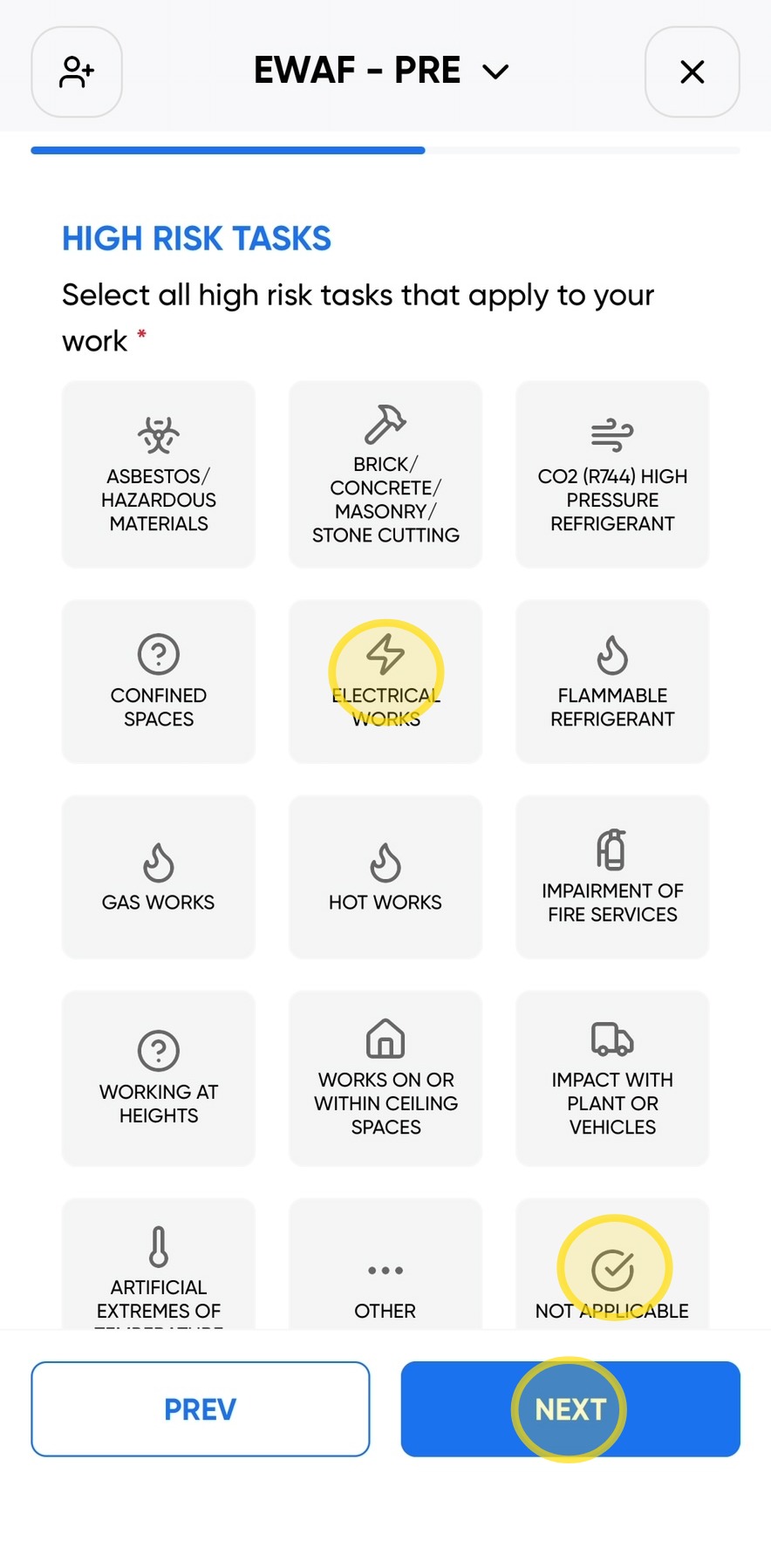
6. If your work involves High Risk Work, select the applicable activity or activities from the list provided.
If your work does not involve High Risk Work, select Not Applicable and then click Next to continue.
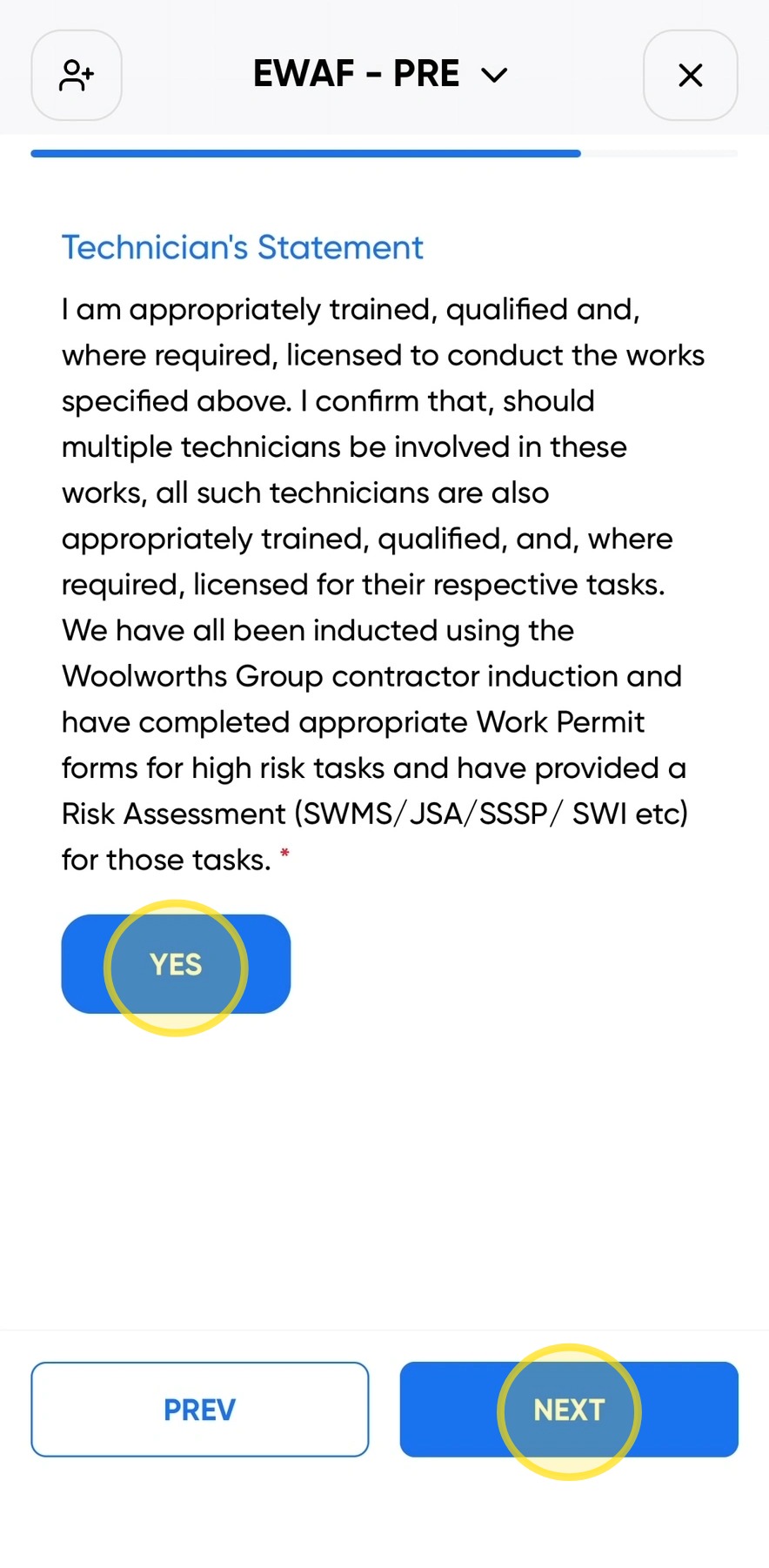
7. Read the Technician Statement carefully.
If you understand and agree to the statement, select Yes, then click Next to continue.
Please note: By selecting Yes, you are confirming that you understand and will comply with the requirements outlined in the Technician Statement before commencing work.
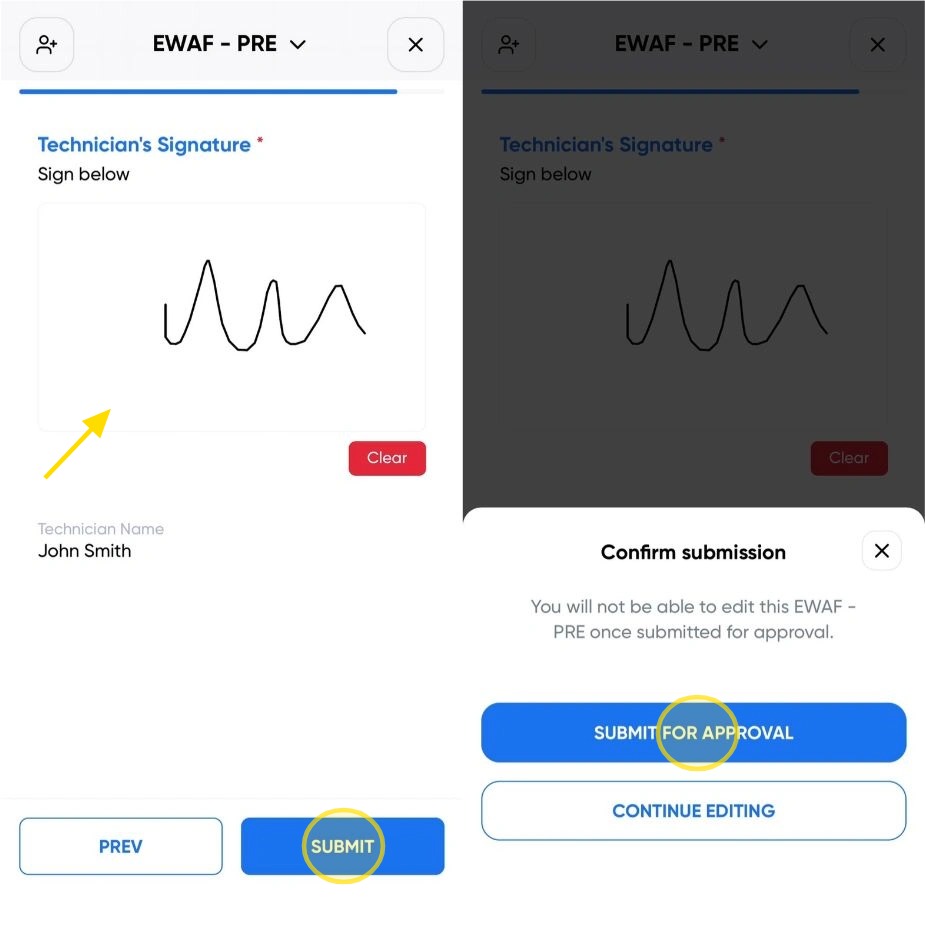
8. Sign in the signature box, then click Submit. Confirm your submission by clicking Submit for Approval.
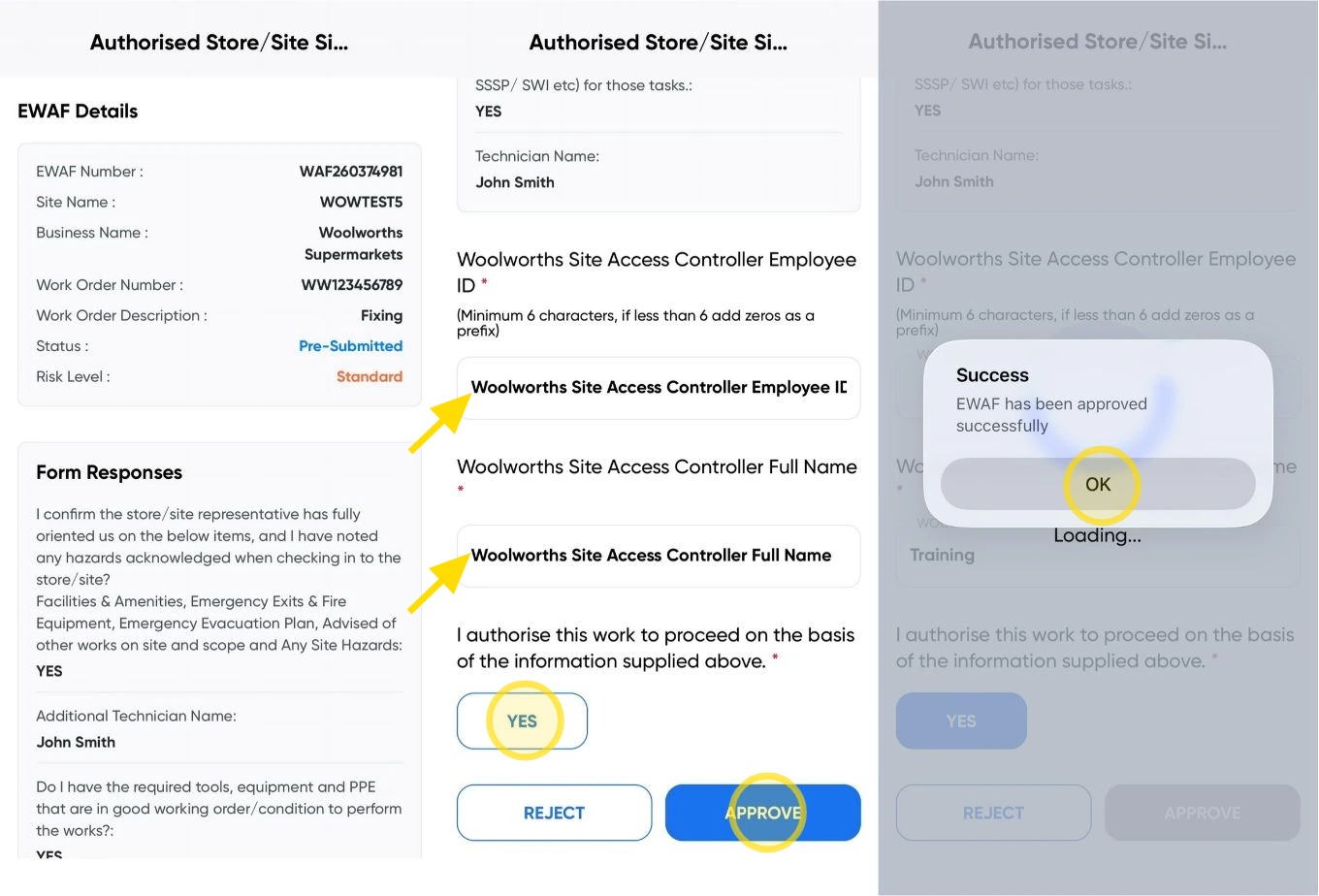
9. Once you have submitted the EWAF for approval, a Site Access Controller (SAC) will need to review and approve it.
Locate a SAC on site and ask them to review your completed EWAF.
If the SAC approves the work, they should select Yes, enter their Employee ID and Name, and then click Approve.
Once approved, your EWAF will be authorised, and you can proceed in accordance with the site's requirements.
Post EWAF
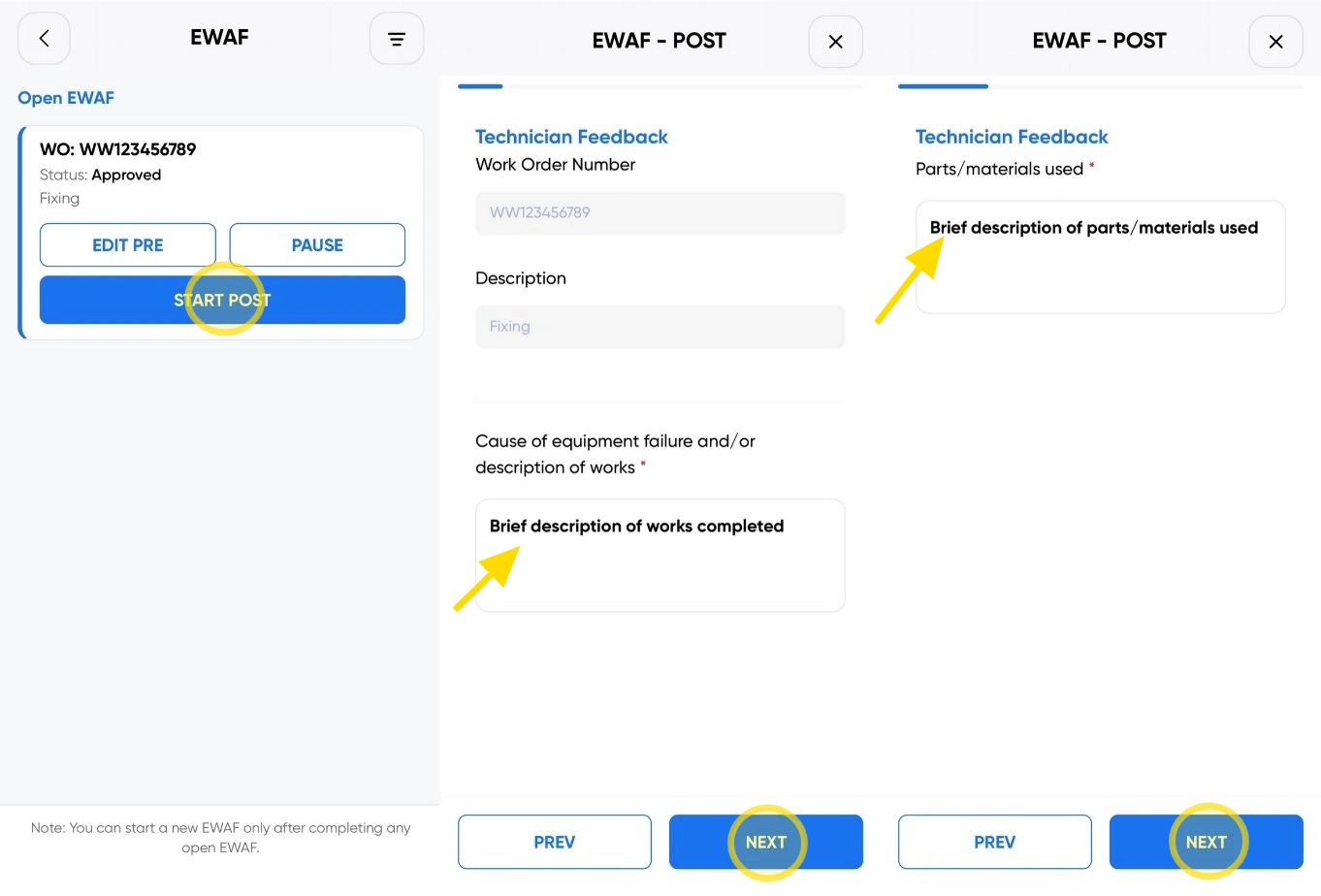
10. To start the Post EWAF, click Start Post.
Enter a brief description of the work completed, then click Next.
On the following screen, enter the parts and materials used during the work and click Next to continue.
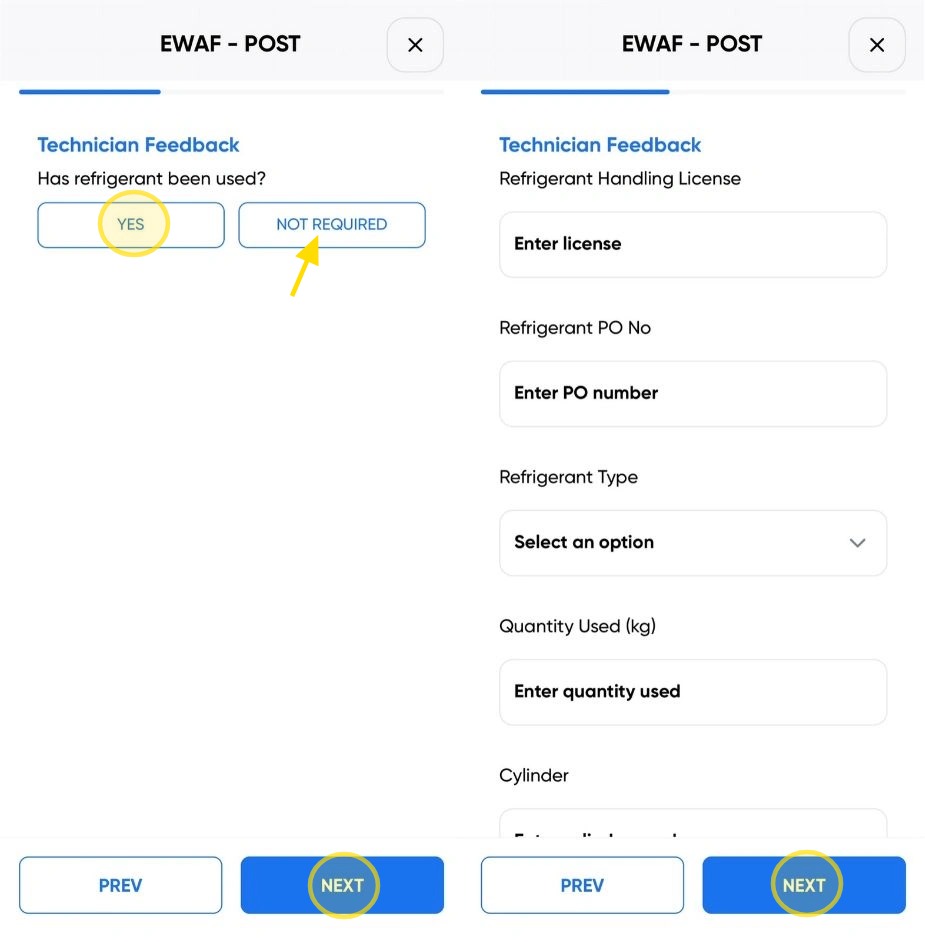
11. If the work you are performing requires the handling of refrigerant, select Yes, enter your Refrigerant Handling Licence details along with all requested information, and then click Next.
If your work does not require the handling of refrigerant, select Not Required and then click Next to continue.
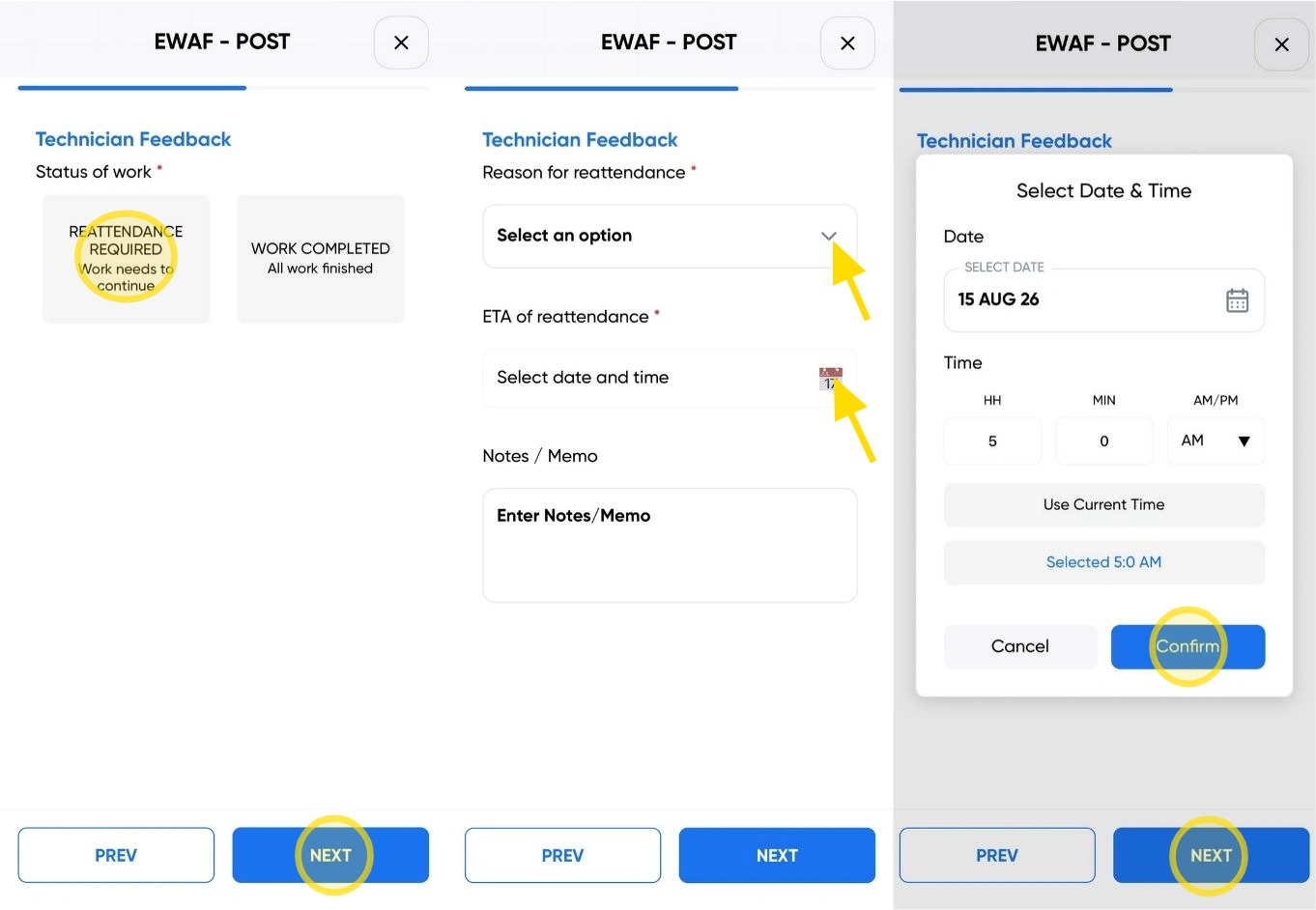
12. If your work has been completed during the visit, select Work Completed and then click Next.
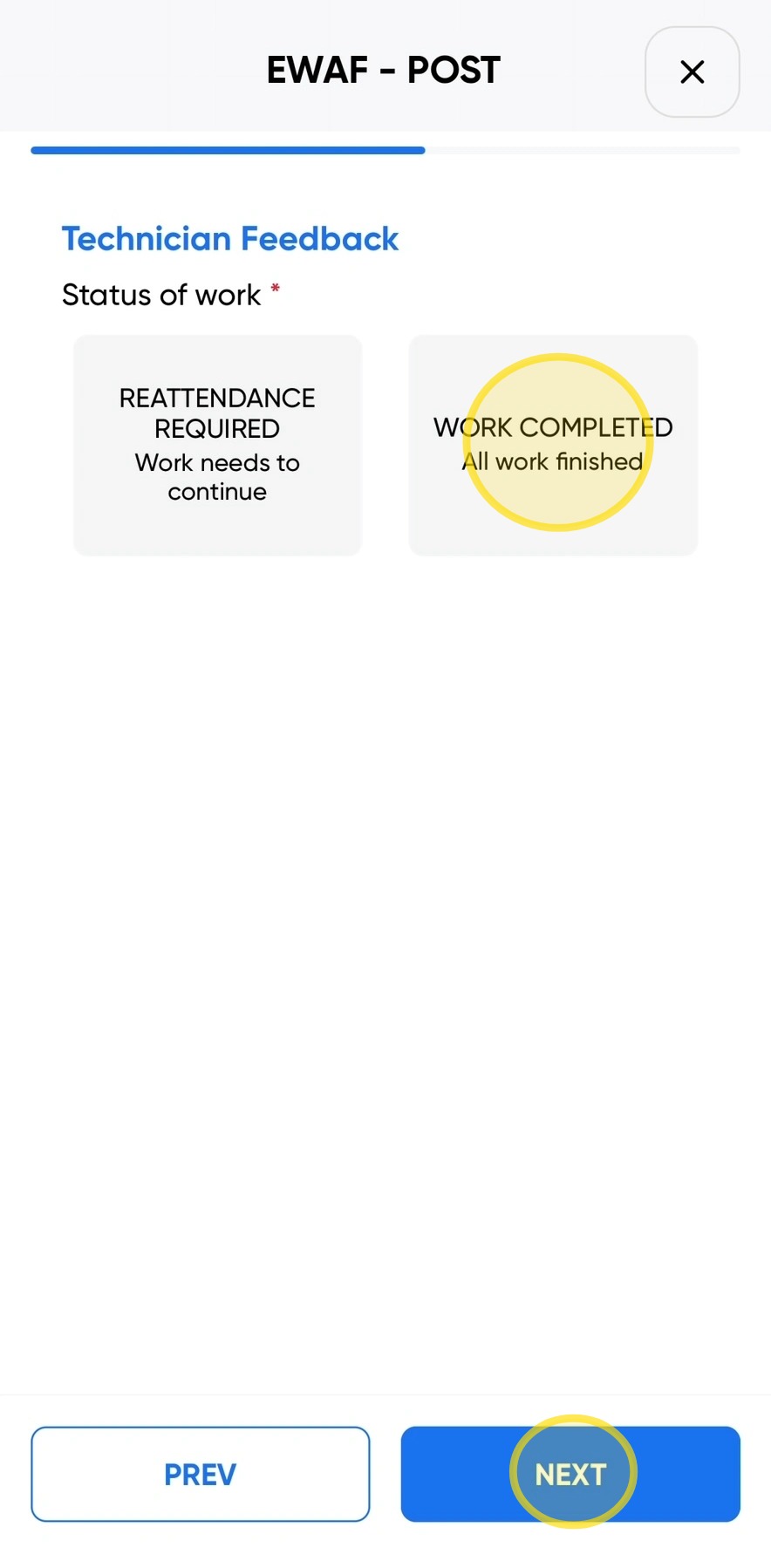
13. If your work has not been completed and a return visit is required, select Reattendance Required.
Enter the reason why a reattendance is required and provide the estimated time and date of return (ETA).
Once you have entered the required information, click Confirm, then click Next.
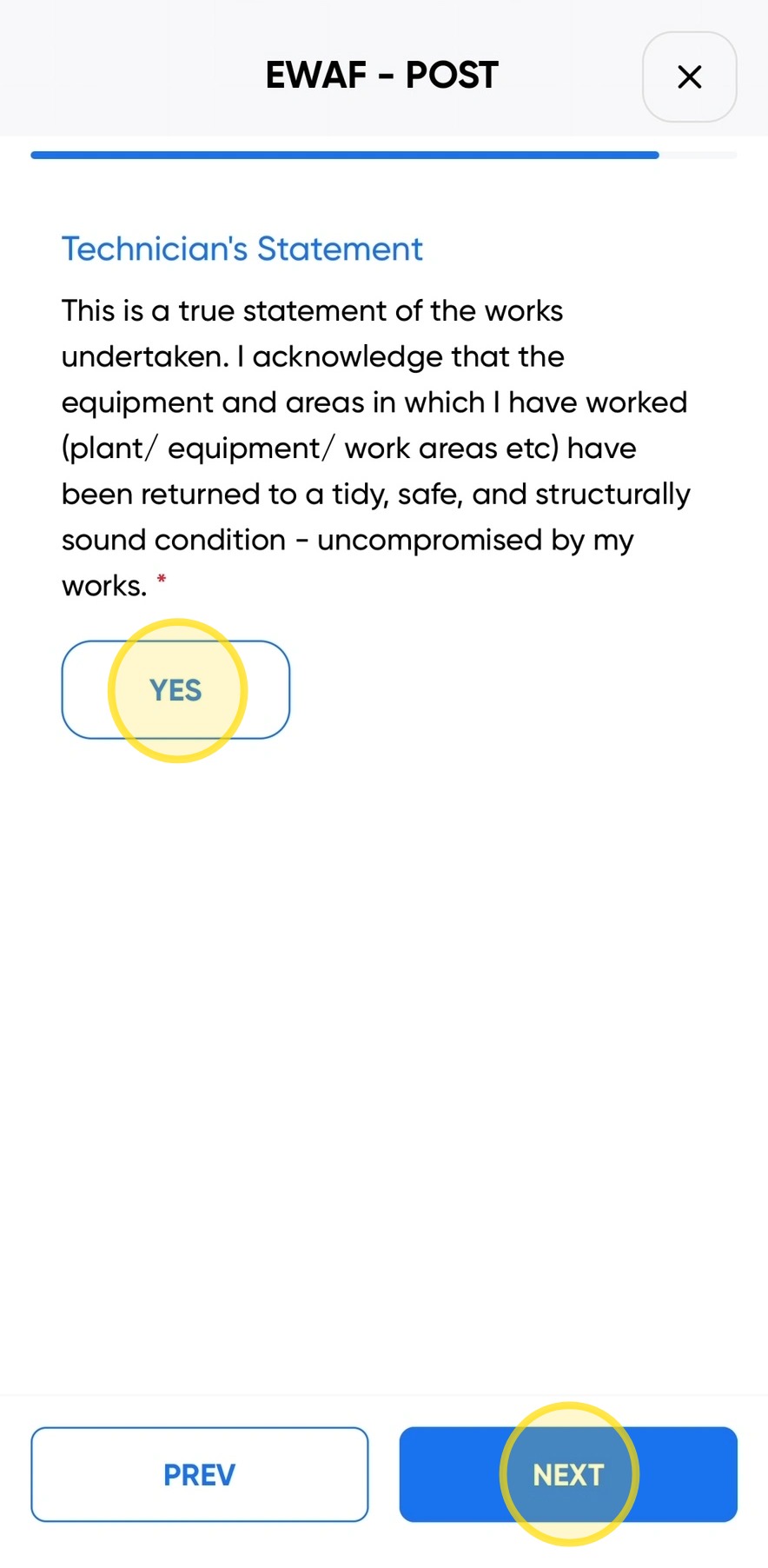
14. Read the Technician's Statement carefully.
If you understand and agree to the statement, select Yes and then click Next to continue.
Please note: By selecting Yes, you confirm that the information provided is accurate and that you will comply with the requirements outlined in the Technician's Statement.
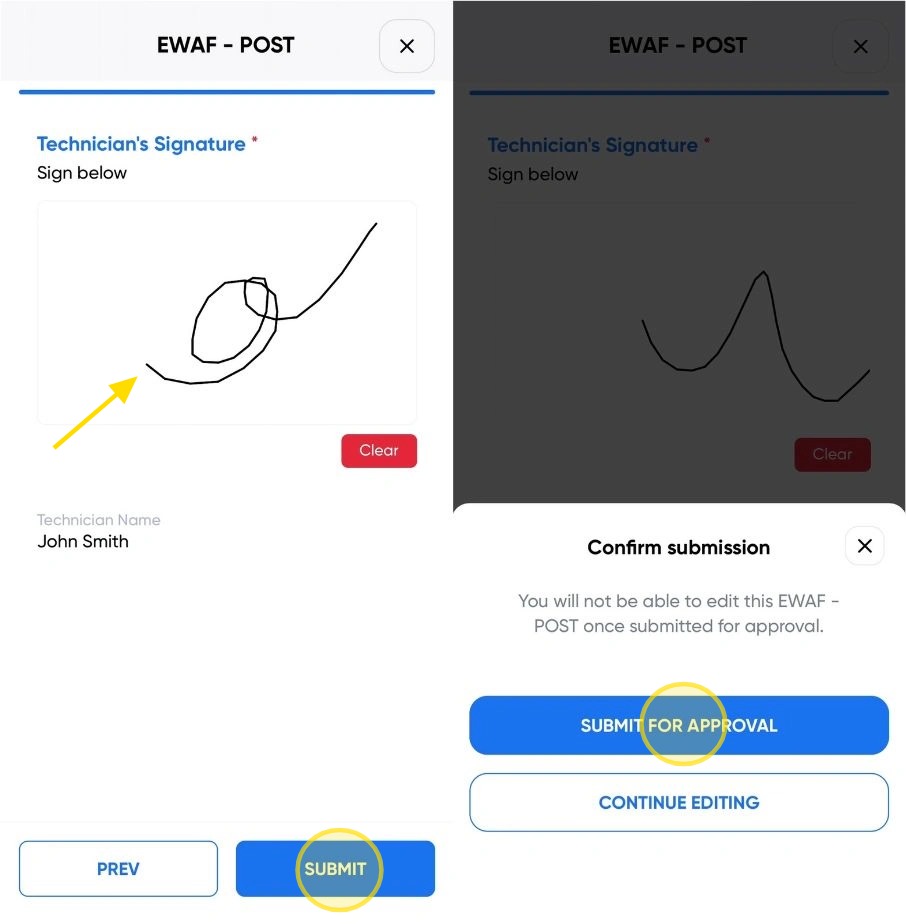
15. Sign in the Signature box, then click Submit, then Submit For Approval.
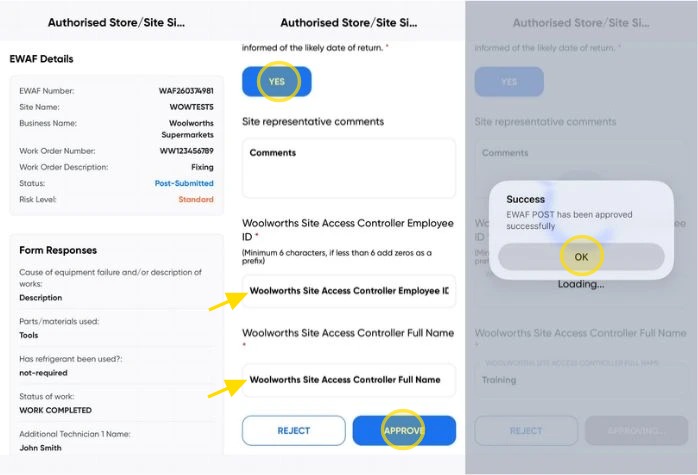
16. You will now need to find a Site Access Controller (SAC) to review and approve the Post EWAF.
The SAC will need to:
- Select Yes to confirm their approval.
- Enter their Employee ID.
- Enter their Full Name.
- Click Approve.
Once approved, the Post EWAF process will be complete. Click Ok to return to the check in screen.
Woolworths Group Visitor App

Technical Support
If you require help and guidance, you can find more helpful guides on the Help & Resources page found on the wowcontractor.com website, alternatively please contact the Support team at Site360.
Phone - AUS 1300 853 990 | NZ 0800 115 710
Email - support@site360.io


