
Creating a New User in the Woolworths Group Visitor App
Made by Support Site360 with Scribe
This guide walks you step-by-step through setting up a secure, verified user profile in the Woolworths Group Visitor app, including enabling location services, verifying your phone, adding company details, uploading a compliant profile photo and accreditations, and creating a PIN. It highlights required permissions, privacy links, and notification settings so you won’t miss essential site communications. Troubleshooting and support contacts are also provided.
Woolworths Group Visitor App Download
1. Download the Woolworths Group Visitor App from the App Store or Google Play Store.
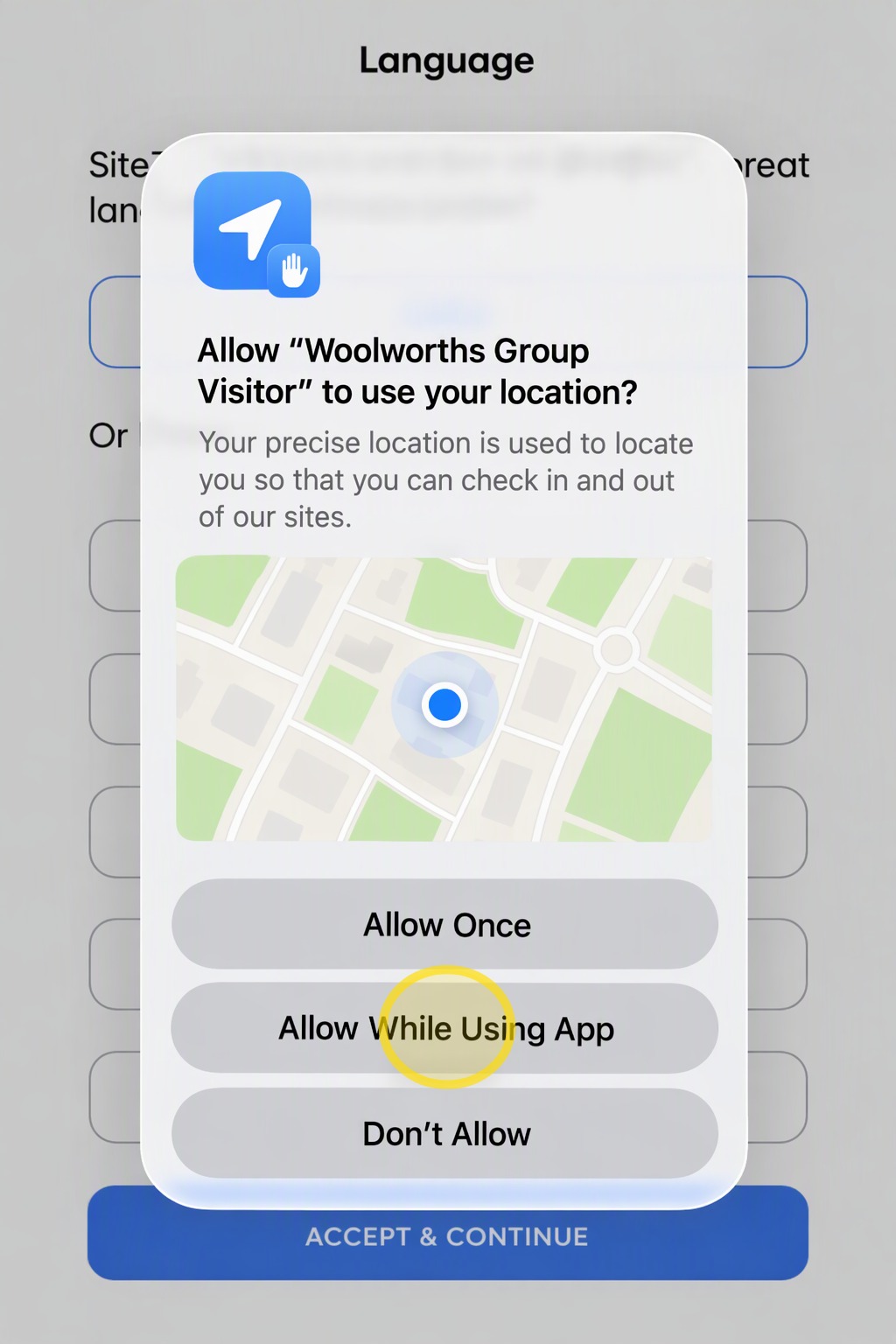
Location Services
2. The Woolworths Group Visitor App requires location services to be enabled on your device. This allows the app to confirm your location and enables you to check in and out of sites.
When prompted, click Allow While Using App to enable location services.
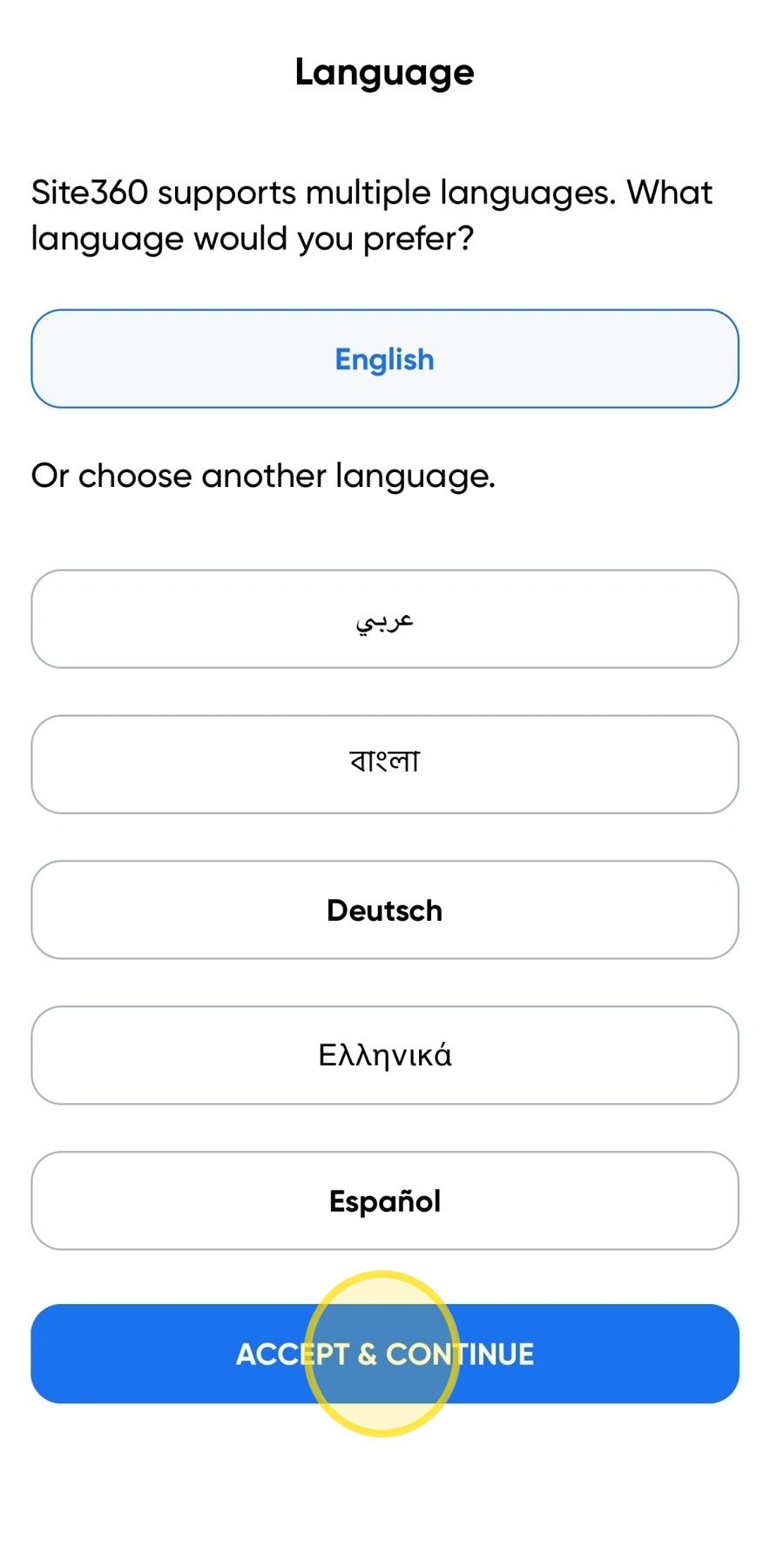
Language and Data Promise
3. Select your Language, then click Accept & Continue.
The app will now be displayed in your selected language.
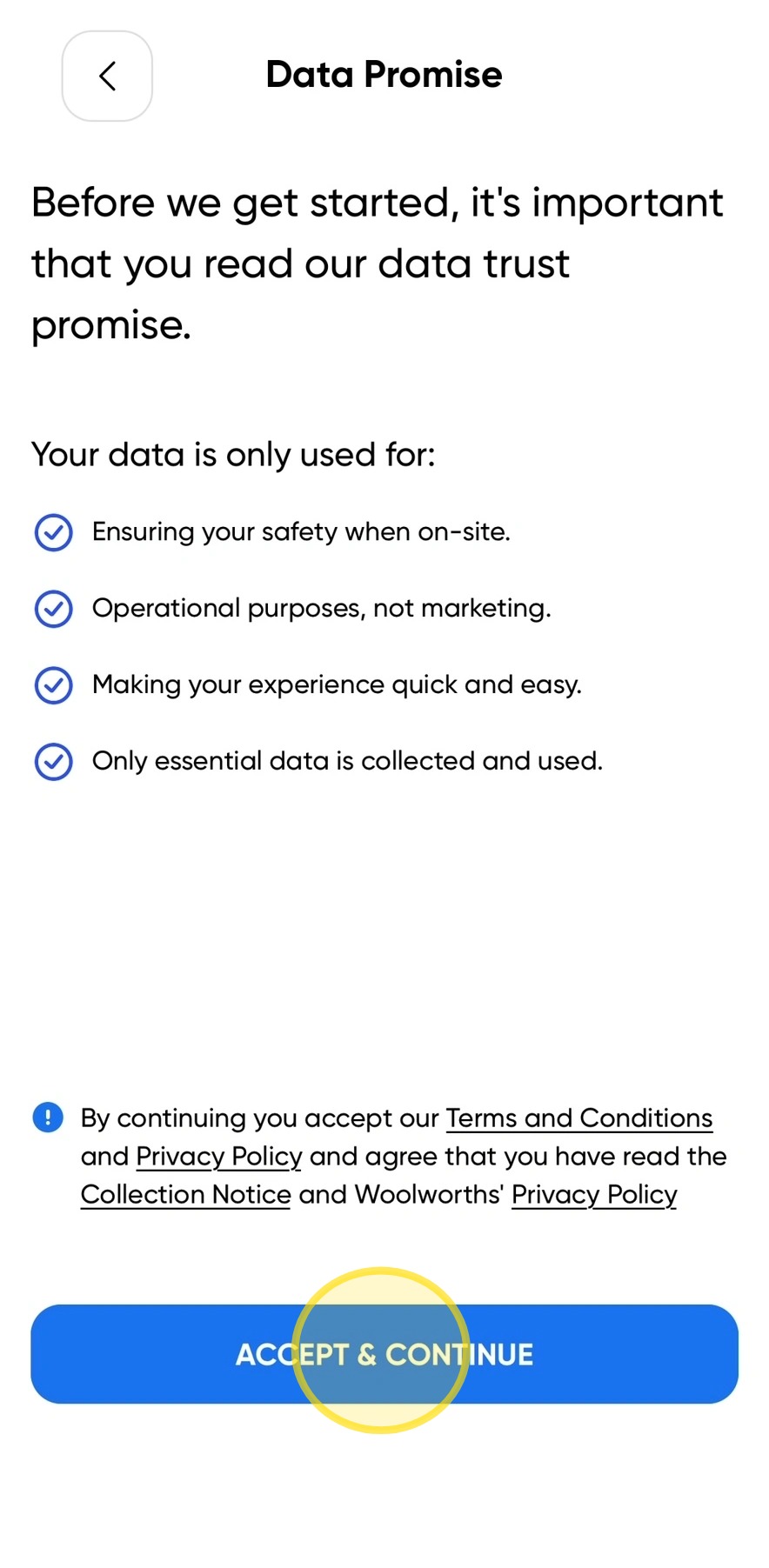
4. Read our Data Promise, then click Accept & Continue.
Please note: you can read the Terms and Conditions, Privacy Policy, Collection Notice and Woolworths Groups Privacy Policy by click on the links in the app.
Creating a New User
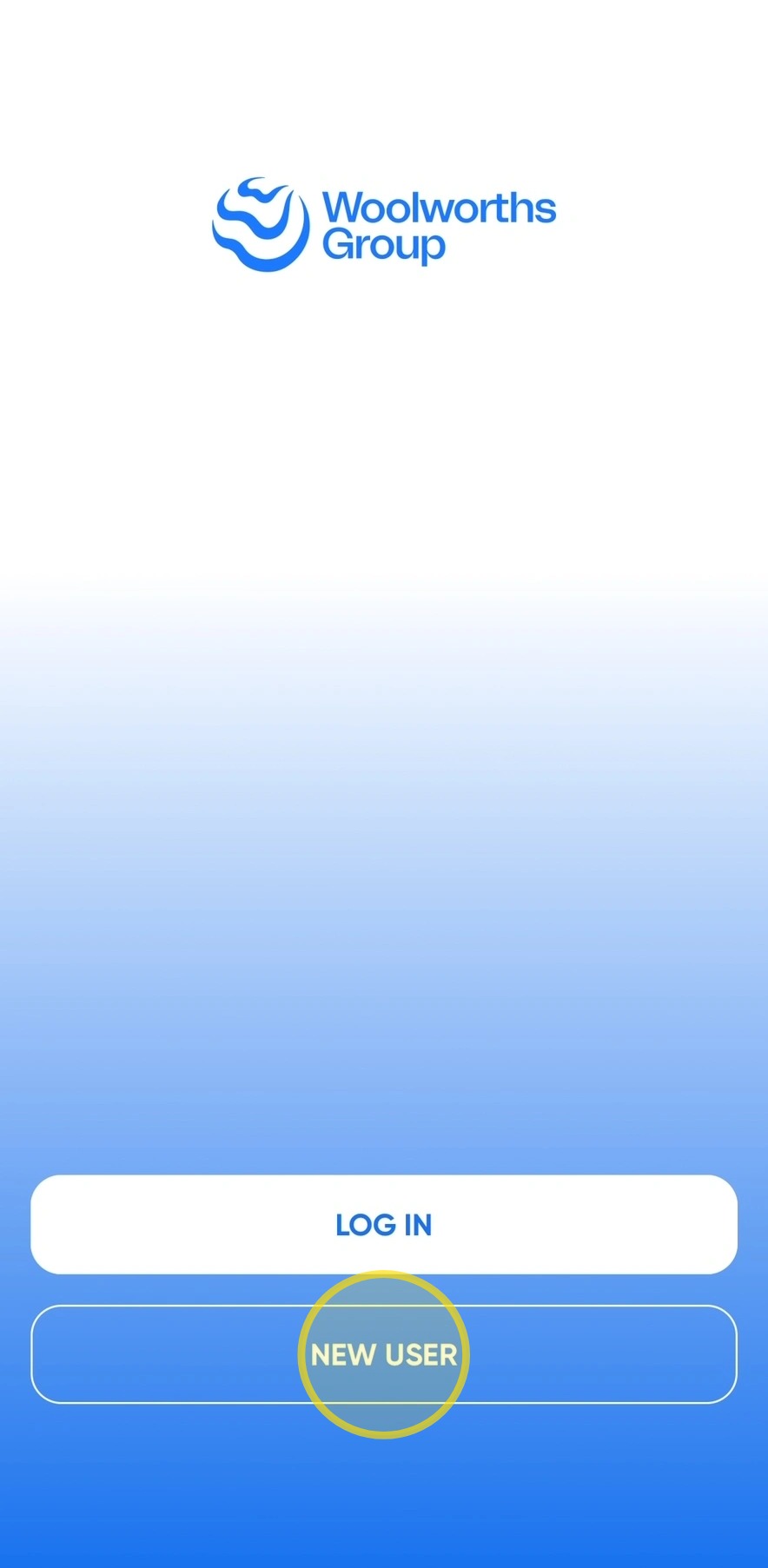
5. Open the app and click New User to begin creating your profile.
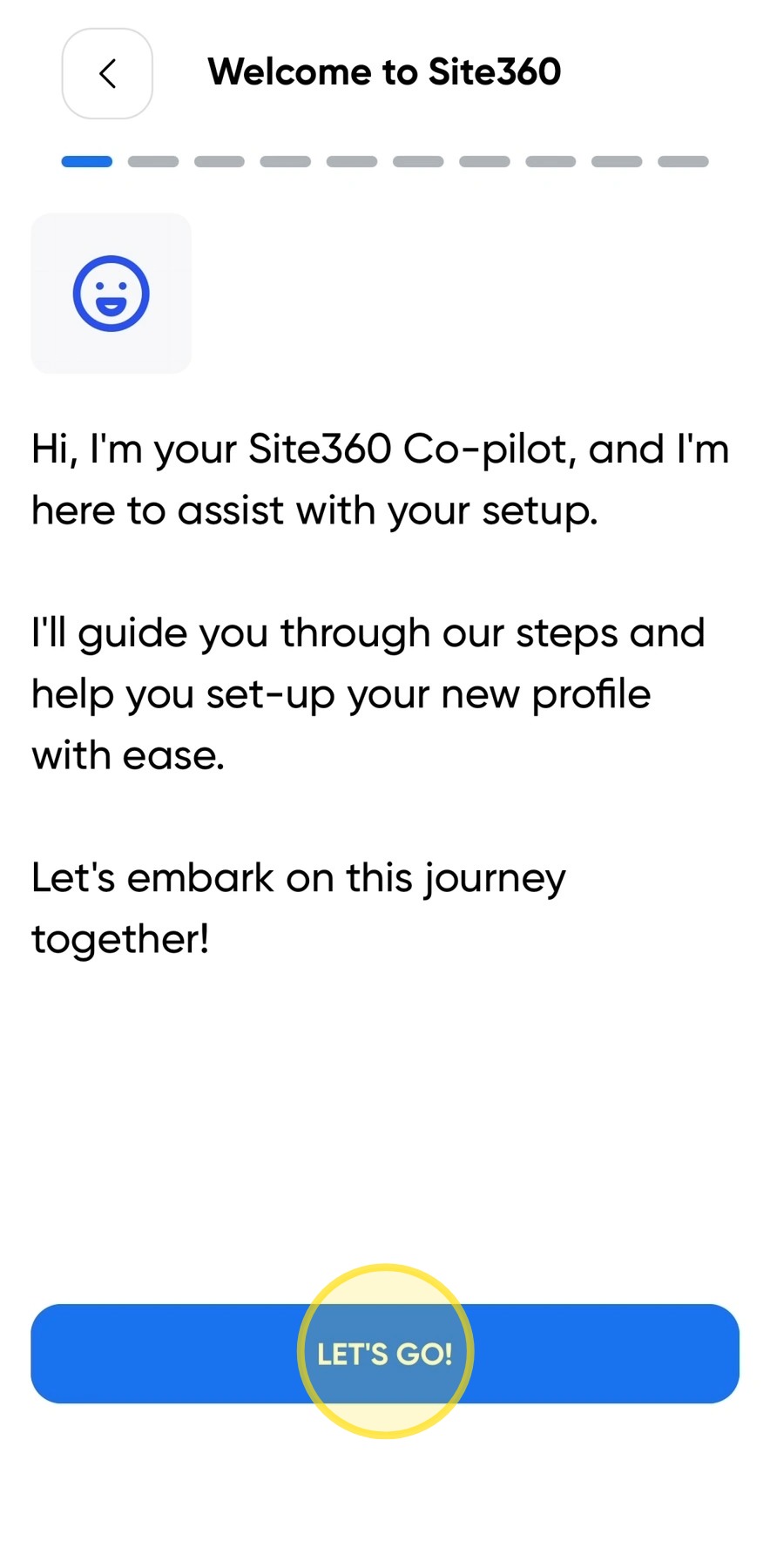
6. Read the Welcome to Site360 information, then click Let's Go to continue.
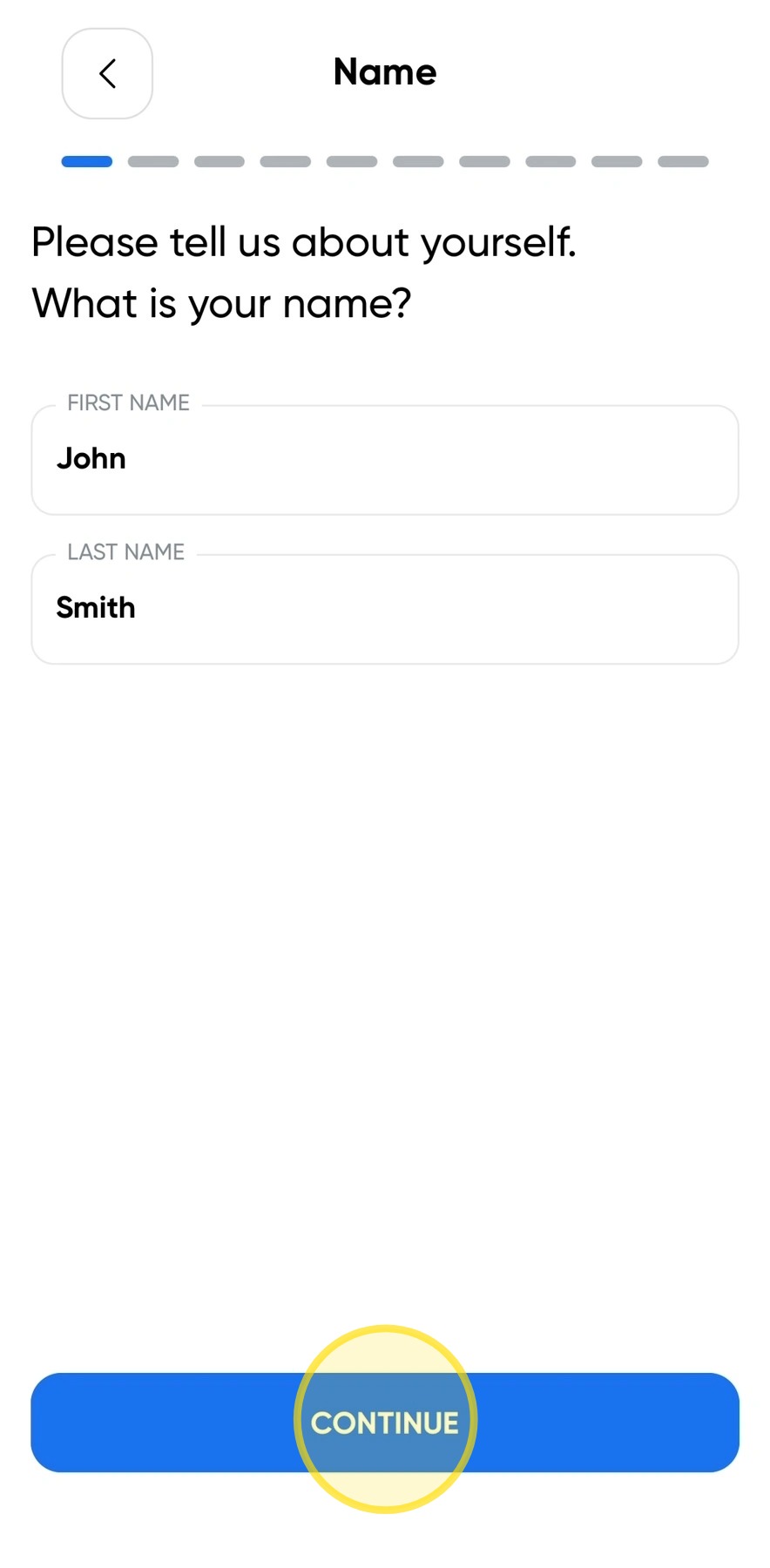
7. Enter your First Name and Last Name, then click Continue.
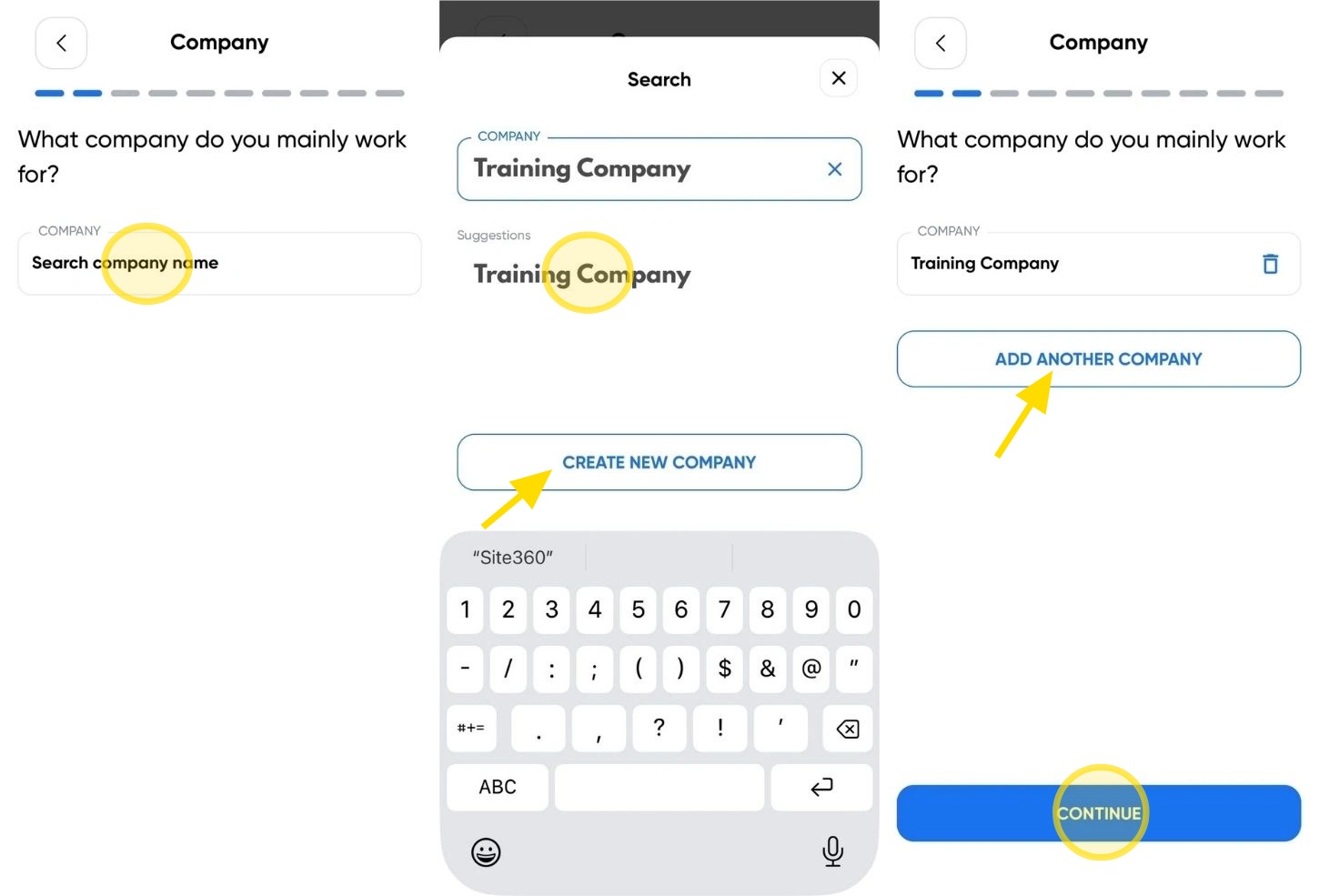
8. Click Company and enter your company name. If your company appears in the list, select it. If your company does not appear in the list, click Create New Company.
If you work for multiple companies, click Add Another Company and follow the same process to add each company.
Once you have added all companies, click Continue.
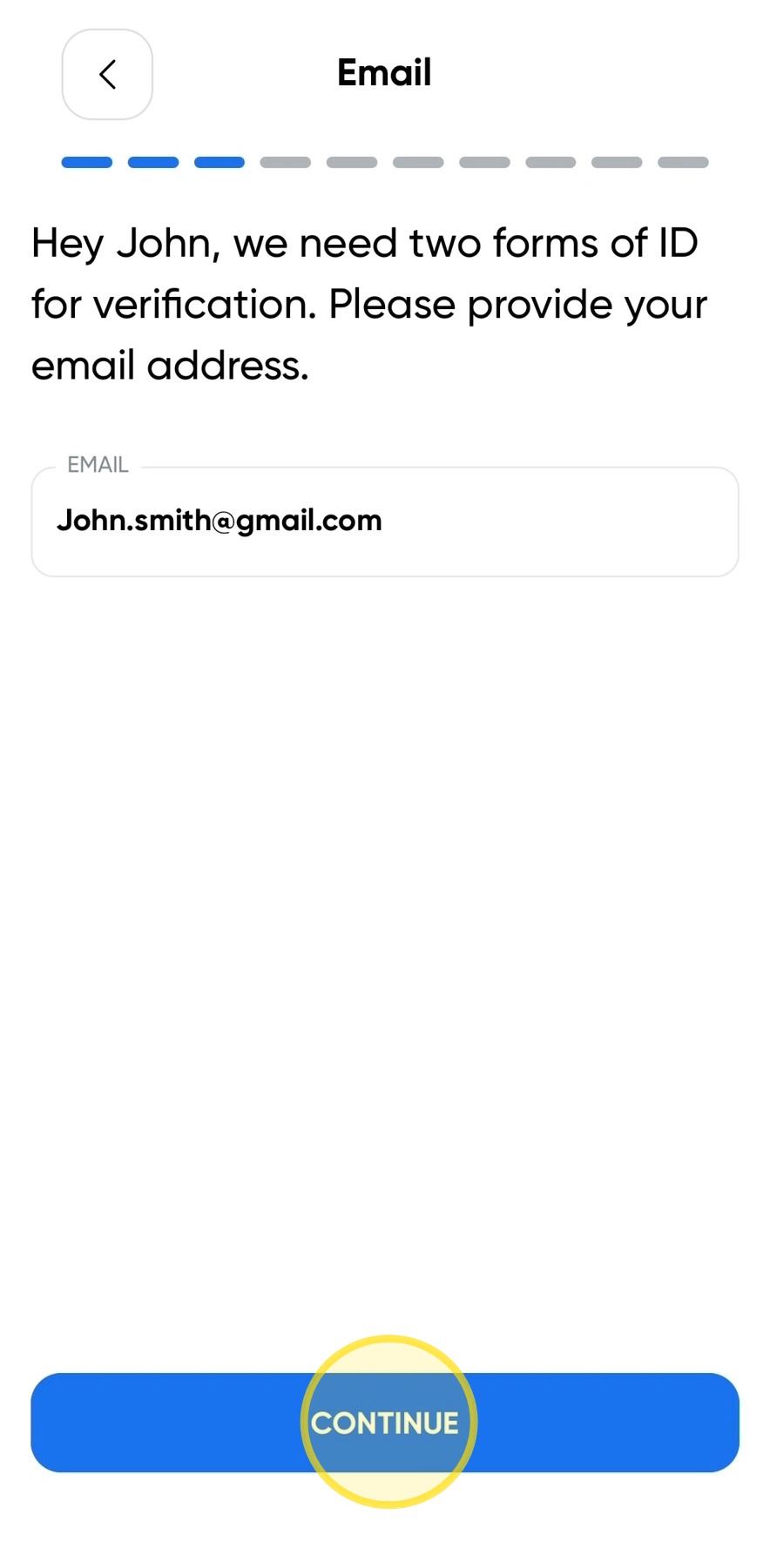
9. Enter your Email Address, then click Continue.
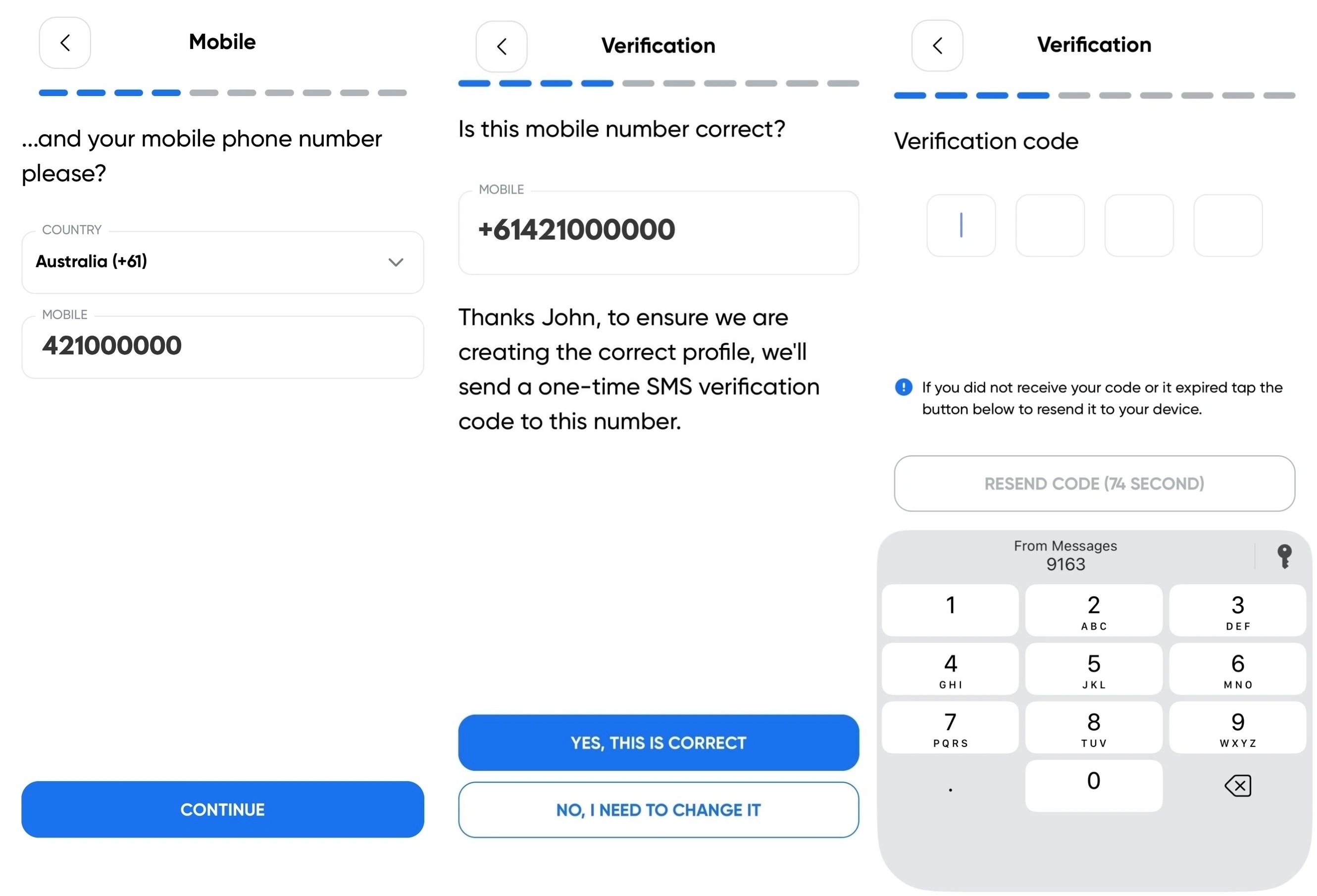
10. Select your Country Code, enter your Phone Number, and click Continue.
Confirm that your phone number is correct, then click Yes, This Is Correct.
You will receive a text message with a verification code. Enter the code to verify your phone number.
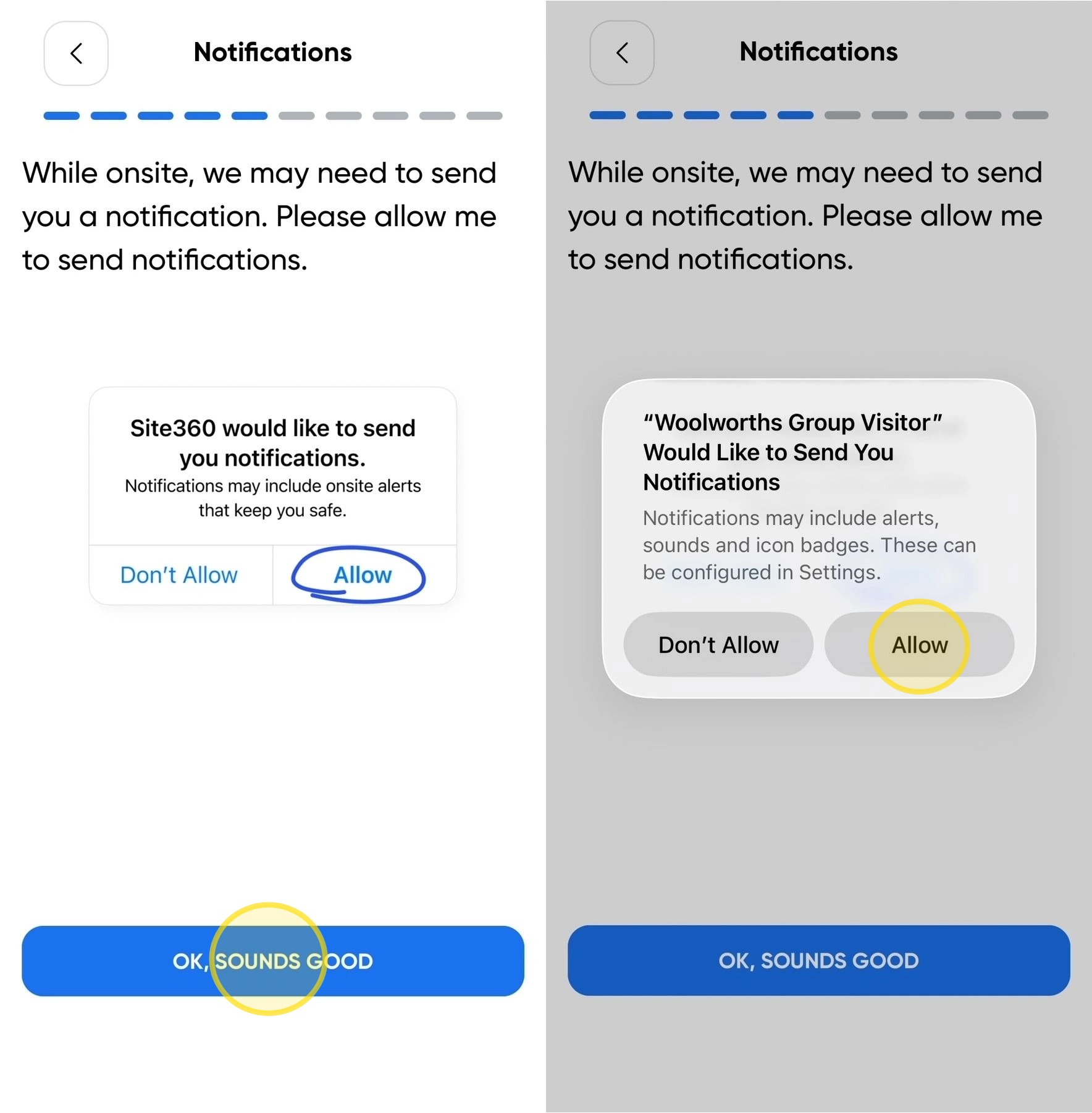
11. Click Ok, Sounds Good, then click Allow to enable notifications.
Allowing notifications ensures you receive important updates, reminders, and site-related communications through the app.
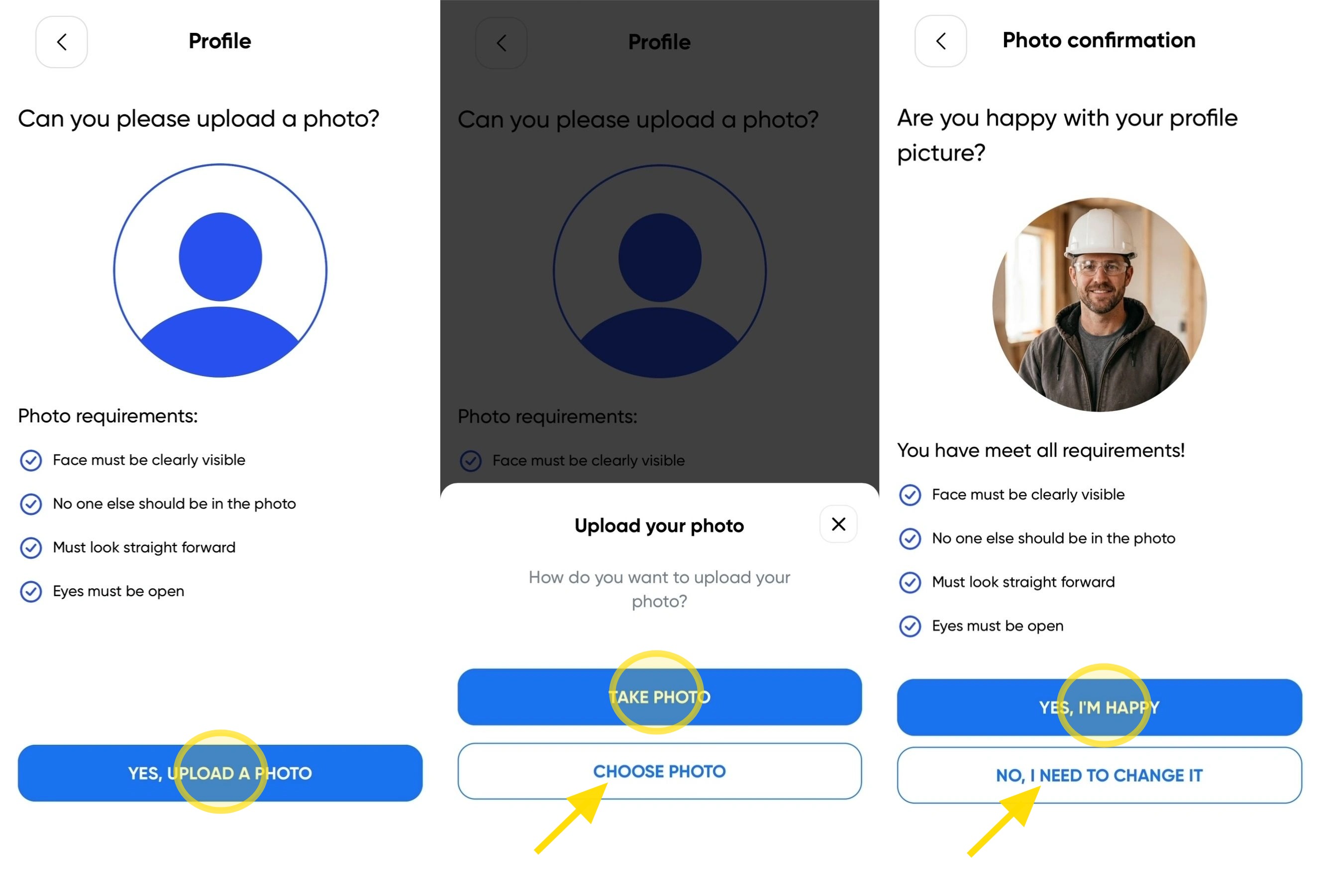
12. You will be required to upload a Profile Photo of yourself. Click Yes, Upload A Photo.
Click Take Photo to take a new photo, or Choose Photo to select an existing photo from your camera roll.
Please note: Your photo must clearly show your face, with your eyes open and looking straight ahead. No other people should be visible in the photo.
Once your photo has been uploaded, click Yes, I'm Happy to confirm it, or No, I Need to Change It if you would like to upload a different photo.
13. If you have any accreditations you would like to upload, click Accreditations and follow the prompts to upload them.
A guide on how to upload accreditations is available on the Help and Resources page.
You can upload your accreditations at a later time. If you do not wish to upload any accreditations at this time, click Continue.
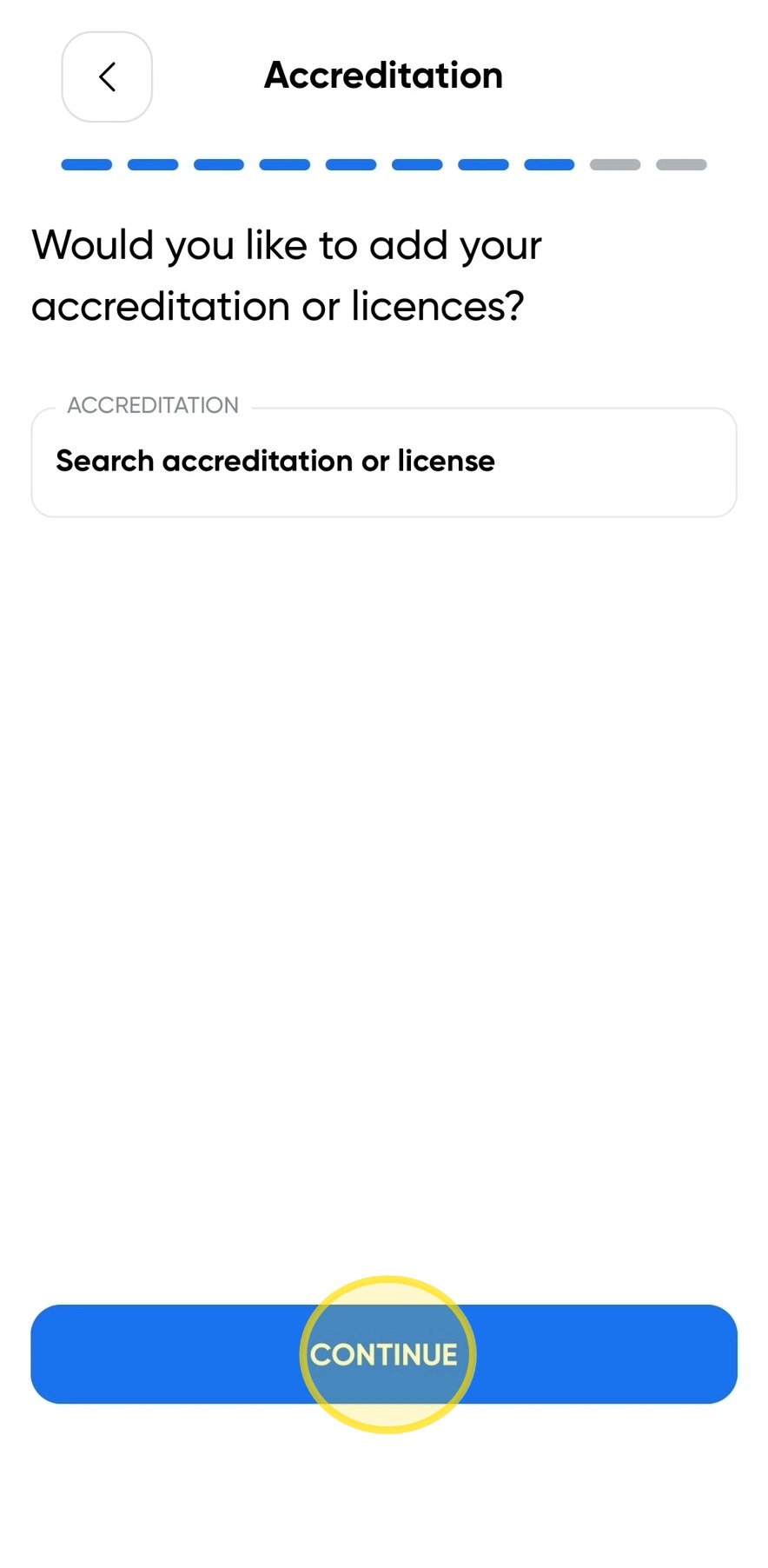
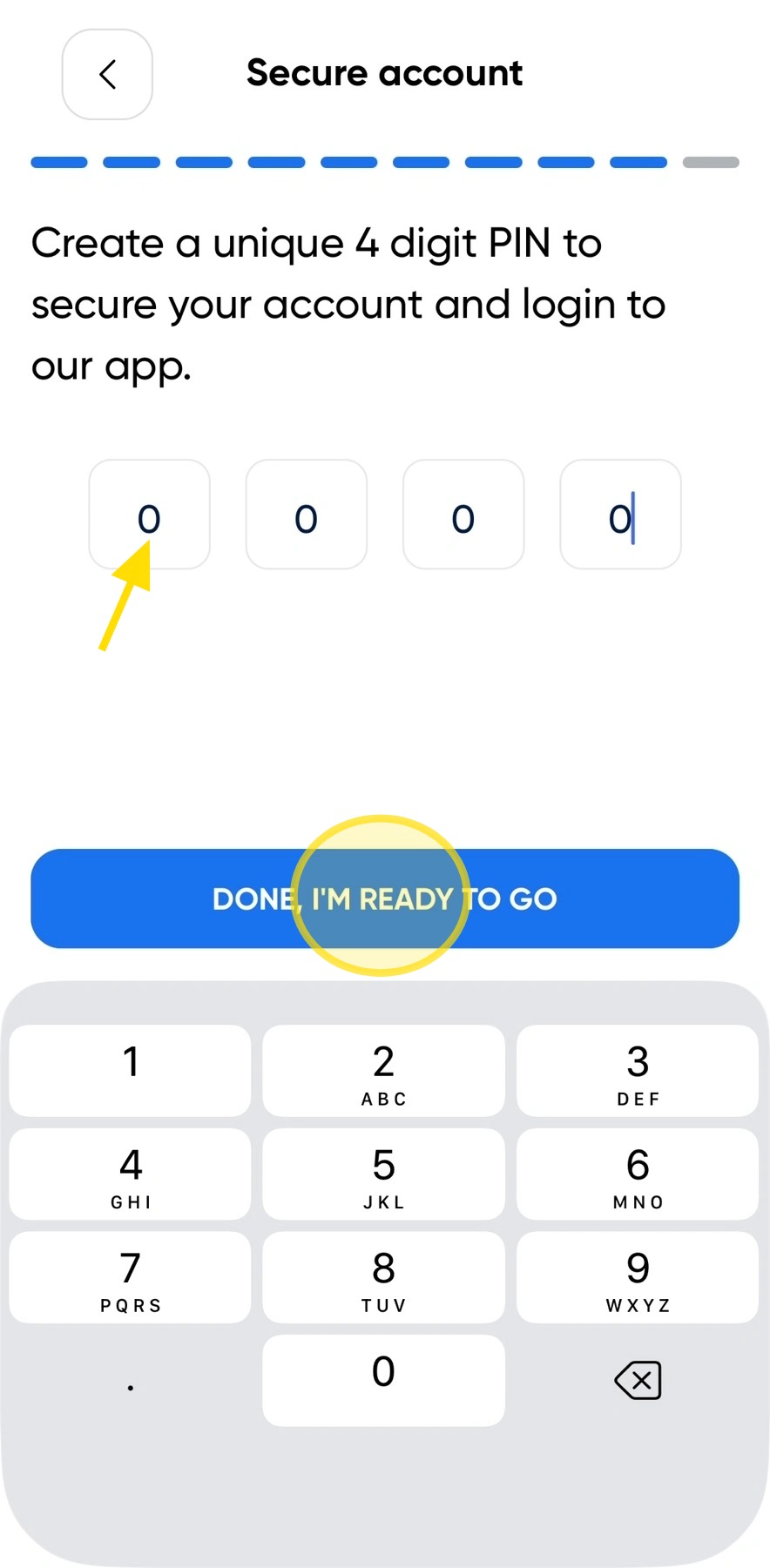
14. Create a Secure PIN by entering a 4-digit number, then click Done, I'm Ready To Go.
Please note: Your PIN is required each time you log in to the app and whenever you update your profile. Please choose a PIN that is secure and easy for you to remember.
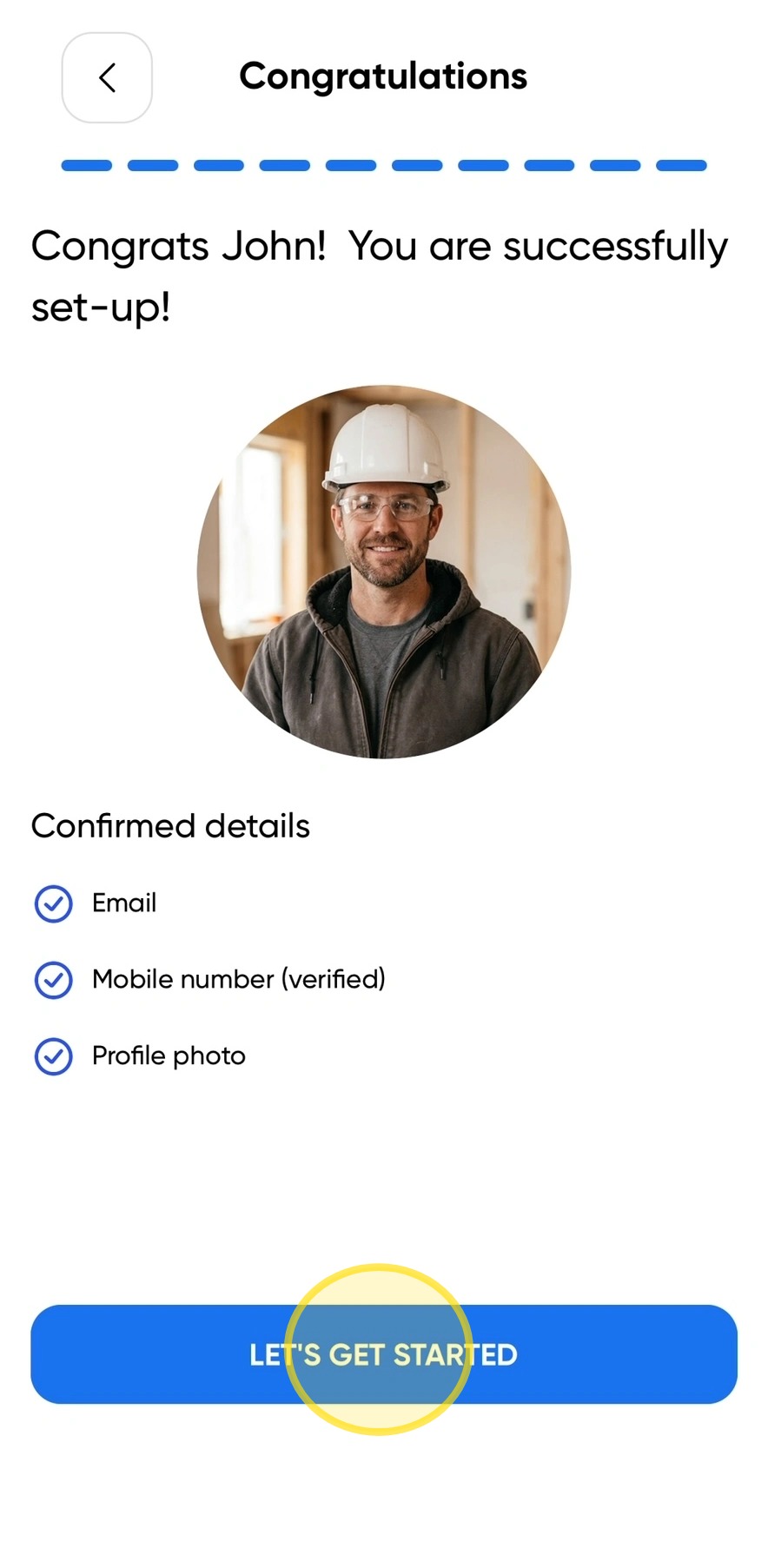
15. Congratulations, you have successfully created your user profile.
Click Let's Get Started to begin using the app.
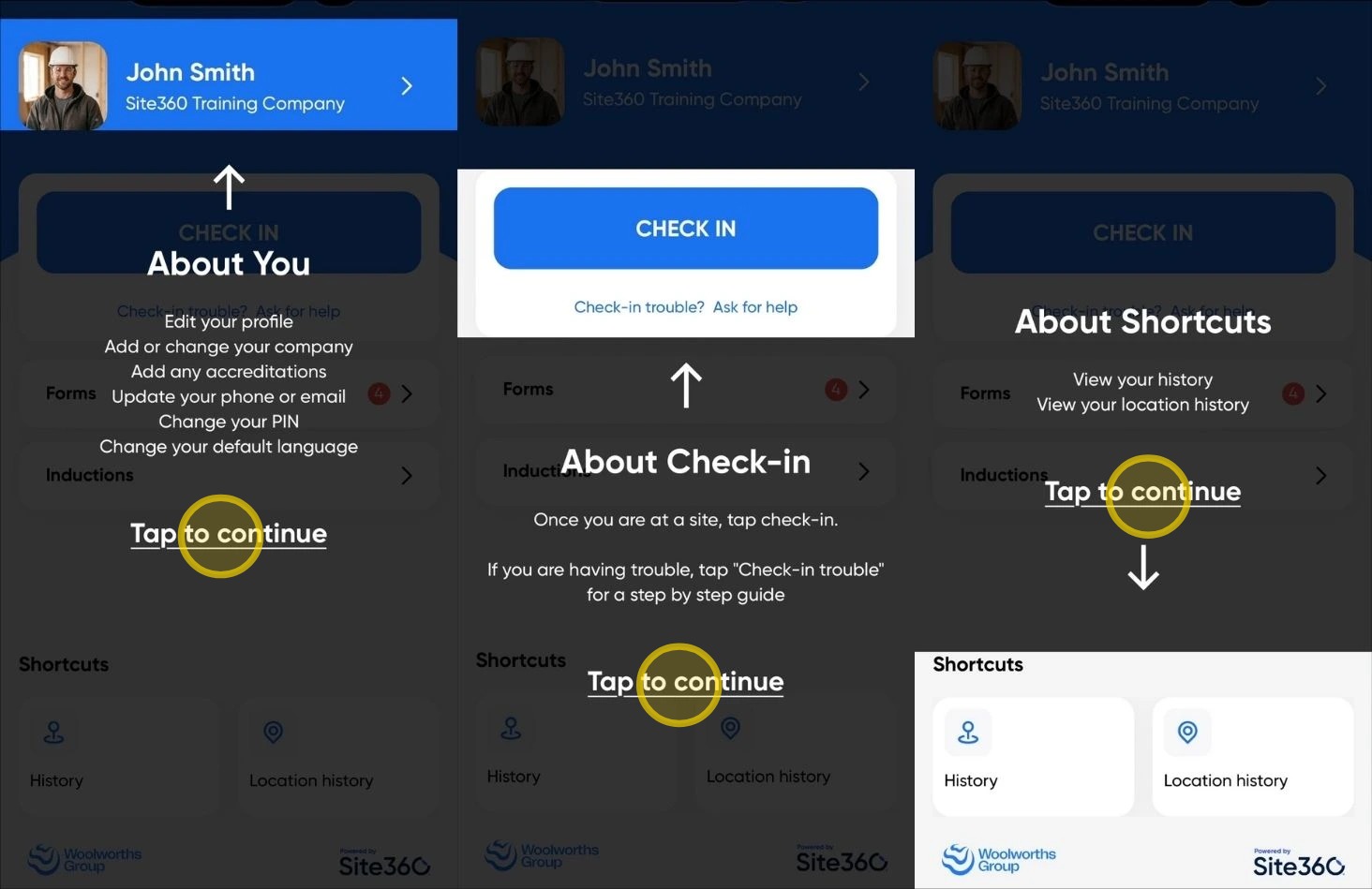
16. The app will guide you through a brief tutorial. Click Tap To Continue to step through the tutorial.
Technical Support
If you require help and guidance, you can find more helpful guides on the Help & Resources page found on the wowcontractor.com website, alternatively please contact the Support team at Site360.
Phone - AUS 1300 853 990 | NZ 0800 115 710
Email - support@site360.io


