
International Contractors Using the Woolworths Group Visitor App
Made by Support Site360 with Scribe
This guide explains how international contractors can download and set up the Woolworths Group Visitor App when it isn’t available in their local app store by temporarily changing their device’s Country/Region. It gives step-by-step instructions for iPhone and Android, shows how to create and log into a profile (including country code requirements), and notes OTP limitations for US/Canadian numbers. It also points to help resources and Site360 support contacts.
Downloading the Woolworths Group Visitor App
1. Scan the below QR code to download the Woolworths Group Visitor App. If you are unable to locate the app in the App Store or Google Play Store, please follow the instructions below to update the Country and Region on your device.
After you've installed the app and created a user profile, you can change your store region back to your original country if required.
Please note: The App Store or Google Play Store may prompt you to update your payment details or address information. The Woolworths Group Visitor App is free to download and use.
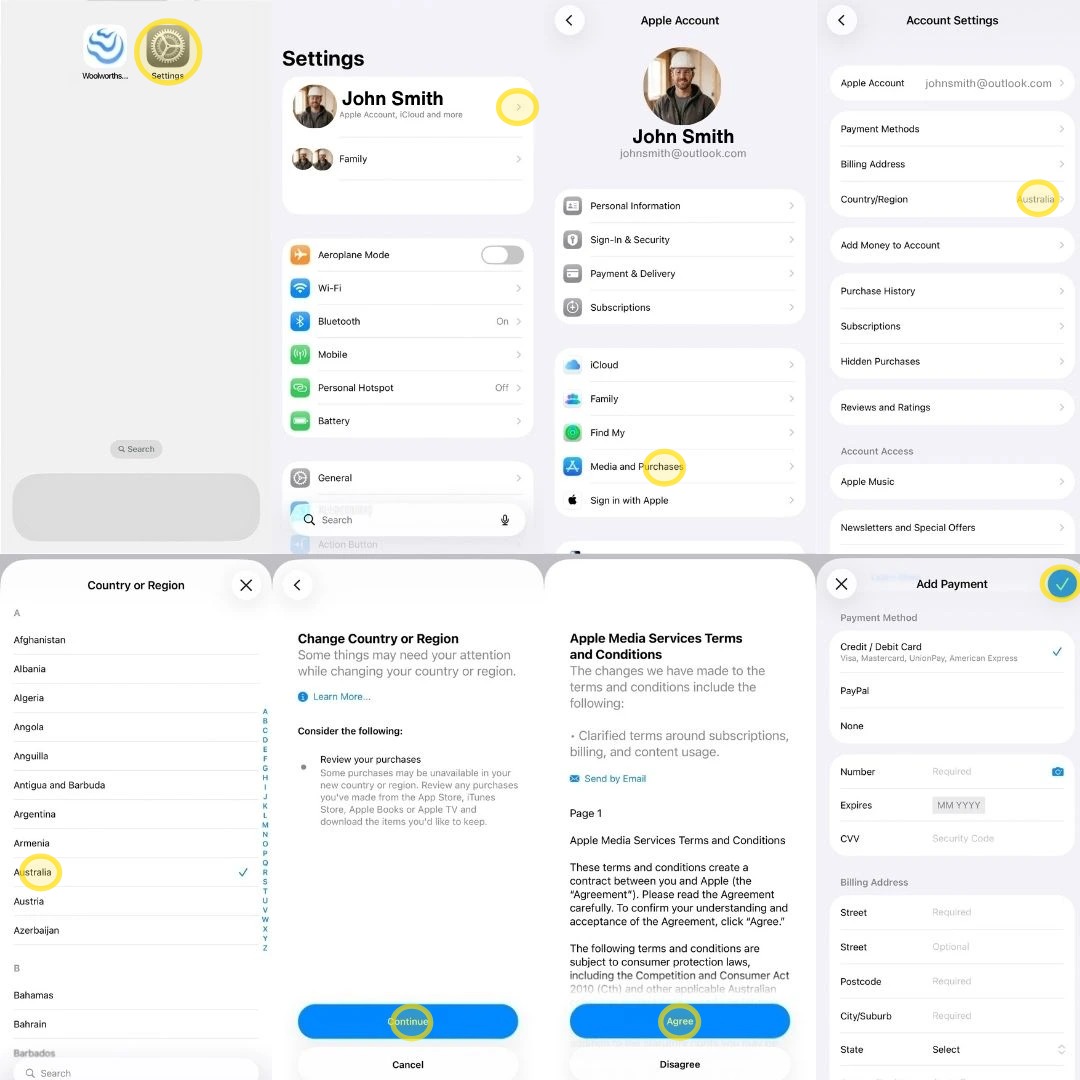
How to update Country and Region on an iPhone
2. 1. Open the Settings app.
2. Tap your name, then tap Media & Purchases.
3. Select Country/Region.
4. Choose Australia or New Zealand from the list.
5. Review the Change Country or Region information and tap Continue.
6. Review the Terms & Conditions and tap Agree.
7. Select a payment method and enter the requested billing information, then tap the Tick in the top right corner.
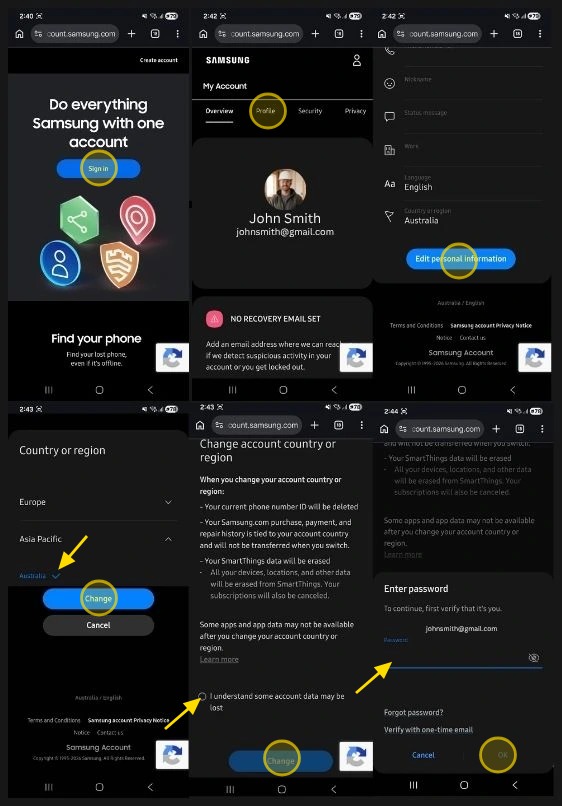
How to update Country and Region on an Android
3. 1. Go to account.samsung.com and sign in to your Samsung account.
2. Click Profile.
3. Scroll down and select Edit Personal Information.
4. Click Country or Region.
5. Select Australia or New Zealand as the desired country/region, then scroll to the bottom and click Change.
6. Read the information displayed on screen and tick the confirmation checkbox and click Change to save the update.
7. Enter your Password and click Ok to confirm the change.
After Downloading the App
4. After downloading the Woolworths Group Visitor App:
- Tap New User and create your profile. Please go to the Help and Resources page to find a guide on how to create a user profile.
- Select the correct country code/prefix for the phone number you will be using.
- Follow the prompts to complete your profile setup.
- Log in using the same country code/prefix and phone number you registered with.
- Once you have reached the Check-In screen, you can return to your device settings and change your Country/Region back to your original country if required.
Important: Always ensure you use the correct country code when logging in, as this is linked to your app profile and phone number.
Please note: OTP (One-Time Password) verification is currently not supported for visitors using American or Canadian phone numbers.
Technical Support
If you require help and guidance, you can find more helpful guides on the Help & Resources page found on the wowcontractor.com website, alternatively please contact the support team at Site360.
Phone - AUS 1300 853 990 | NZ 0800 115 710
Email - support@site360.io


