
Managing Documents & Licences In Site360 Admin Portal
Made by Support Site360 with Scribe
This guide shows you how to upload, edit, and delete required documents and licences in the Site360 admin portal, ensuring mandatory items (marked with a red *) are correctly submitted. It walks through signing in, locating the Documents tab, completing upload fields, and replacing or removing files. It also points you to the help and resources page long with contact details for technical or compliance support.
Navigating to Documents
1. Sign into the Admin Portal: admin.site360.io
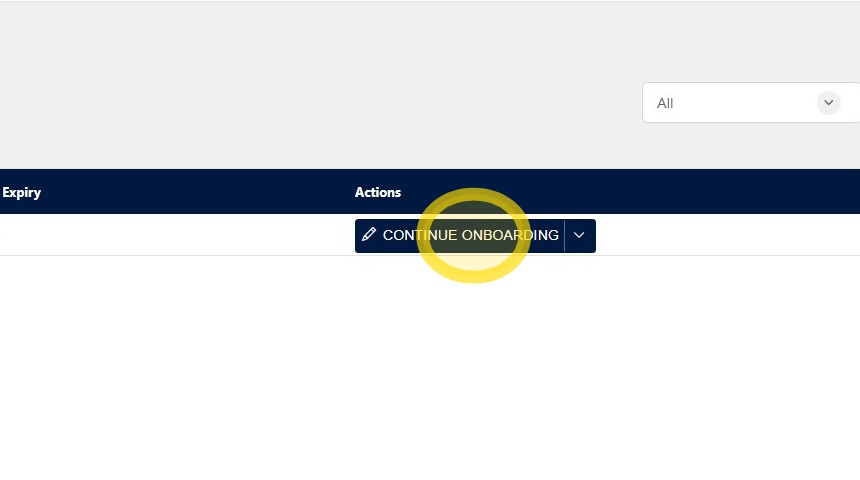
Once you have signed in, you will be taken directly to the Relationships tab. Click Continue Onboarding.
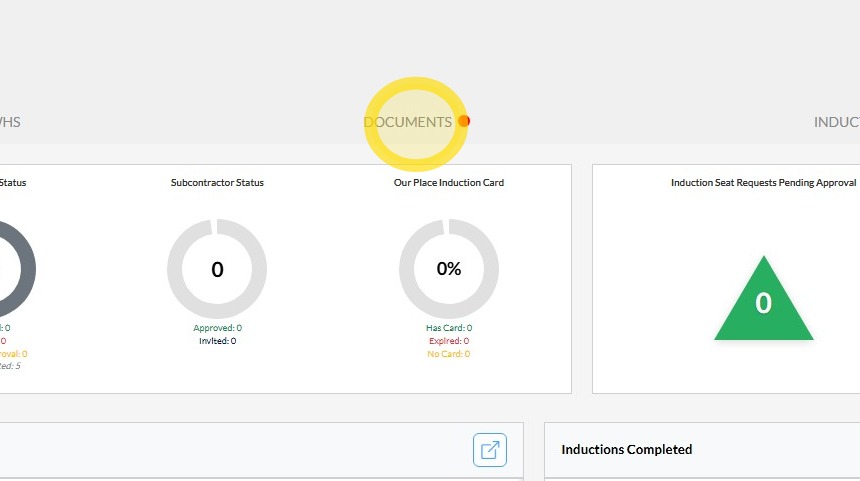
2. Click the Documents tab located at the top of the screen to view and manage your documents.
Uploading Documents
3. Find the document you need to upload and click Upload.
Please note: Documents marked with a red asterisk (*) are mandatory and must be uploaded before your onboarding can be completed.

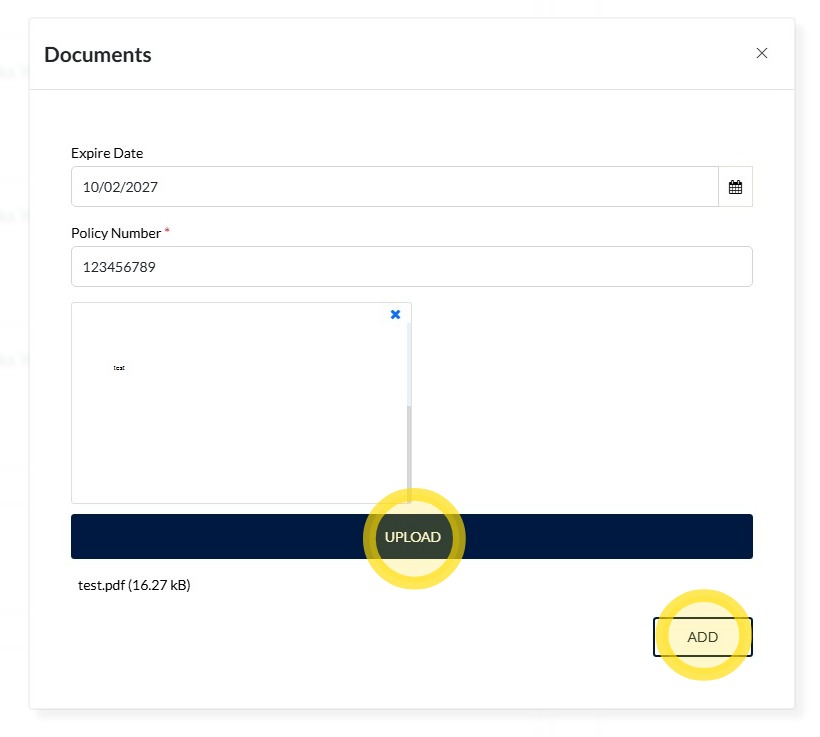
4. Enter the required information, then click Upload and follow the prompts to select and upload the required document from your device.
Once the document has been successfully uploaded, click Add to save the document and continue.
Repeat this process for any additional documents that are required.
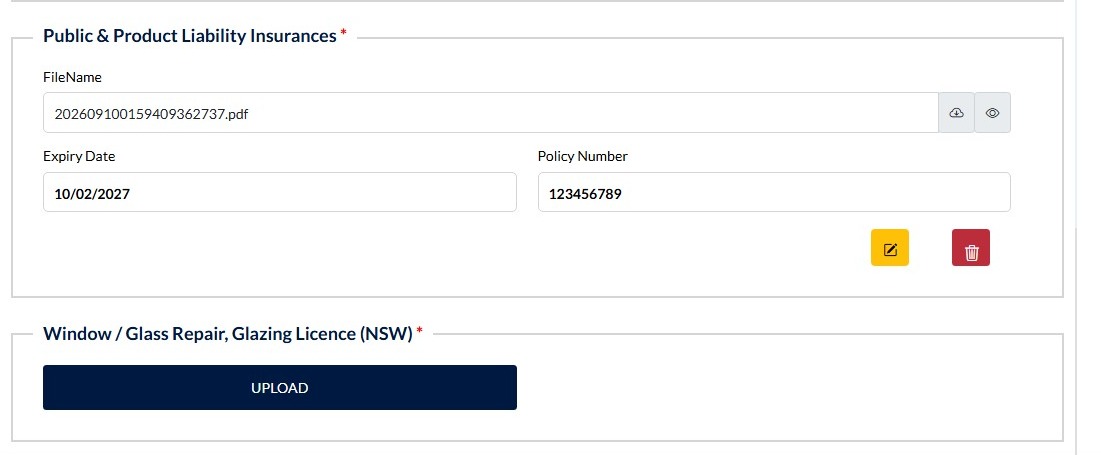
5. Once your document has been successfully uploaded, it will appear as shown below.
Example only: The Public & Product Liability Insurance document has been successfully uploaded, while the Glazing Licence document still requires uploading.
Editing an Uploaded Document
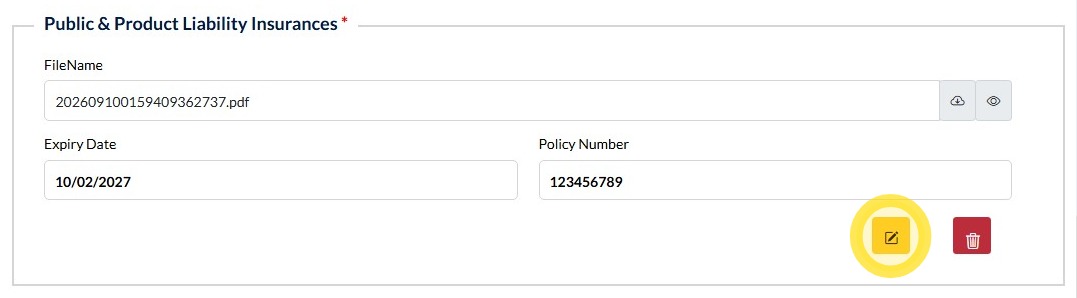
6. Click the Edit icon within the uploaded document's box to update the document details.
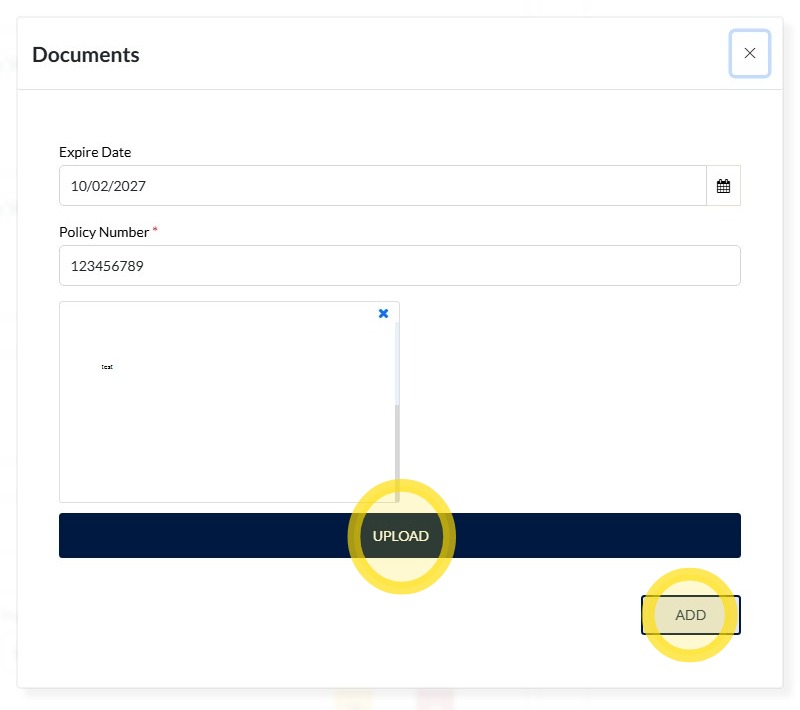
7. Edit the required information as needed, or upload a new document by clicking Upload and selecting the updated file from your device.
Once you have made the necessary changes or uploaded the new document, click Add to save the updated document details.
Removing a Document
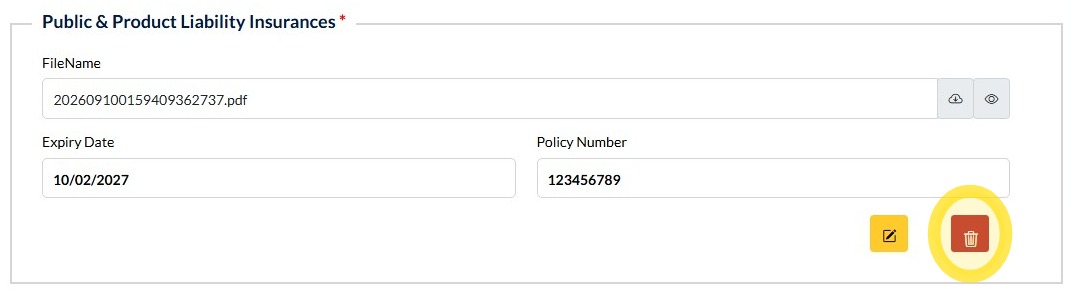
8. Click the Bin icon within the uploaded document's box to remove the document.
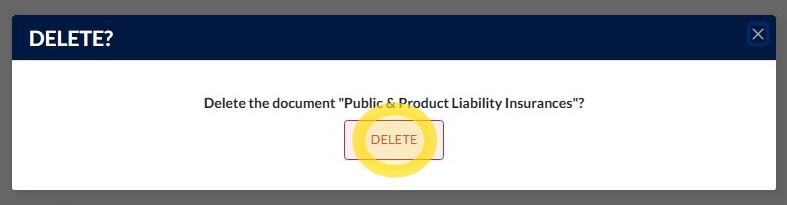
9. Click DELETE to confirm that you want to remove the document.
Once confirmed, the document will be permanently deleted from your profile.
Technical and Compliance Support
If you require help and guidance, you can find more helpful guides on the Help & Resources page found on the wowcontractor.com website, alternatively please contact the Support or Compliance team at Site360.
Phone - AUS 1300 853 990 | NZ 0800 115 710
Email - support@site360.io | compliance@site360.io


