
Managing Subcontractors In Site360 Admin Portal
Made by Support Site360 with Scribe
This guide shows how to quickly invite, verify, and remove subcontractors in the Site360 admin portal, so you can manage relationships and monitor onboarding status (Invited, Pending, Approved). It highlights the exact fields required (ABN, address, primary contact), clarifies that subcontractors only need to complete the Risk Profile, and points to support and resources for technical or compliance help.
Signing Into the Admin Portal
1. Sign into the Admin Portal: admin.site360.io
Inviting a Subcontractor
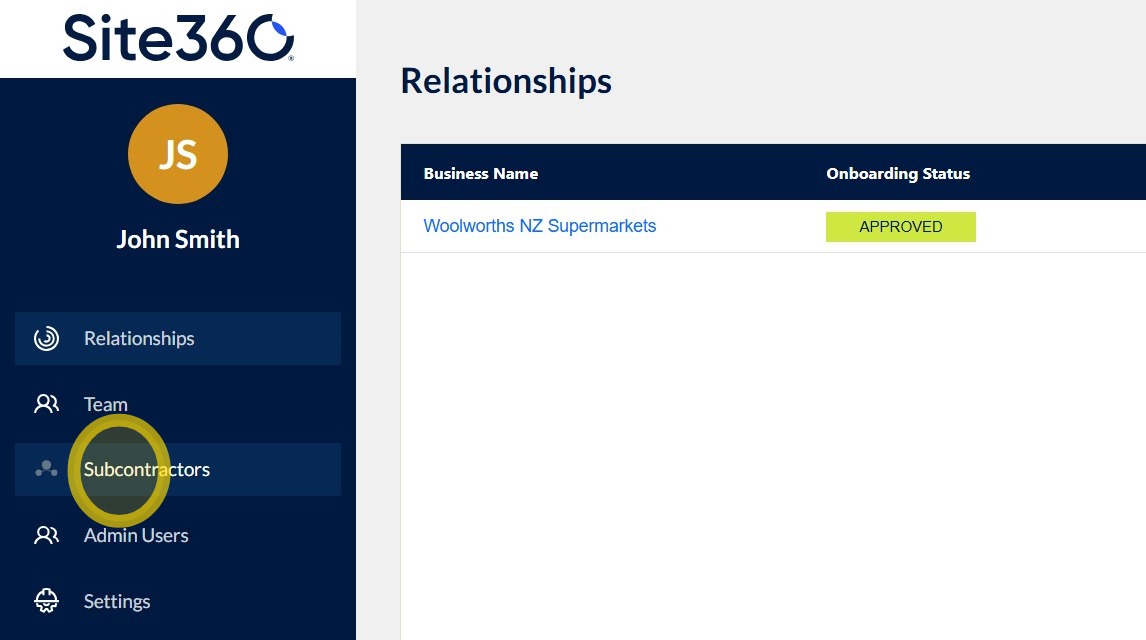
2. When you sign in, you will be taken directly to the Relationships tab.
Click Subcontractors in the left-hand navigation menu to view and manage your subcontractor relationships.
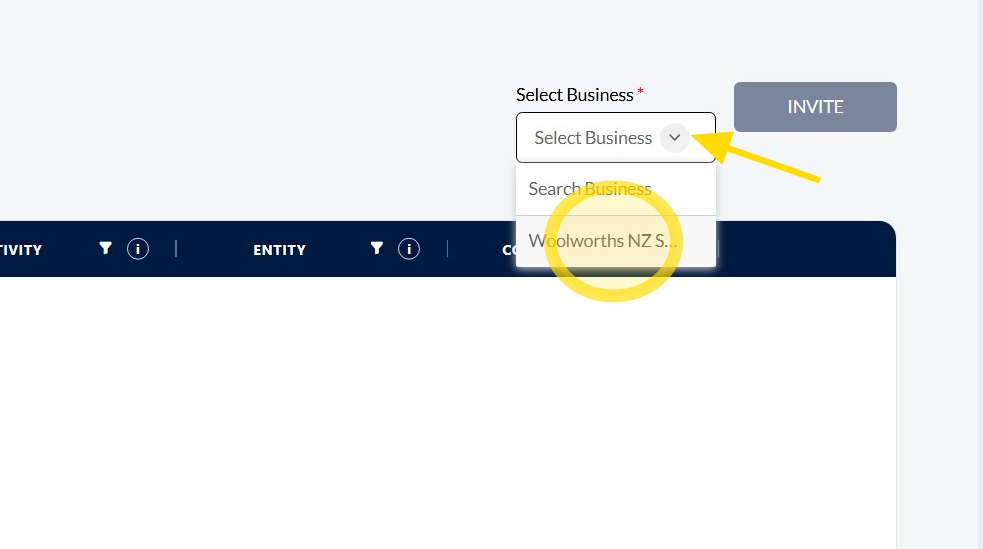
3. Click the drop-down arrow in the top-right corner under Select Business.
Select Woolworths NZ Supermarkets, then click Invite to begin inviting a subcontractor.
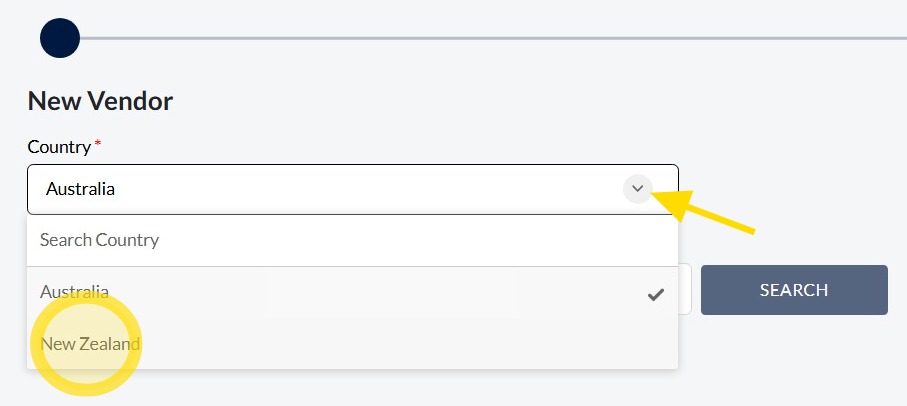
4. Select the country by clicking the drop-down arrow and then click on New Zealand.
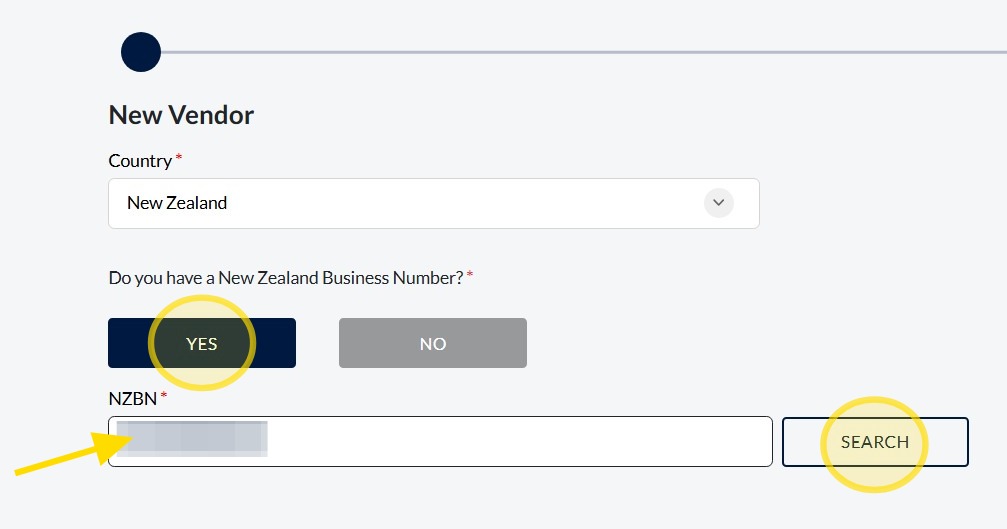
5. If you have an NZBN click Yes, then enter your NZBN and click Search.
6. If you do not have an NZBN click No, you will then need to manually enter your company Entity and Trading Name.
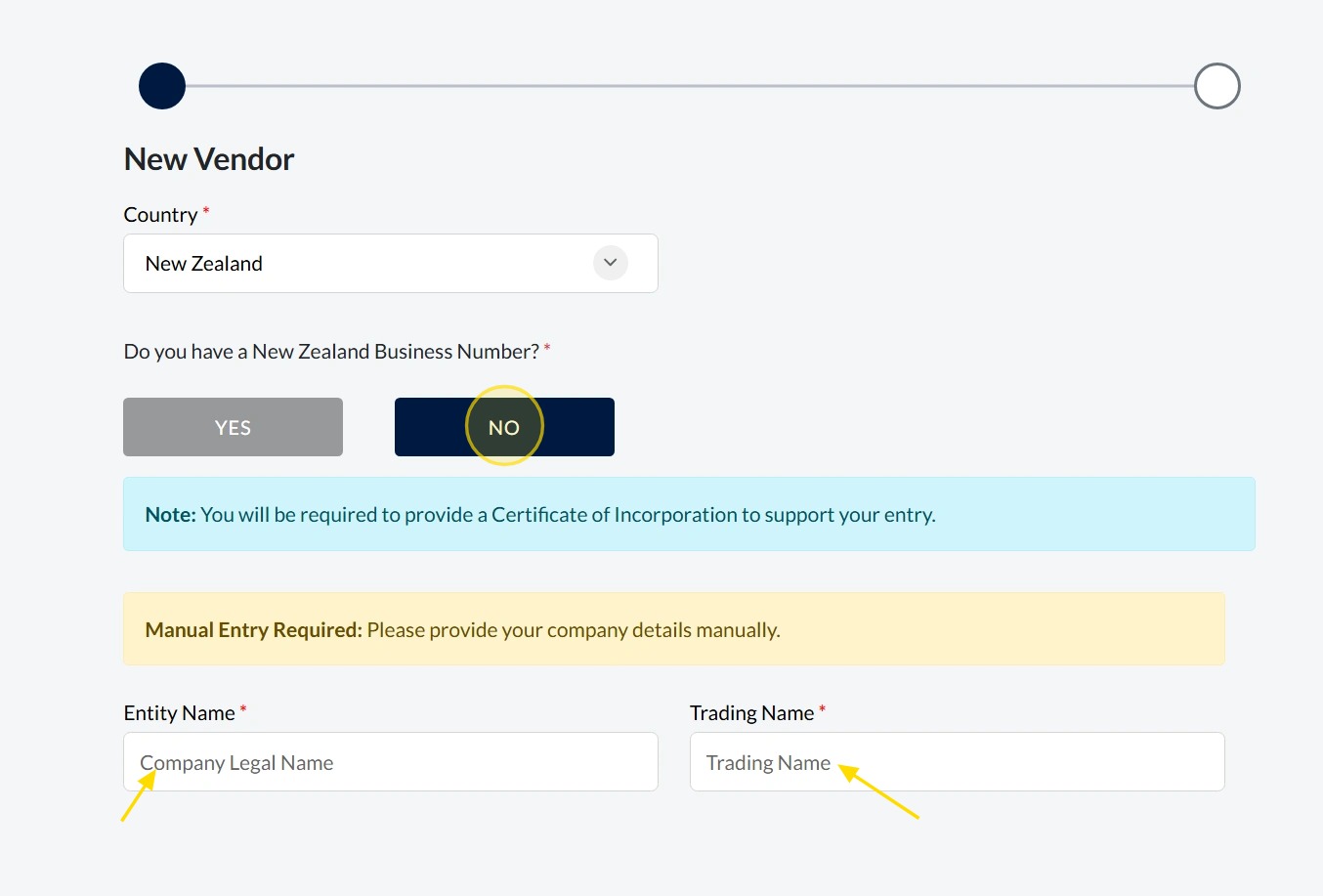
Subcontractors Business Details
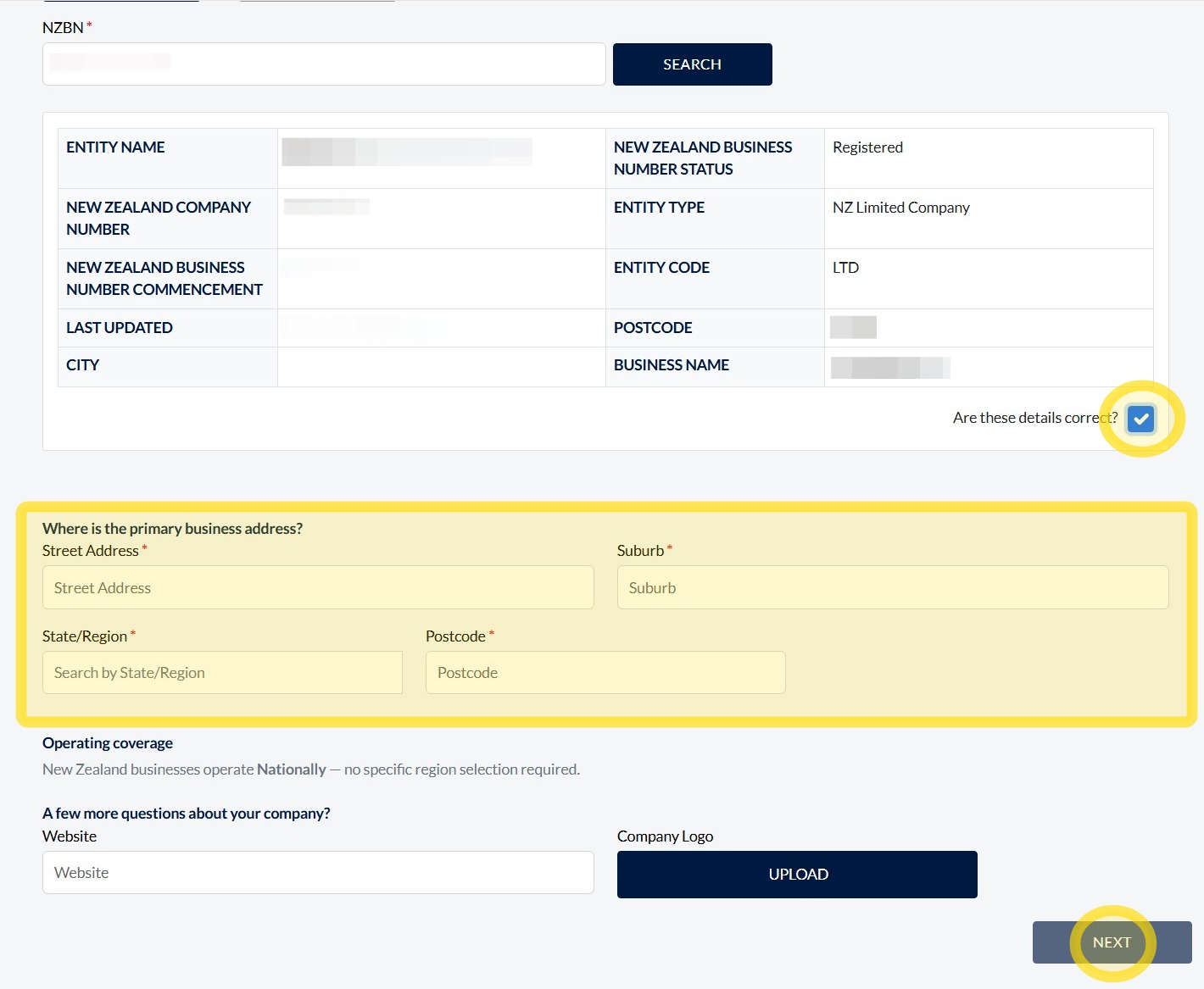
7. Confirm the business details by ticking the box next to Are these details correct?
Enter the business address details, then once all required information has been entered, click Next to continue.
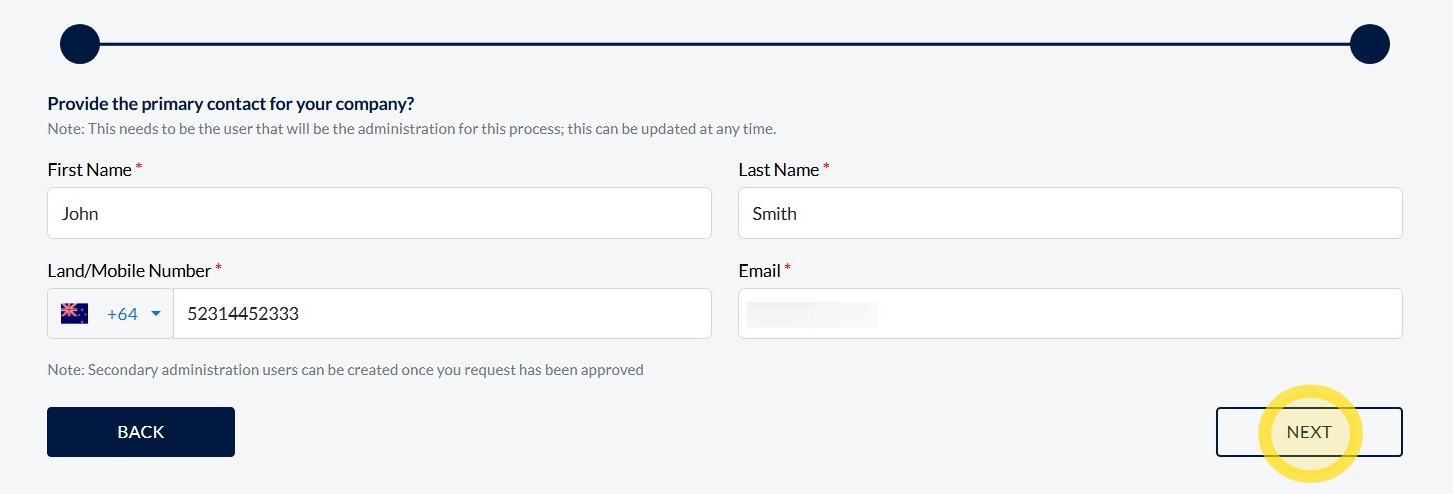
Subcontractors Primary Contact
8. Enter the following details for your subcontractor's primary contact:
- First Name
- Last Name
- Landline or Mobile Number
- Email Address
Once all required information has been entered, click Next to continue.
Your subcontractor will now be sent an invitation via email.
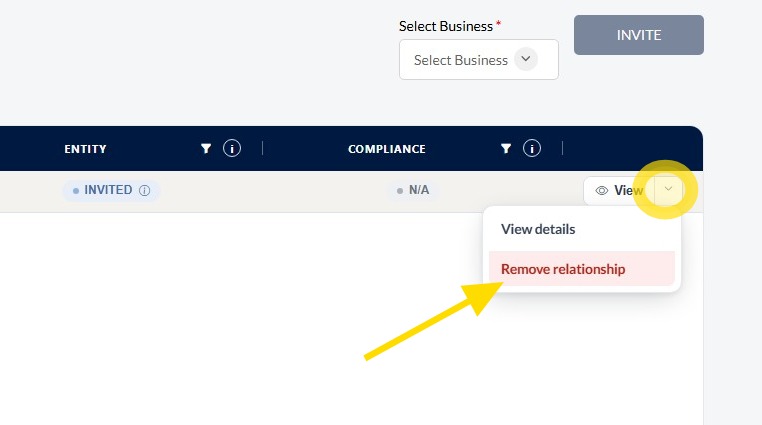
Removing a Subcontractor
9. Click the drop-down arrow and select Remove Relationship.
Please note: Removing a relationship will disconnect the subcontractor from your business. Ensure you no longer require the relationship before proceeding.
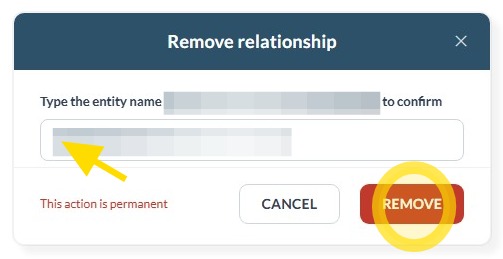
10. Re-enter the company name in the confirmation box, then click Remove.
This will permanently remove the relationship between your business and the selected company.
Subcontractor Statuses
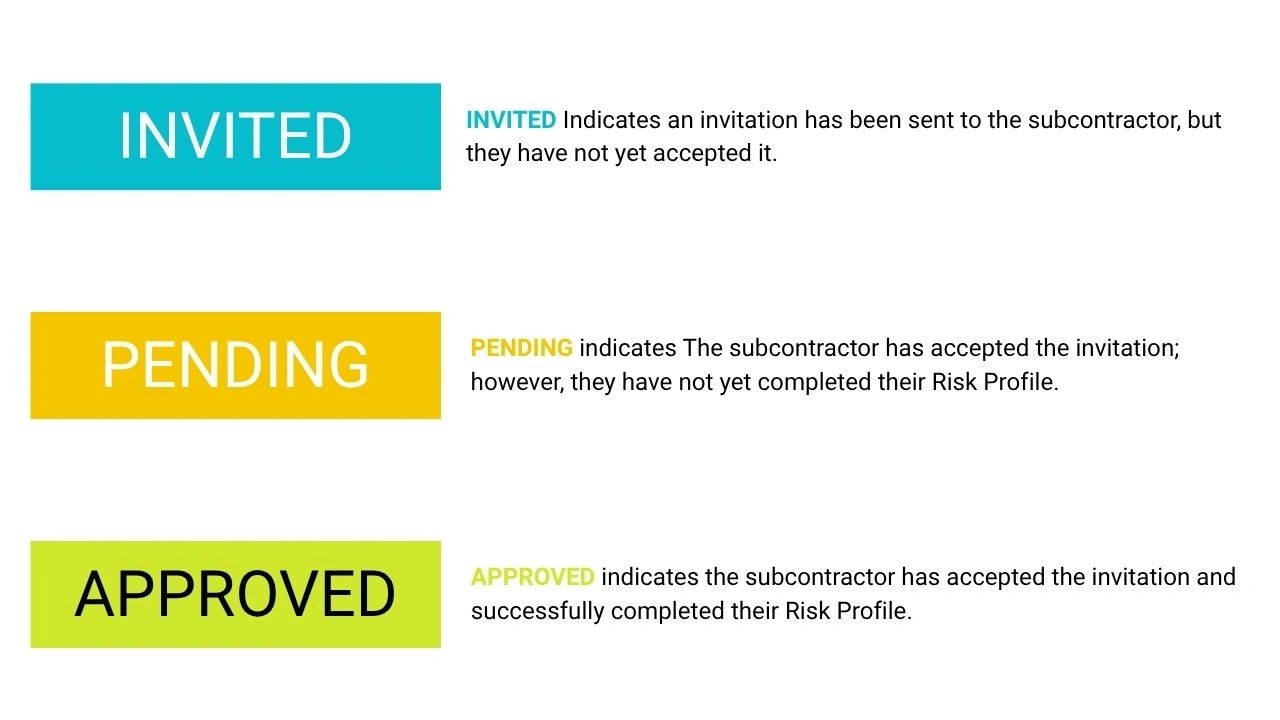
11. The following Entity Statuses indicate the current stage of a subcontractor's onboarding process:
- Invited – An invitation has been sent to the subcontractor, but they have not yet accepted it.
- Pending – The subcontractor has accepted the invitation; however, they have not yet completed their Risk Profile.
- Approved – The subcontractor has accepted the invitation and successfully completed their Risk Profile.
Use these statuses to monitor the progress of your subcontractors and identify any actions that may still be required.
Please note: Subcontractors do not need to complete the entire onboarding process.
They are only required to complete their Risk Profile and manage their team members and inductions.
Once the Risk Profile has been completed, subcontractors can add their workers, assign the required inductions, and monitor their team's inductions.
Technical and Compliance Support
If you require help and guidance, you can find more helpful guides on the Help and Resources page found on the wowcontractor.com website, alternatively please contact the support or compliance team at Site360.
Phone - 0800 115 710
Email - support@site360.io or compliance@site360.io


