
Managing Team Members In Site360 Admin Portal
Made by Support Site360 with Scribe
This guide explains how to correctly add, invite, approve, resend invites, and remove direct employees in the Site360 Admin Portal (not subcontractors), and how to interpret team member statuses (Requested, Pending, Approved). It details the invite flow from entering a mobile number to the team member accepting via the Woolworths Group Visitor App and how to respond to incoming team requests. Contact and support resources are also provided.
Please note: The Team tab should only include your direct employees and not subcontractors.
Any subcontractors engaged by your business should be added under the Subcontractors tab instead.
Ensuring workers are added to the correct section will help maintain accurate records and ensure the appropriate onboarding, compliance, and induction requirements are applied.
You can find a guide on how to add your subcontractors on wowcontractor.com
Signing into the Admin Portal
1. Sign into the Admin Portal: admin.site360.io
Inviting a Team Member
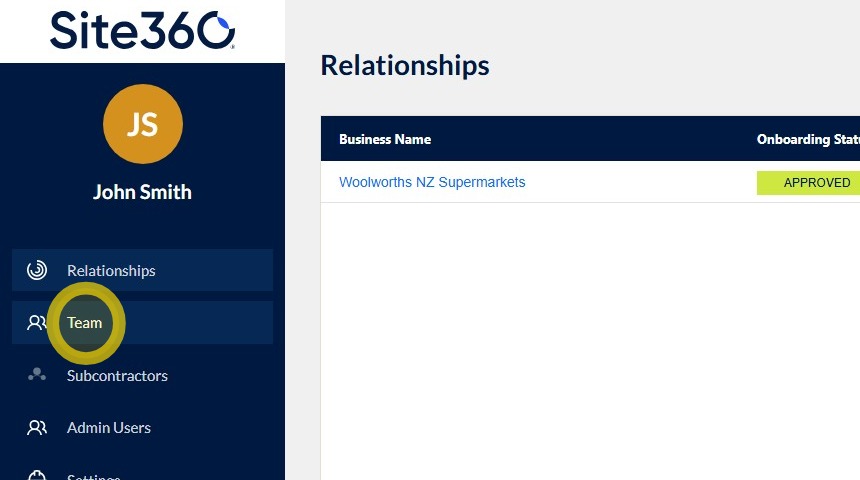
2. When you sign in, you will be taken directly to the Relationships tab.
Click Team in the left-hand navigation menu to view and manage your team members.
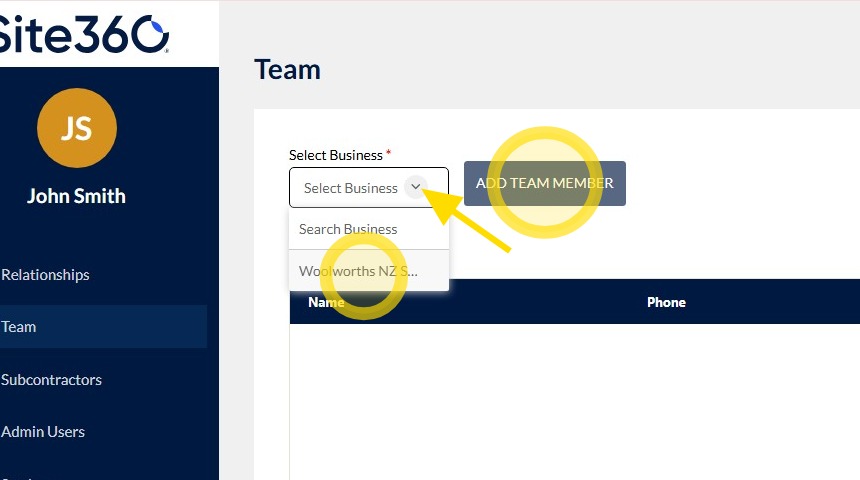
3. Click the drop-down arrow, select Woolworths NZ Supermarkets, and then click Add Team Member.
Please note: If you are a subcontractor, the name of the company you subcontract to will be displayed instead of Woolworths NZ Supermarkets. Select the company shown in the list, then click Add Team Member to continue.
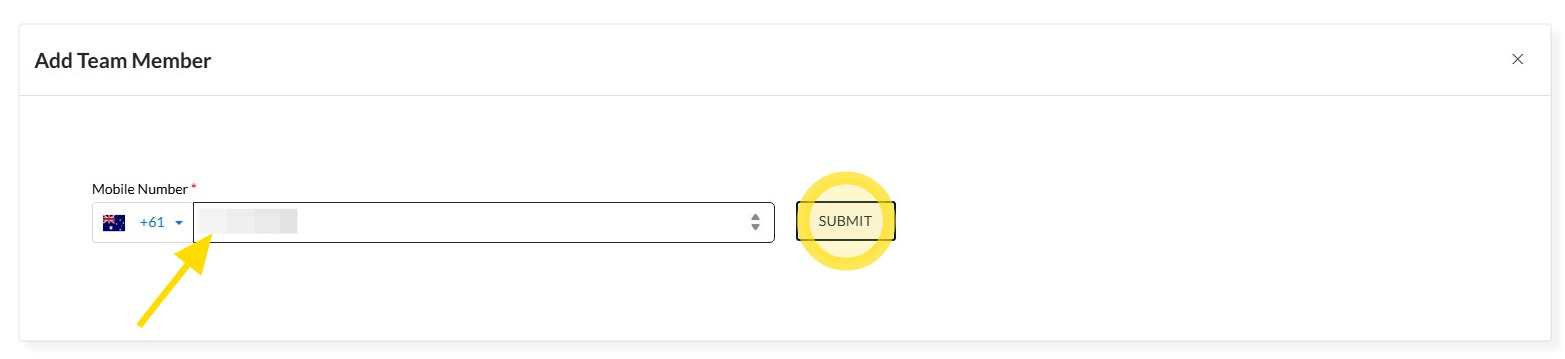
4. Enter the worker's phone number in the Mobile Number field, then click Submit.
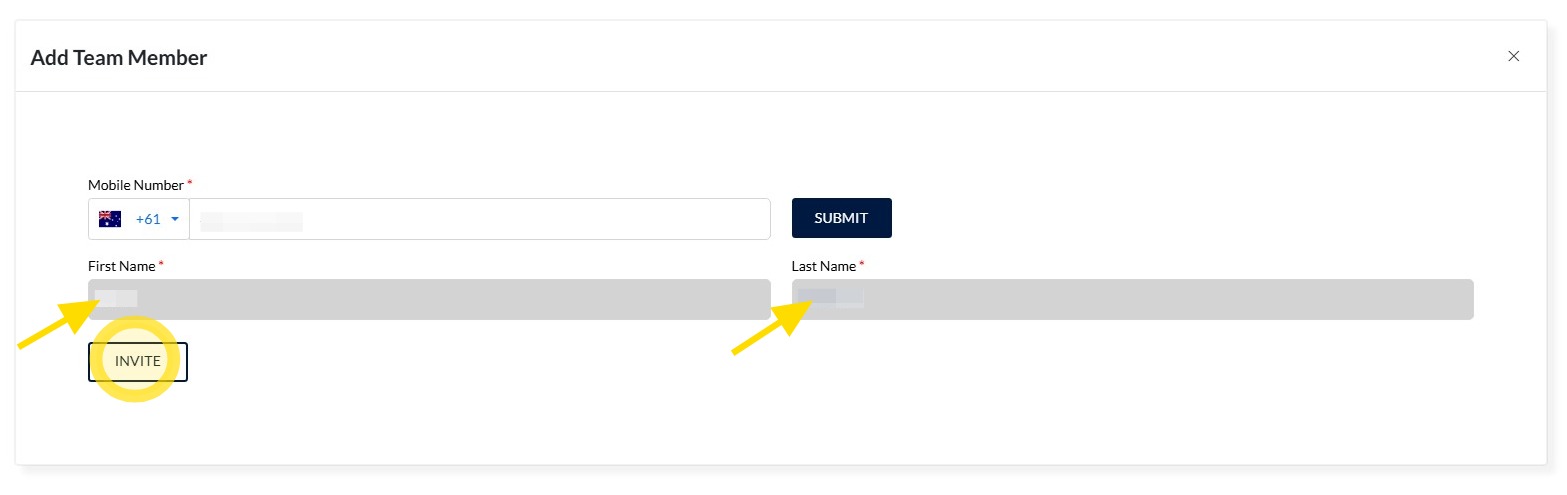
5. Enter the team member's First Name and Last Name, then click Invite.
Please note: If the team member already has an app profile, their name will automatically pre-populate based on the mobile number entered.
Once you click Invite, the team member will be added to your team.
6. Once invited, your team member will appear with a Pending status.

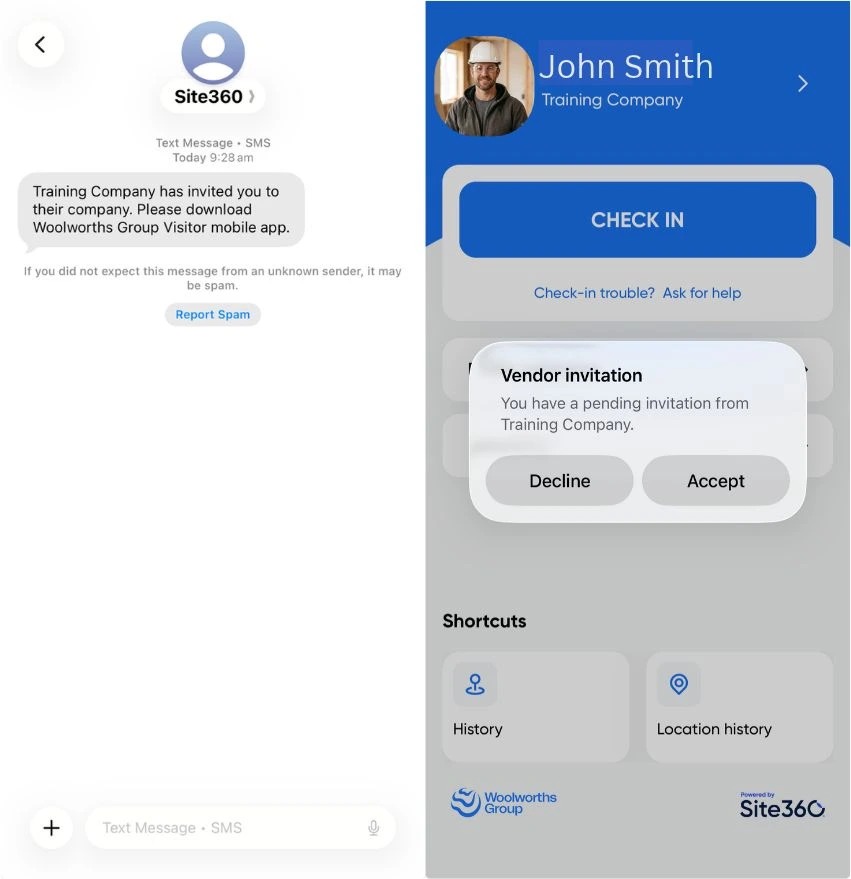
7. Once you've sent the invitation, your team member will receive a text message prompting them to download the app.
Once they have downloaded the app and either sign in or created an account, a pop-up notification will appear asking them to Accept or Decline the invitation.
If they accept the invitation, they will be linked to your company and can proceed with any required onboarding and induction activities. If they decline the invitation, they will not be added to your team.
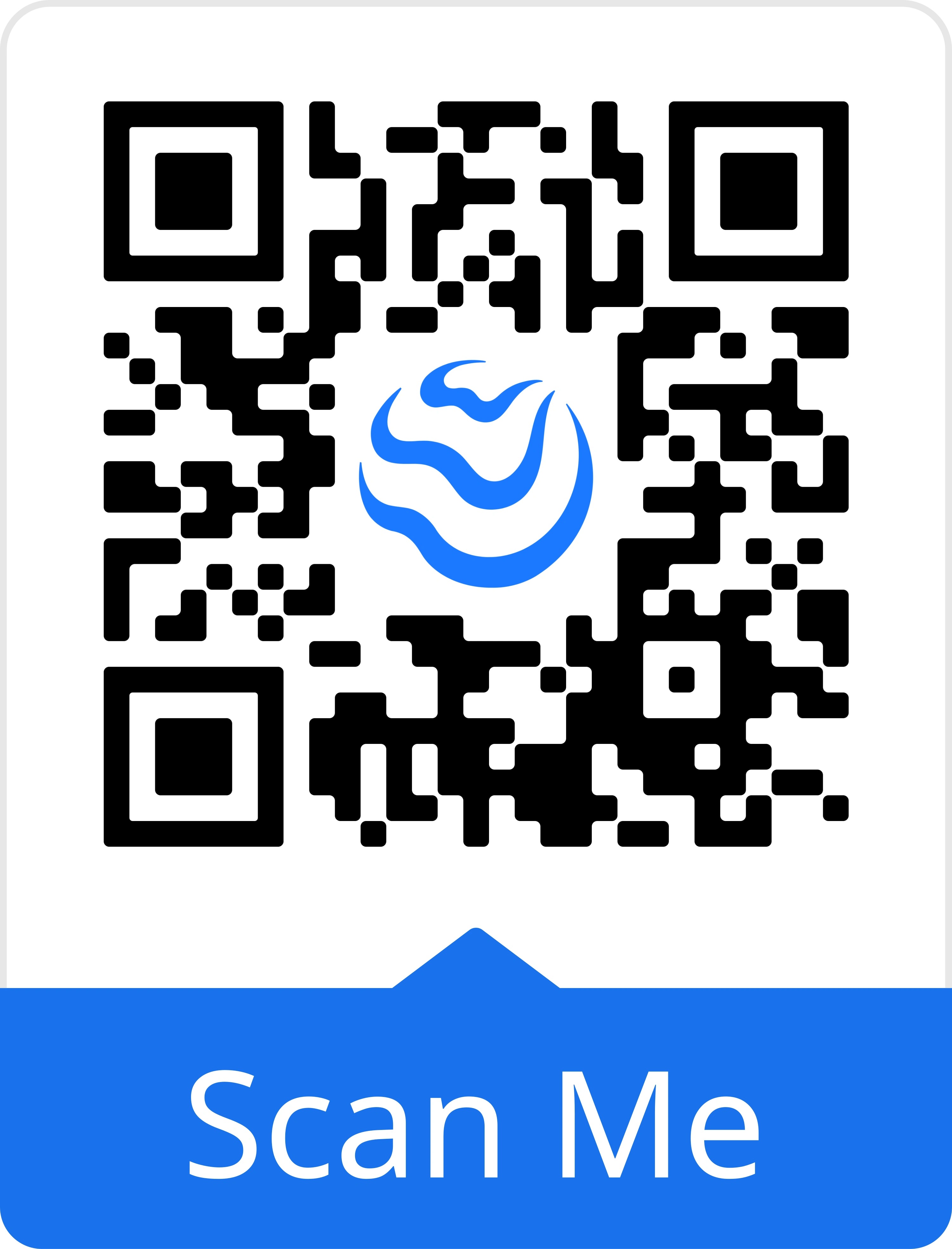
8. Your team can scan the below QR code to download the Woolworths Group Visitor App.
9. Once your team member has accepted the invitation in the app, their status will change from Pending to Approved.
An Approved status indicates that the team member has successfully accepted the invitation and is now linked to your company.

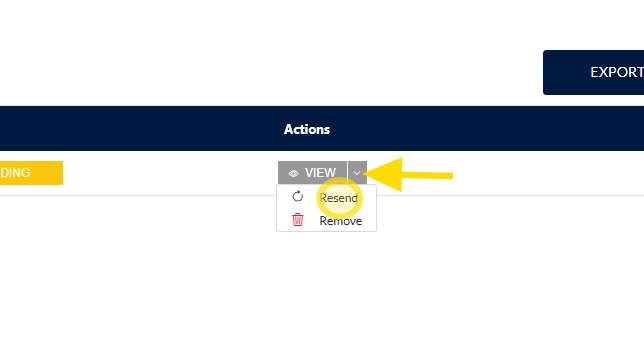
10. If your team member has not received the invitation message, you can resend the invitation.
Click the drop-down arrow next to View to display the available options.
Select Resend to send the invitation again.
Accepting a Team Member Request
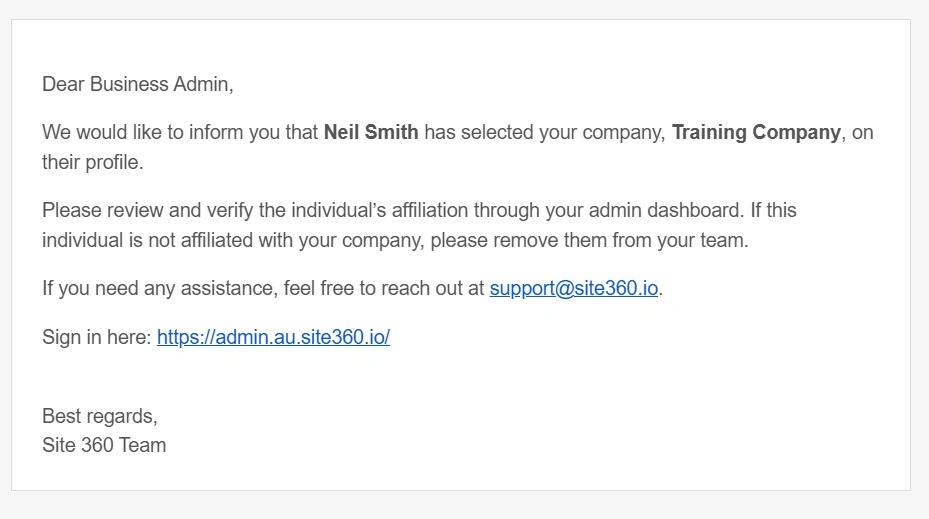
11. When a team member adds your company to their profile in the app, you will receive an email notification similar to the example below.
Once you receive this notification, follow Step 1 to navigate to the Team tab, where you can review the request and either Approve or Reject it.
12. If the team member is a direct employee, click Accept. Their status will then be updated to Approved, and they will be added to your team.
If the worker is not a direct employee, click Reject. This will remove them from your team.

Removing a Team Member
13. Follow Step 1 to open the Team tab.
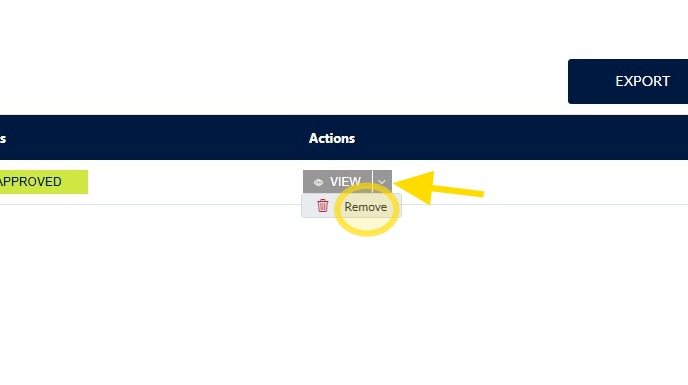
Click the drop-down arrow next to View to display the available options, then select Remove.
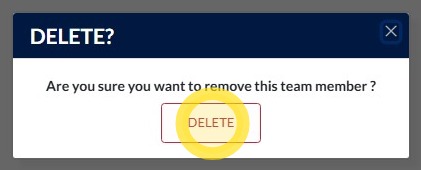
14. Confirm the deletion by clicking Delete.
Once confirmed, the team member will be removed from your team and will no longer be associated with your company.
Team Member Status's
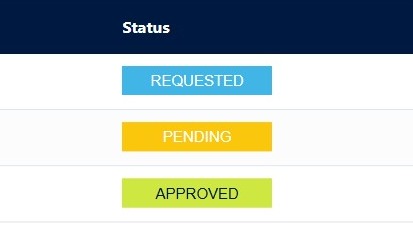
15. There are three different team member statuses:
- Requested – The team member has requested to join your team through the app and is awaiting your approval.
- Pending – You have sent an invitation to the team member through the Admin Portal; however, they have not yet accepted the invitation in the app.
- Approved – The team member has accepted the invitation and is now an approved member of your team.
Technical and Compliance Support
If you require help and guidance, you can find more helpful guides on the Help and Resources page found on the wowcontractor.com website, alternatively please contact the support or compliance team at Site360.
Phone - 0800 115 710
Email - support@site360.io or compliance@site360.io


