
Managing your Risk Profile in Site360 Admin Portal
Made by Support Site360 with Scribe
This guide shows how to complete and update your Site360 Risk Profile so your services, operating model, states, subcontractor details and Woolworths affiliations are accurately recorded, and explains the risk assessment, declaration, payment and submission steps. It highlights where selections affect licence requirements, how to edit your profile later, and where to get technical or compliance support.
Signing into the Admin Portal
1. Sign into the Admin Portal: admin.site360.io
Accessing your Risk Profile
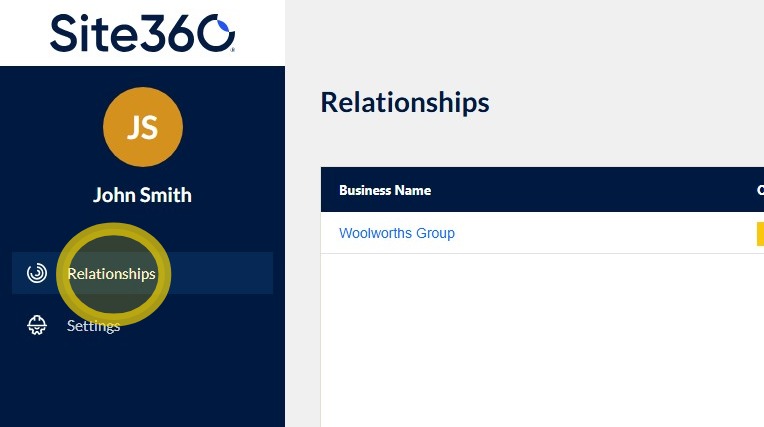
2. When you sign in, you will be taken directly to the Relationships tab. If you are not automatically directed there, click Relationships from the left-hand navigation menu.
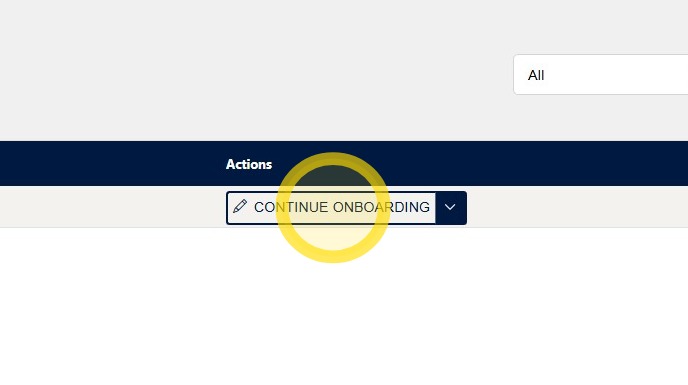
3. Click Continue Onboarding on the right side under Actions.
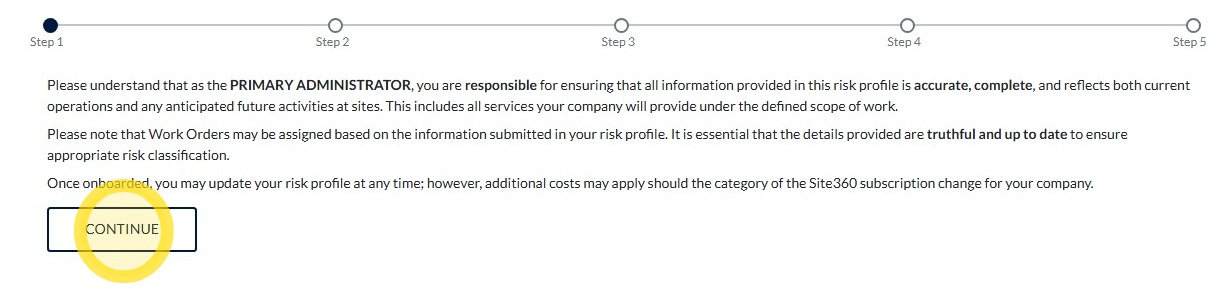
4. Read the information displayed on the screen, then click Continue.
Work Services Selection
Please note: The answers shown in the screenshots are examples only.
Your responses should accurately reflect your company's work services.
Use the example answers as a guide only and ensure all information submitted is true, complete, and relevant to your business.
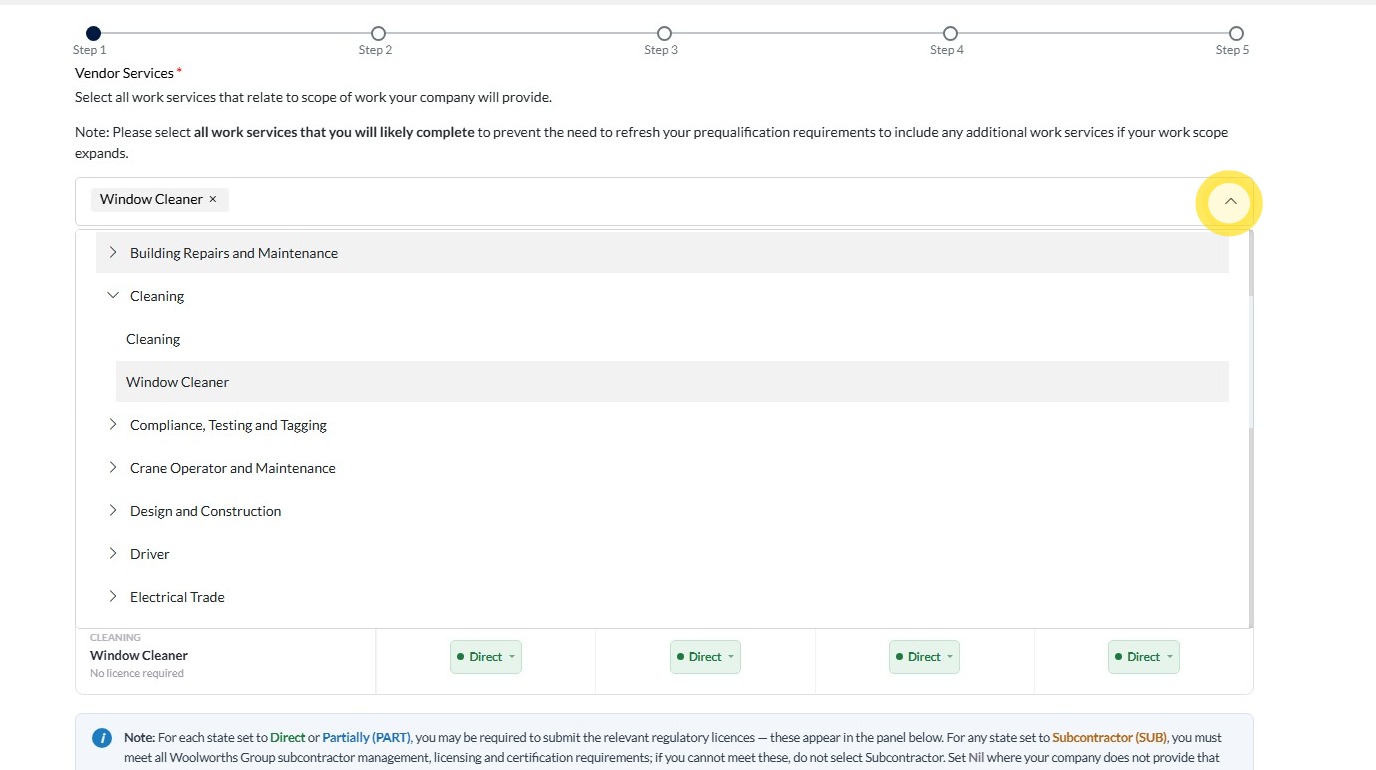
5. Your work services will be pre-filled based on the information provided during registration.
To add additional services, click the drop-down arrow and select the relevant services from the list.
Ensure you select all services that your company will provide to Woolworths Group, as these services determine the onboarding, compliance, and induction requirements that may apply to your business.
State and Territory of Services Provided
6. The states where you work will be automatically populated based on the information provided during registration.
If you need to add additional states, click + Add State and select the relevant state(s) from the list.
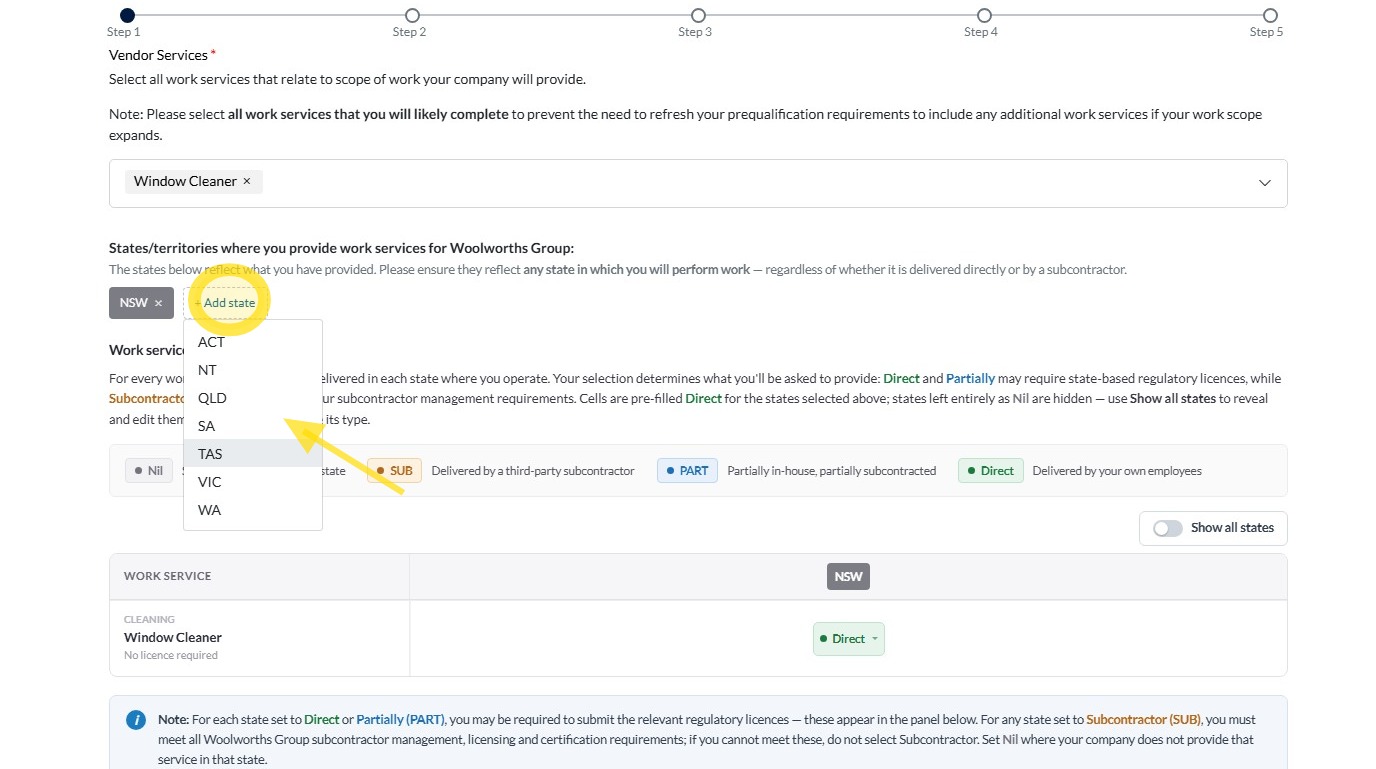
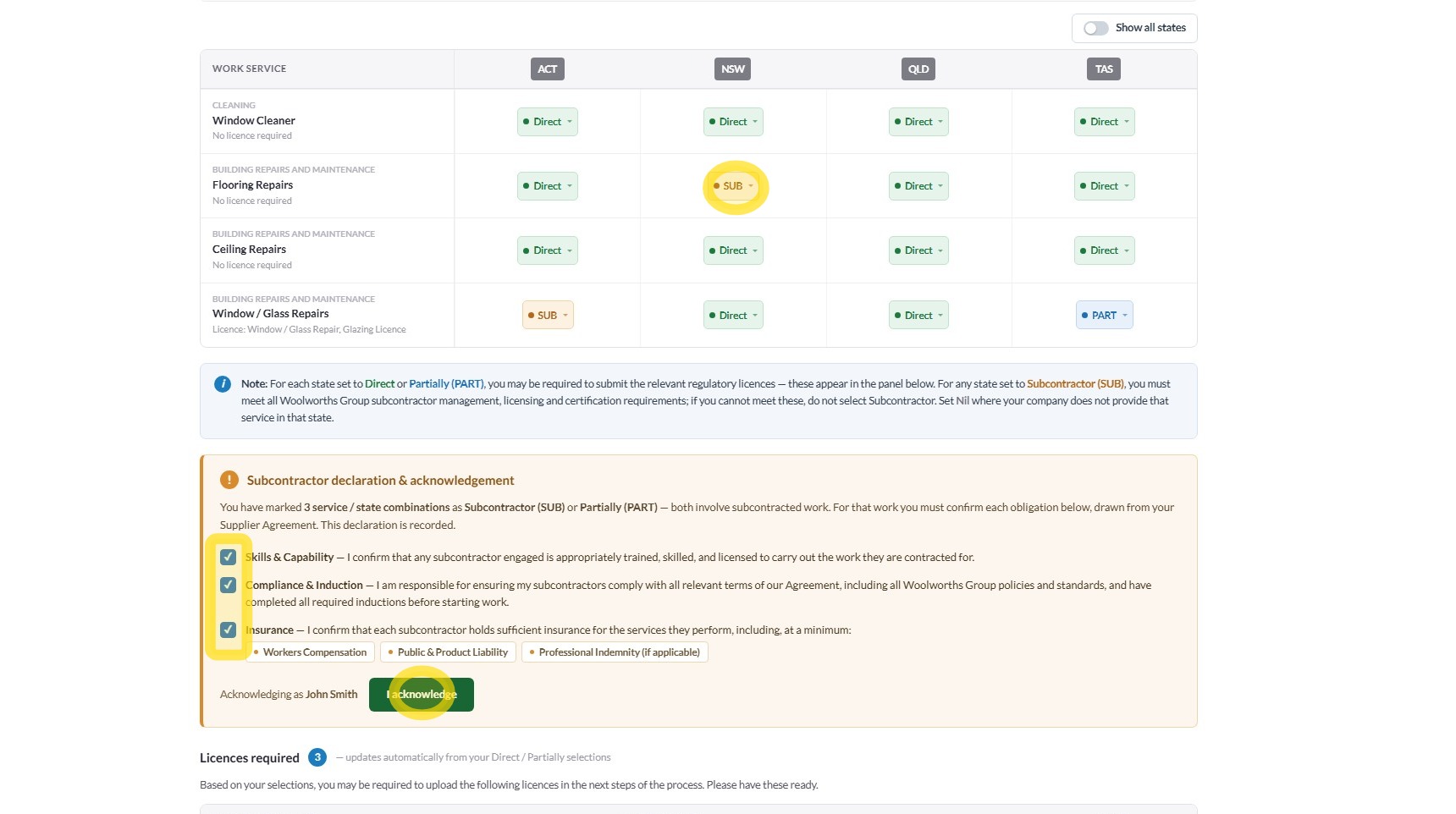
7. To confirm your operating model, click the drop-down arrow for each service/state and select either:
- NIL: Service not provided in this state.
- DIRECT: Delivered by your own employees.
- SUB: If you fully subcontract the service in that state.
- PART: If you partially complete the work yourself and partially subcontract it.
Once updated, complete the Subcontractor declaration and Acknowledgement by ticking the boxes and clicking "I acknowledge".
Please note: Based on your selection, the licence requirements may change.
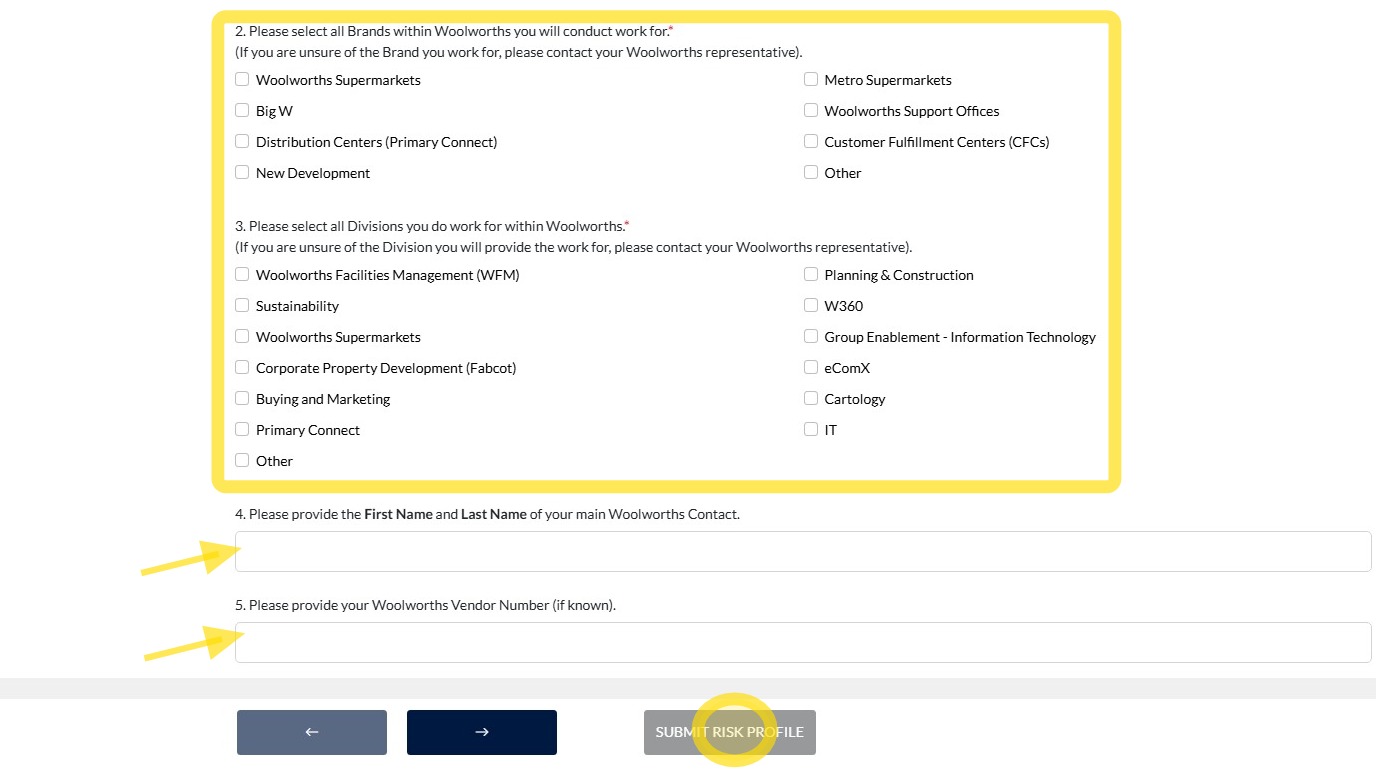
8. Tick the boxes corresponding to the brands and divisions you perform work for within Woolworths Group. Answer questions 4 to 6 adding in your Woolworths Group main contact persons first and last name, along with your Woolworths Vendor Number and click 'Submit'.
Risk Assessment
9. Answer the questions in each step by selecting either Yes or No, then click the Next arrow to proceed. Continue through each section until you reach Step 6.
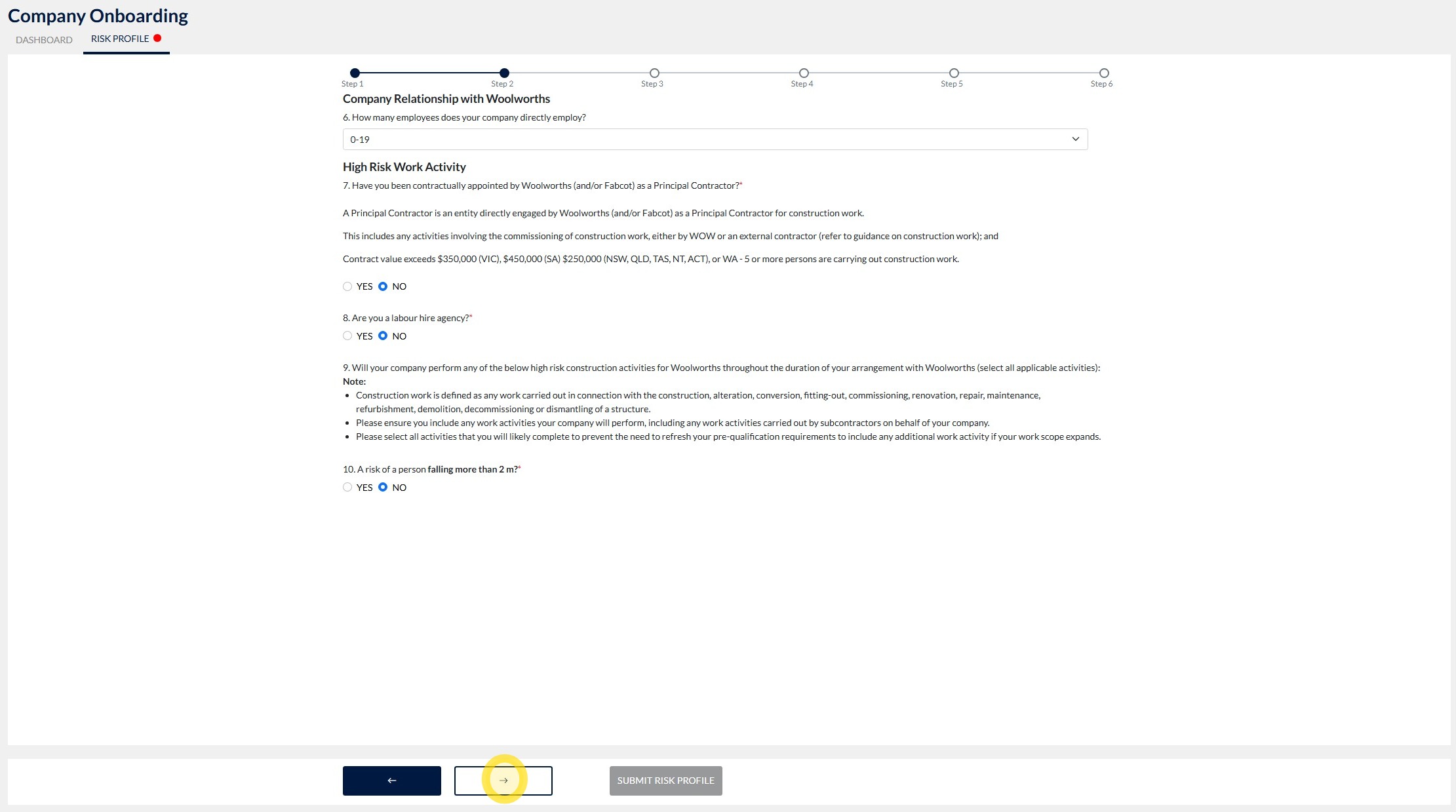
Please note: The answers in the screenshots are examples only. Please fill out these questions using information that relates specifically to your own business.
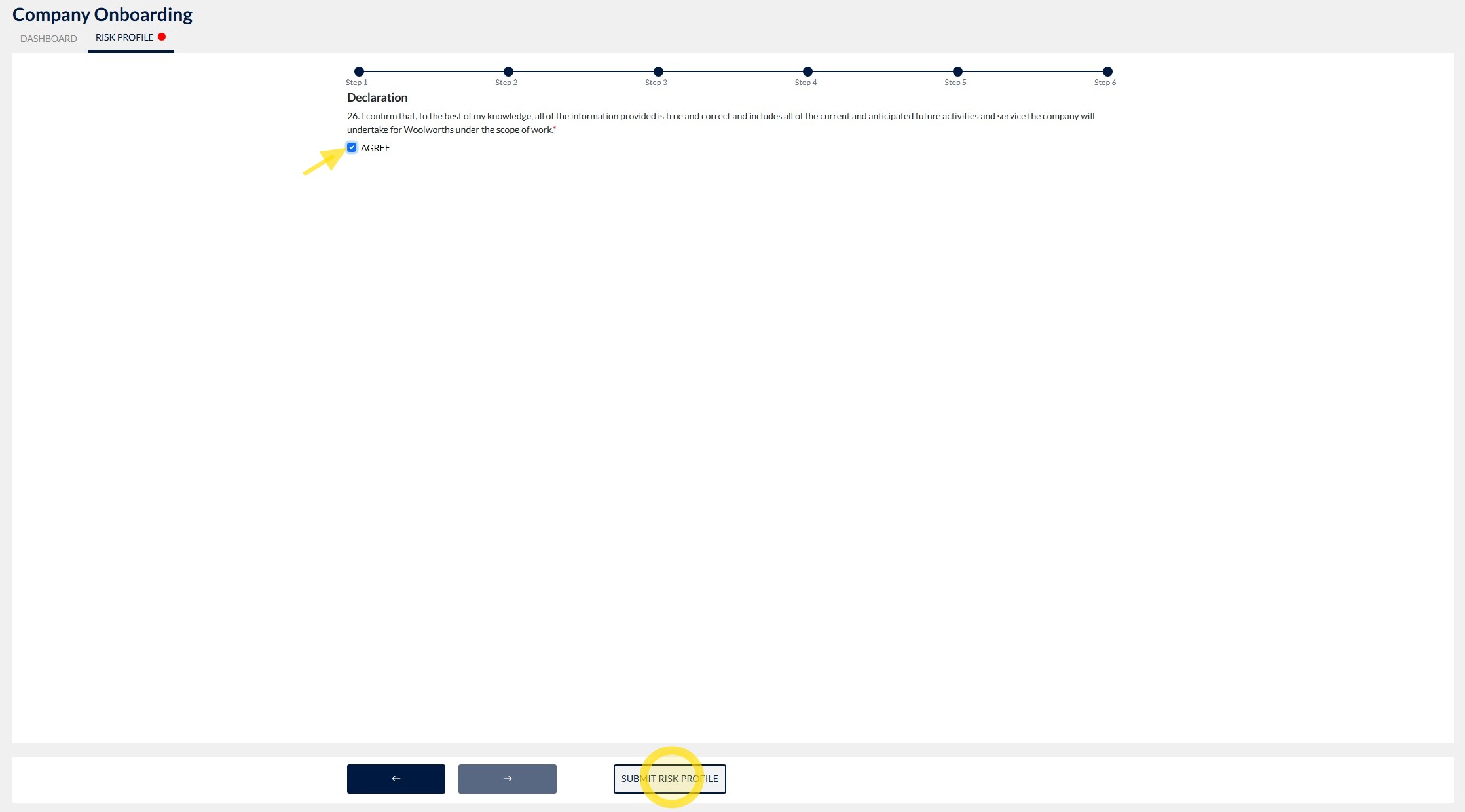
10. Read the declaration carefully, then click Agree to confirm that the information you have provided is accurate and complete.
Once you have accepted the declaration, click Submit to complete and submit the form.
Payment and Completion
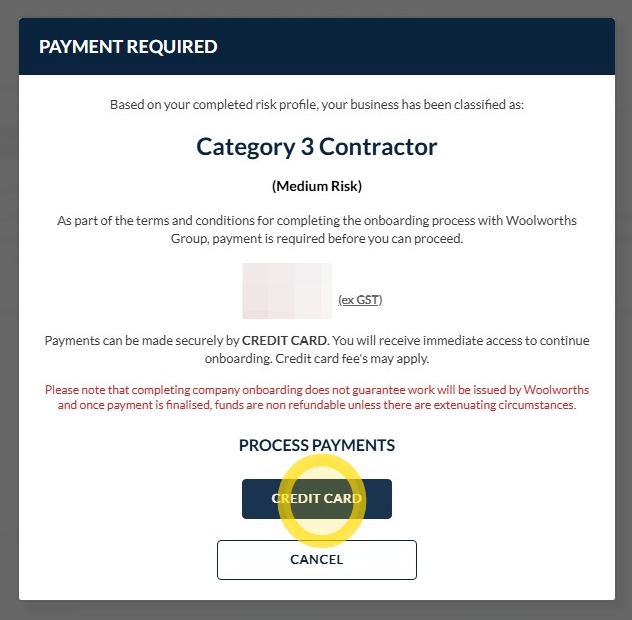
11. Click Credit Card to make the subscription payment.
Please note: Your subscription category will be determined by the level of risk associated with the services your company provides to Woolworths Group.
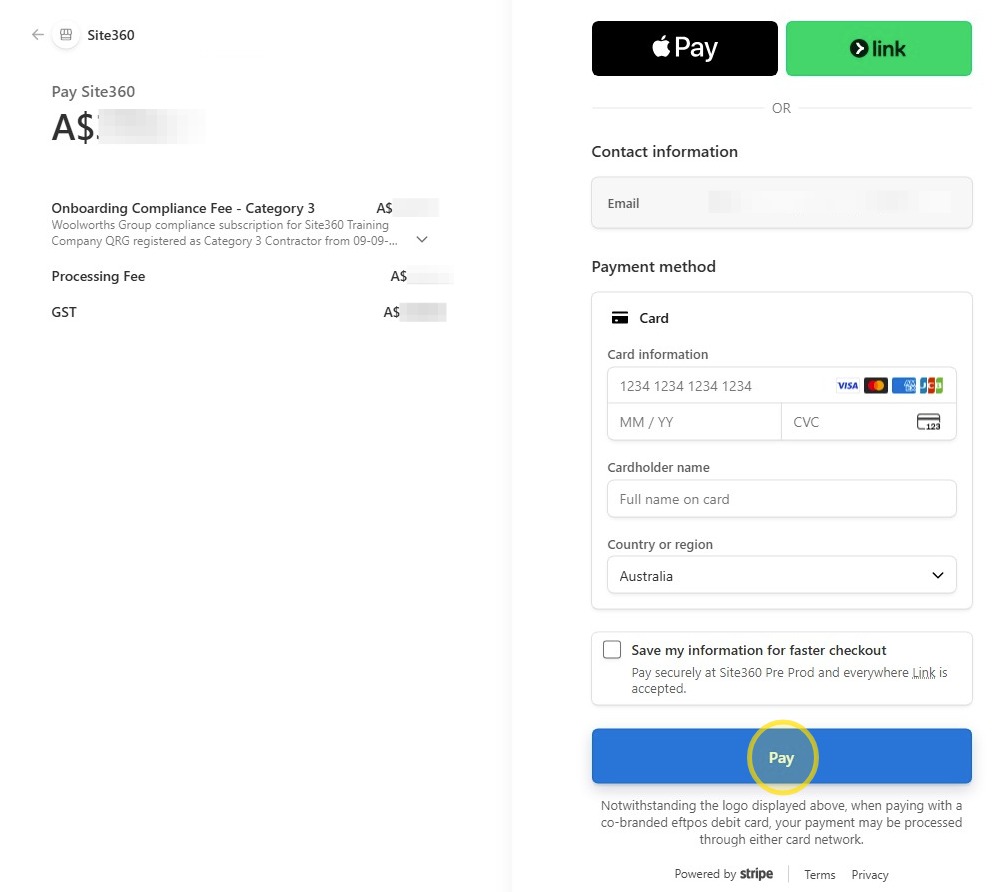
12. Enter your payment details and click Pay.
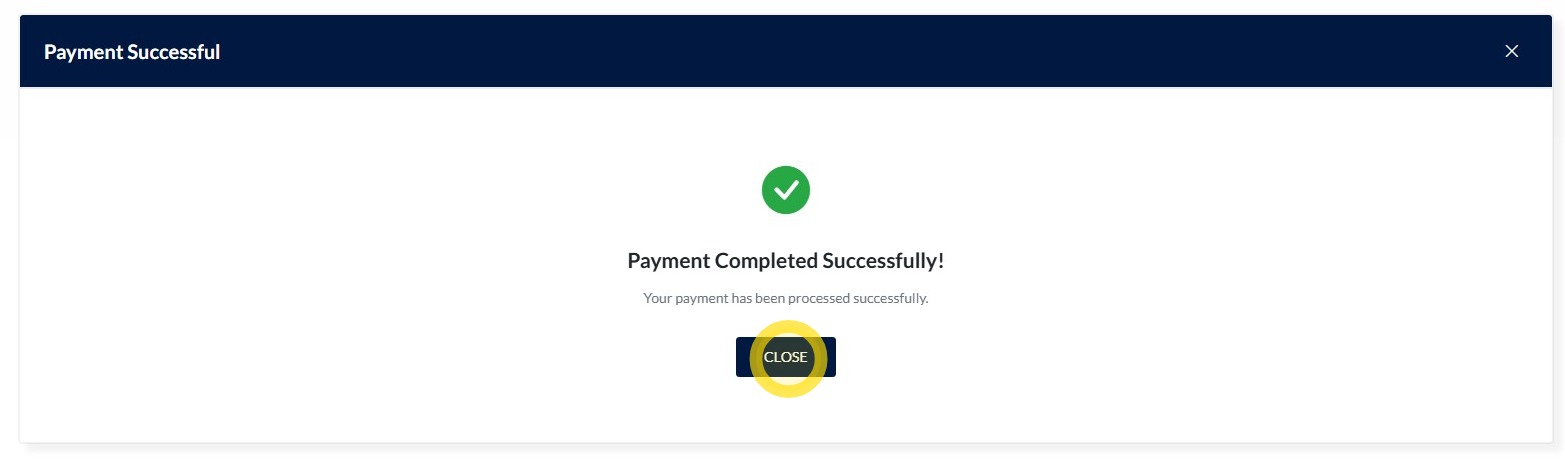
13. Once payment has been completed successfully, click Close.
Updating your Risk Profile
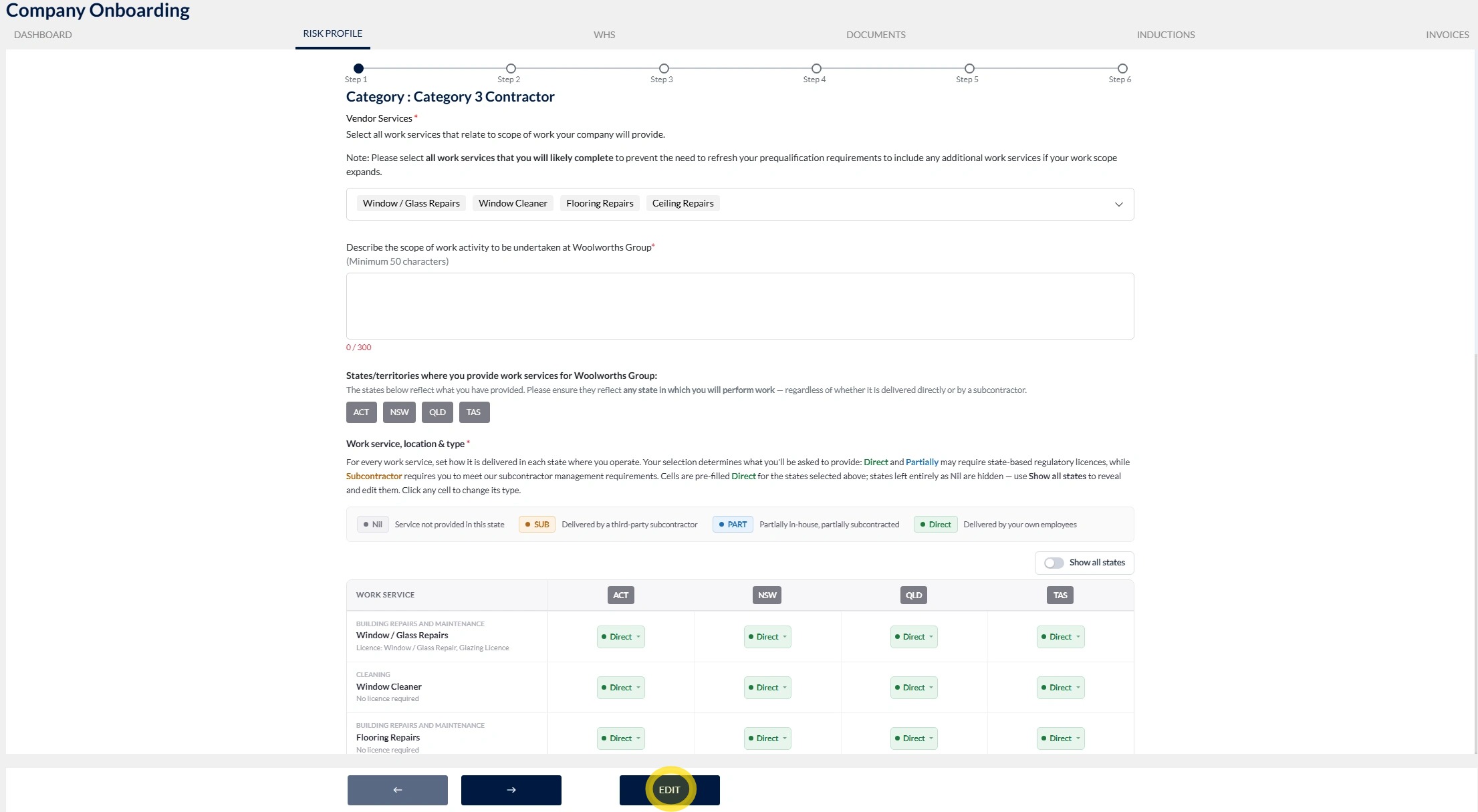
14. Follow Steps 1 and 2 to navigate to your Risk Profile, then scroll to the bottom of the page and click Edit.
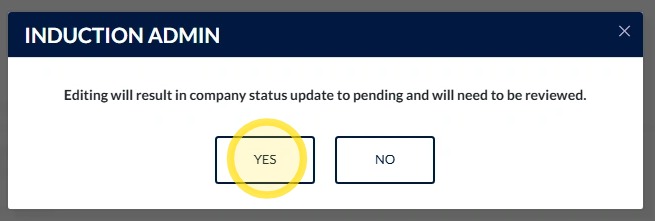
15. Click Yes to confirm that you would like to make changes to your Risk Profile.
Please note: If you make any changes to your Risk Profile, it will need to be reviewed again before it can be approved.
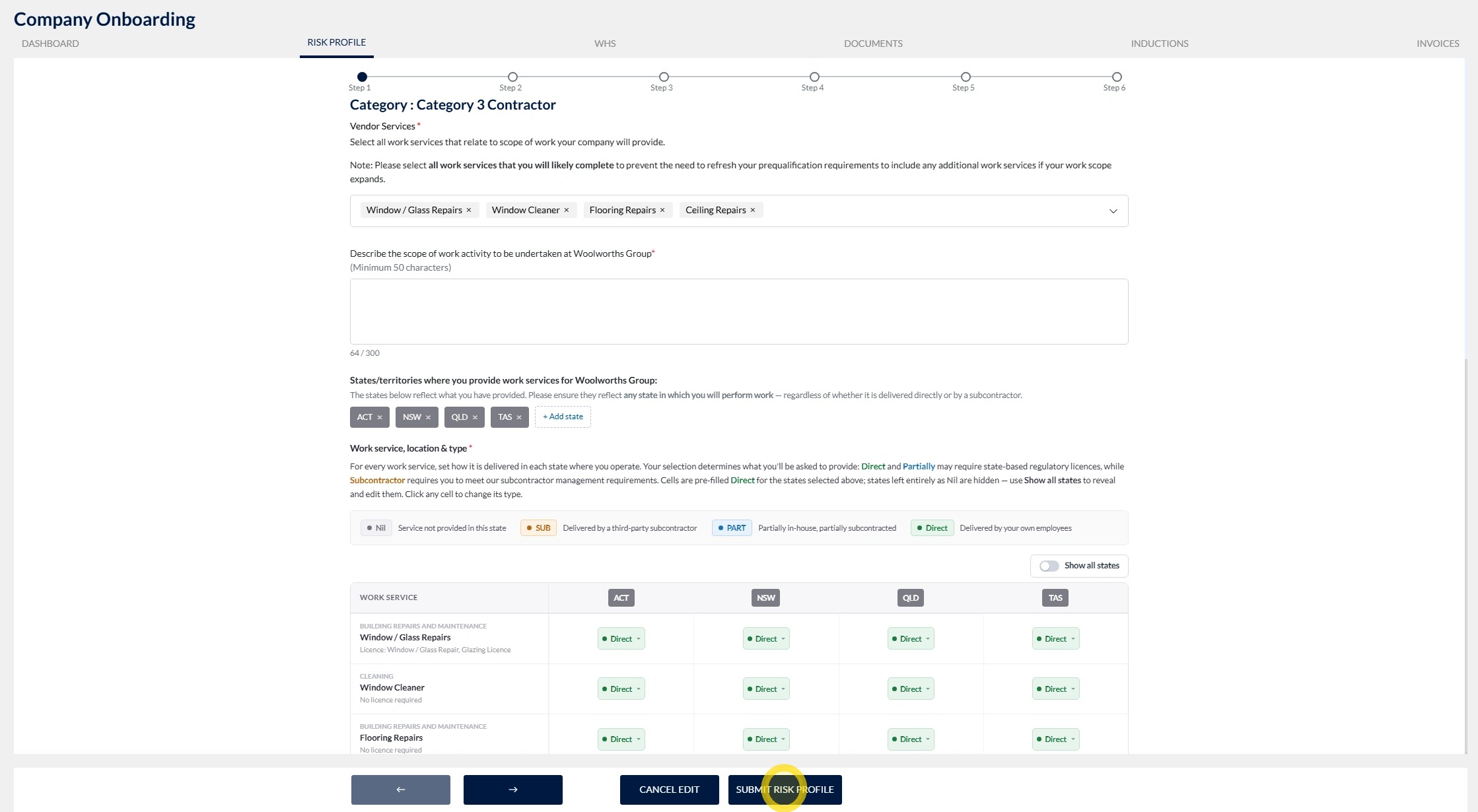
16. Make the required changes to your Risk Profile, then click Submit Risk Profile to submit the updated information for review.
Technical and Compliance Support
If you require help and guidance, you can find more helpful guides on the Help & Resources page found on the wowcontractor.com website, alternatively please contact the support or compliance team at Site360.
Phone - 1300 853 990
Email - support@site360.io or compliance@site360.io


