
Managing Your SMS Verification in Site360 Admin Portal
Made by Support Site360 with Scribe
This guide shows how to complete or update SMS Verification in the Site360 Admin Portal, including how to upload required documents and answer questions, and how to submit the declaration. It also explains how to edit a submitted verification and where to get technical or compliance help if you run into issues.
Signing Into the Admin Portal
1. Sign into the Admin Portal: admin.site360.io
Navigating to the SMS Verification
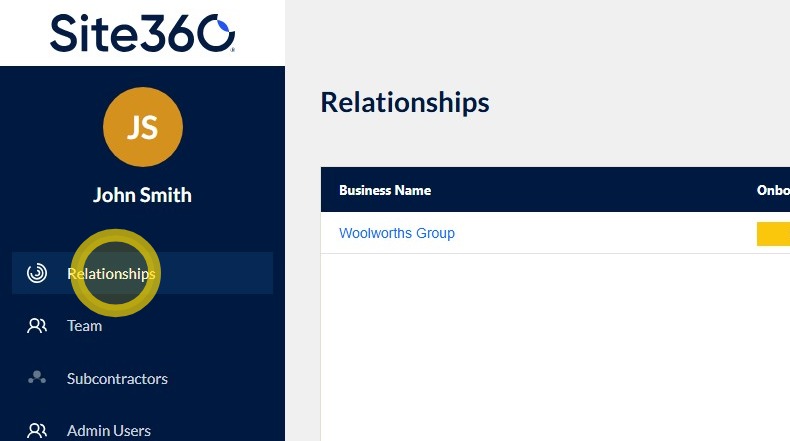
2. When you sign in it will take you directly to the Relationships Tab, if not click Relationships in the left side menu.
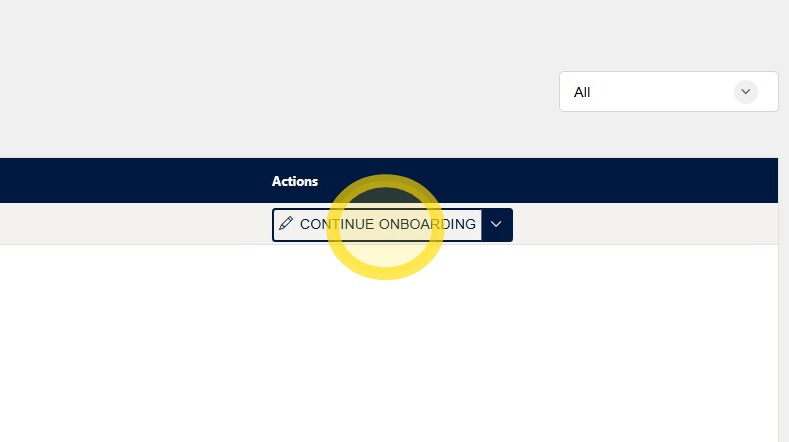
3. Click Continue Onboarding on the right side under Actions.
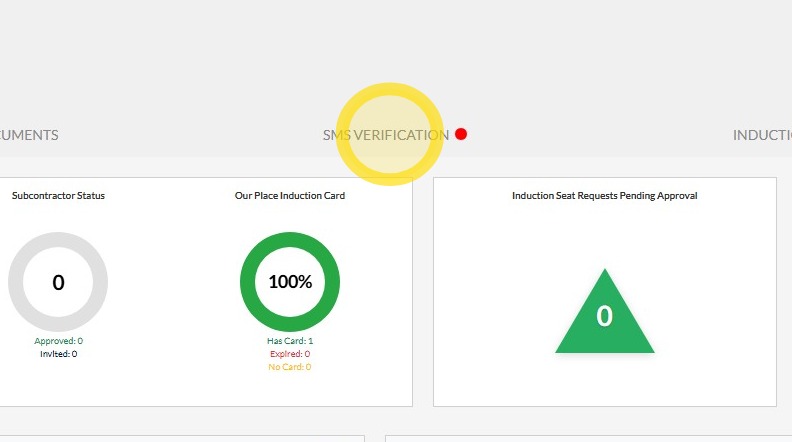
4. Click on SMS Verification tab along the top of the screen.
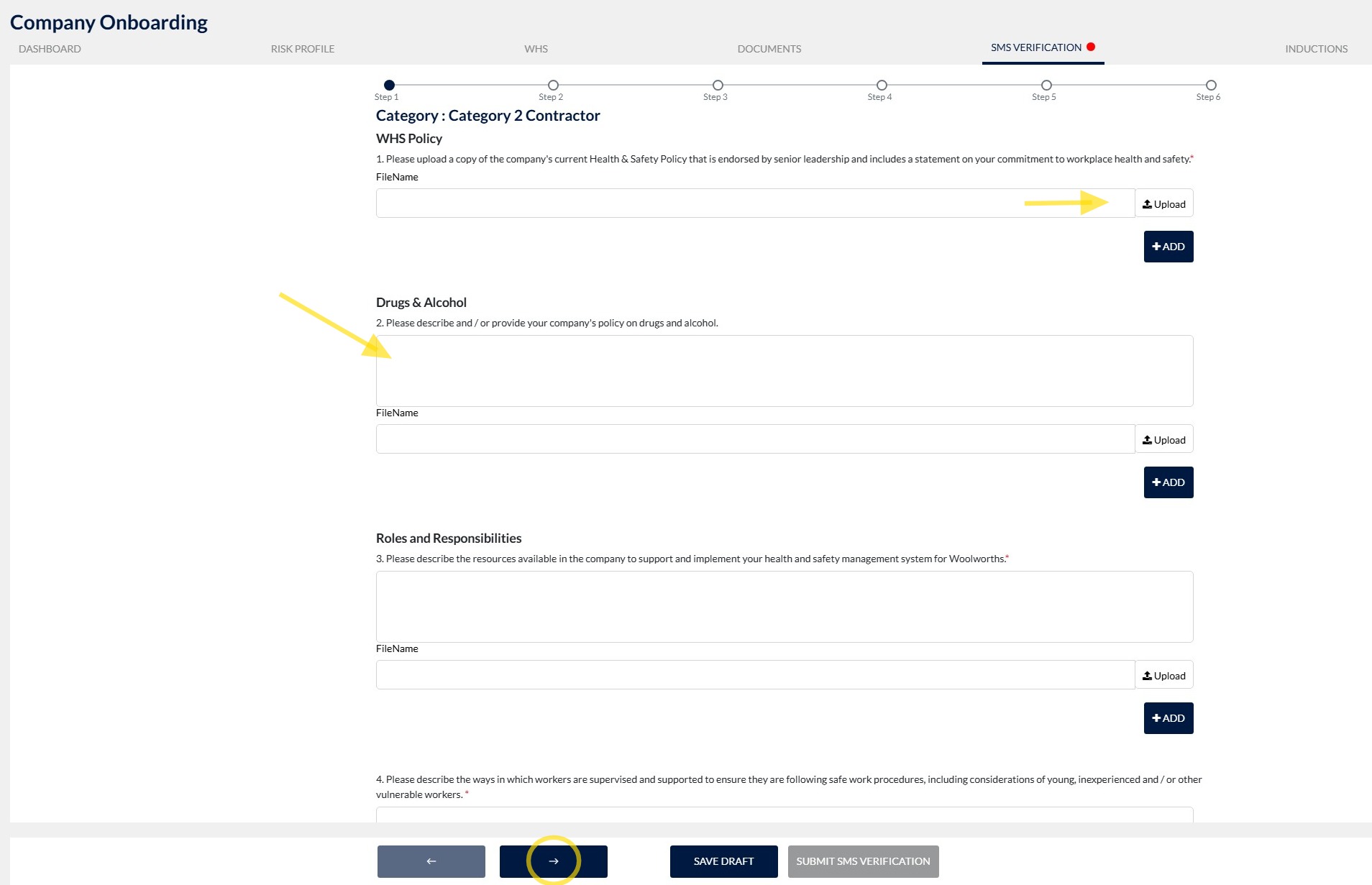
5. Complete Steps one to six by uploading the required documents and answering all required questions.
Click Upload to select and upload each required document and answer the required questions.
Then hit the next arrow at the bottom of the page.
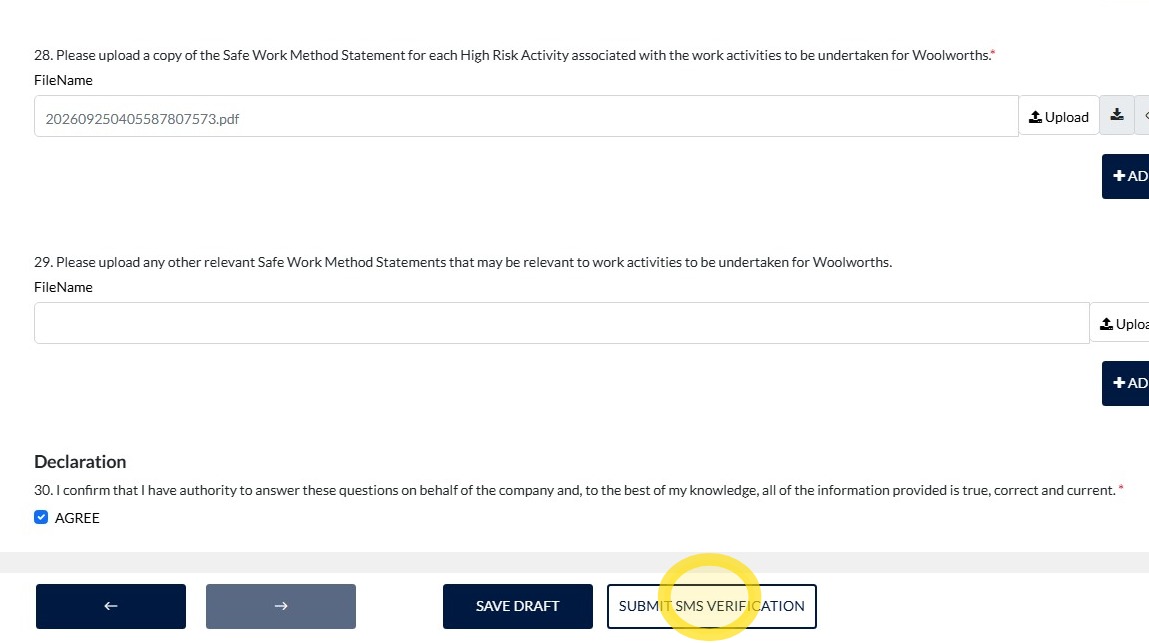
6. When you've uploaded all documents and answered all questions, read the declaration and click on the box next to Agree. Click Submit SMS Verification.
Updating SMS Verification
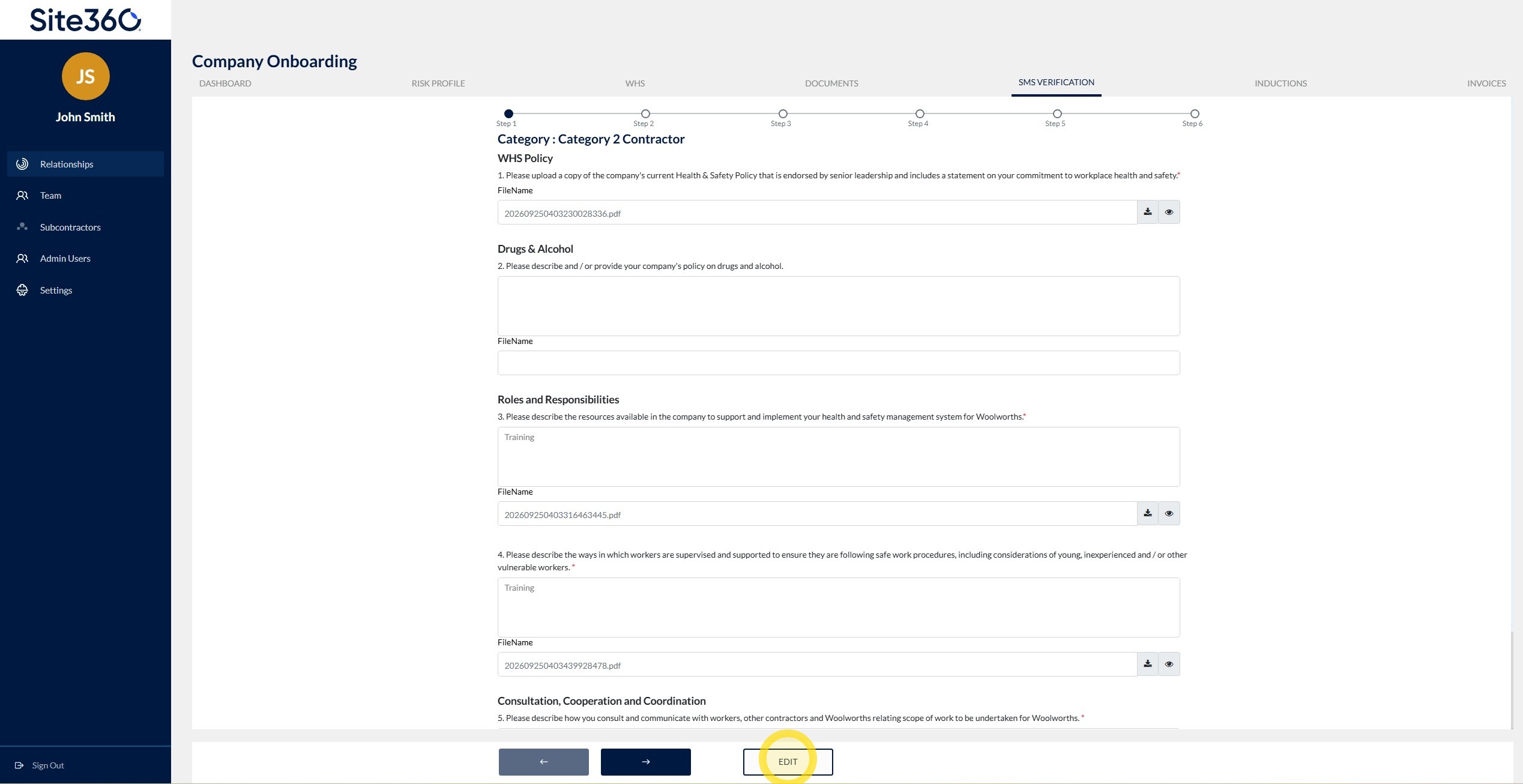
7. Follow step one and two to navigate to your SMS Verification and click Edit at the bottom of the page.
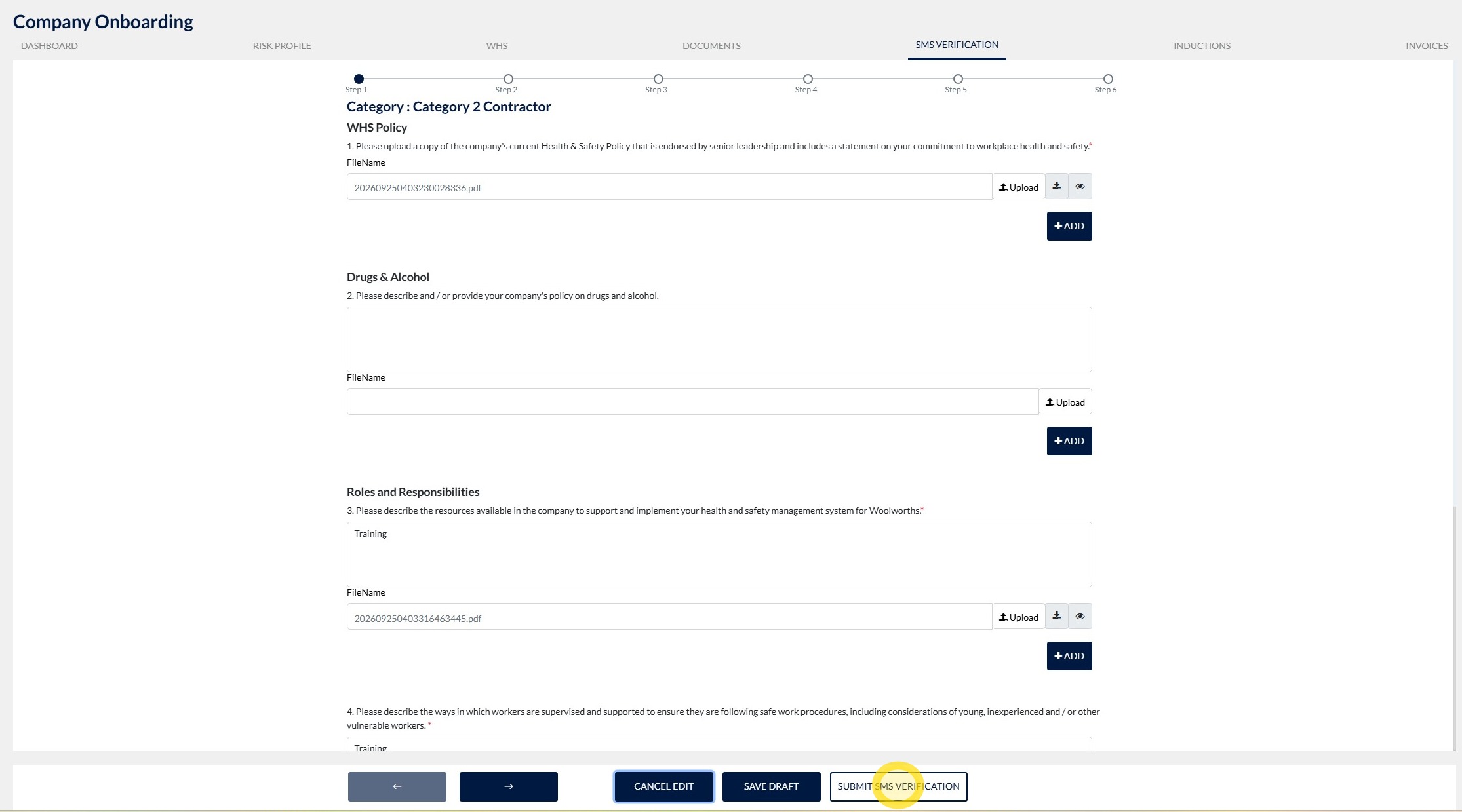
8. Make the required changes and click Submit SMS Verification.
Please note: If you make any changes to your SMS Verification, it will need to be reviewed again before it can be approved.
Technical and Compliance Support
If you require help and guidance, you can find more helpful guides on the Help & Resources page found on the wowcontractor.com website, alternatively please contact the support or compliance team at Site360.
Phone -1300 853 990
Email - support@site360.io or compliance@site360.io


