
Managing Your Teams Inductions in Site360 Admin Portal
Made by Support Site360 with Scribe
This guide shows how to quickly assign, pay for, and verify induction seats for team members in the Site360 Admin Portal, so you can onboard staff efficiently. It walks through signing in, adding an induction to a team member, completing payment, and checking completion status. It also points to help resources and contact details for technical or compliance support.
Signing into the Admin Portal
1. Sign into the Admin Portal:admin.site360.io
Navigating to Inductions
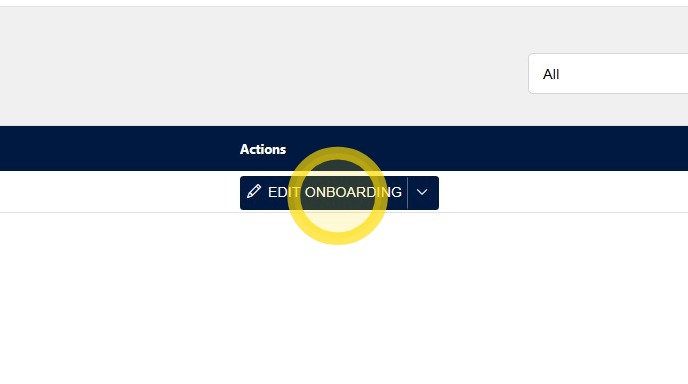
2. Once you have signed in, you will be taken directly to the Relationships tab. Click Edit Onboarding.
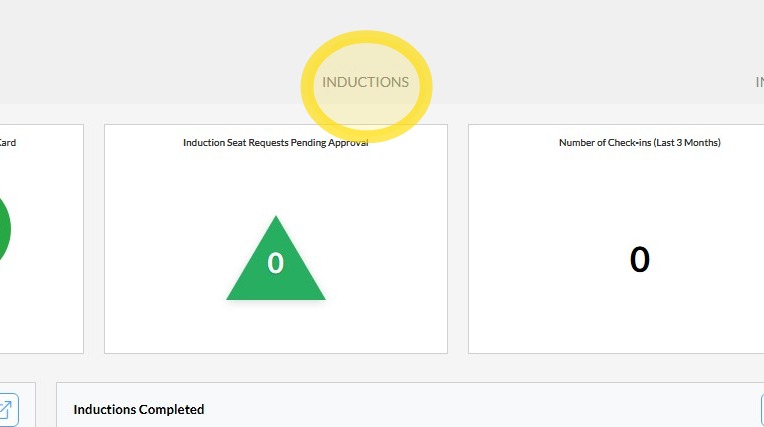
3. Click on the Inductions tab along the top of the screen.
Assigning Induction
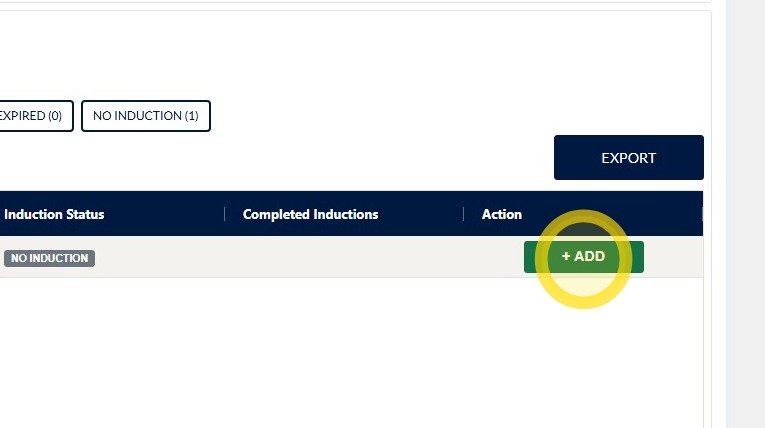
4. Click the + Add button on the right-hand side of the team member you would like to assign an induction to.
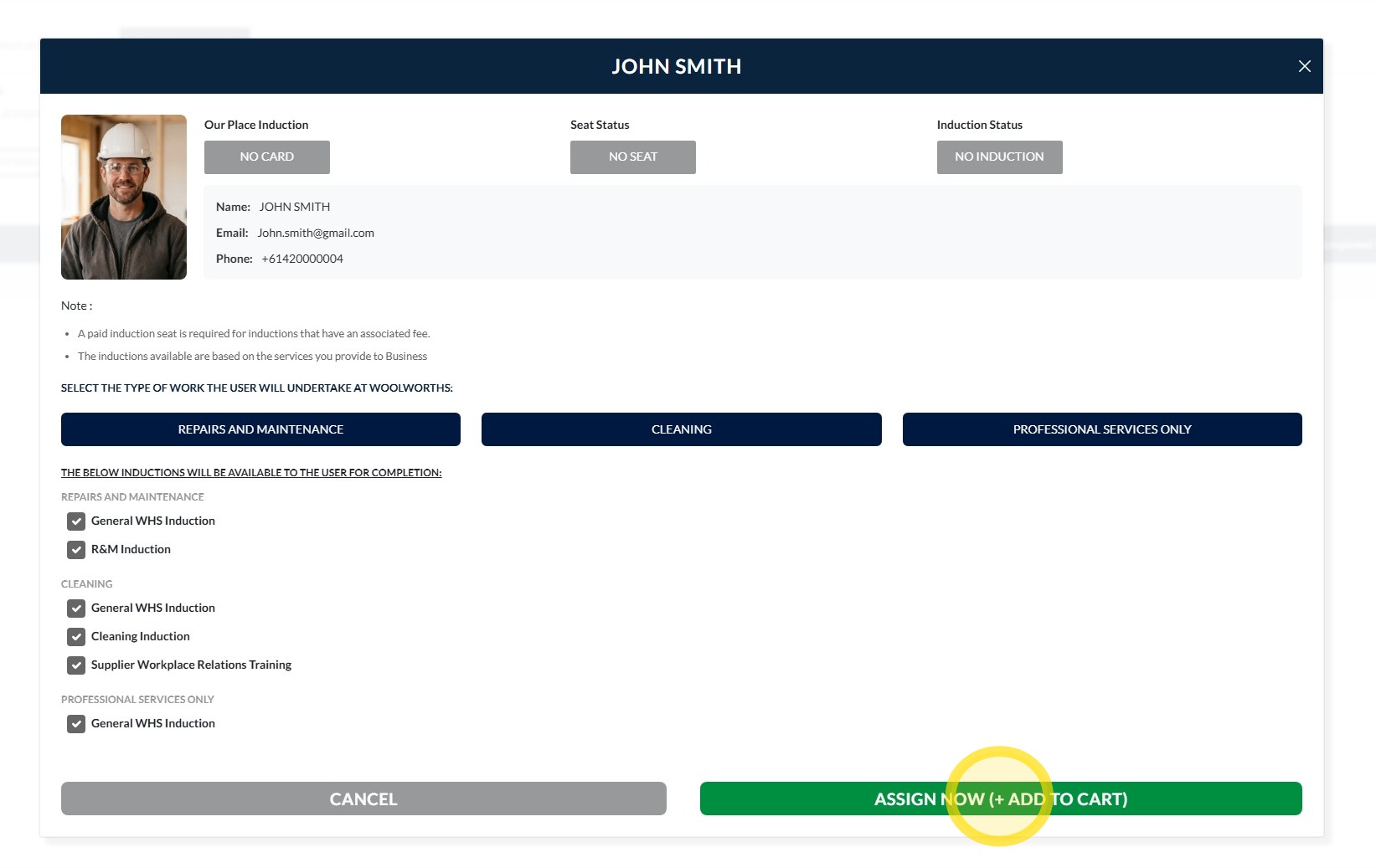
5. Click the green Assign Now (+ Add to Cart) button to assign the selected induction(s) to the team member.
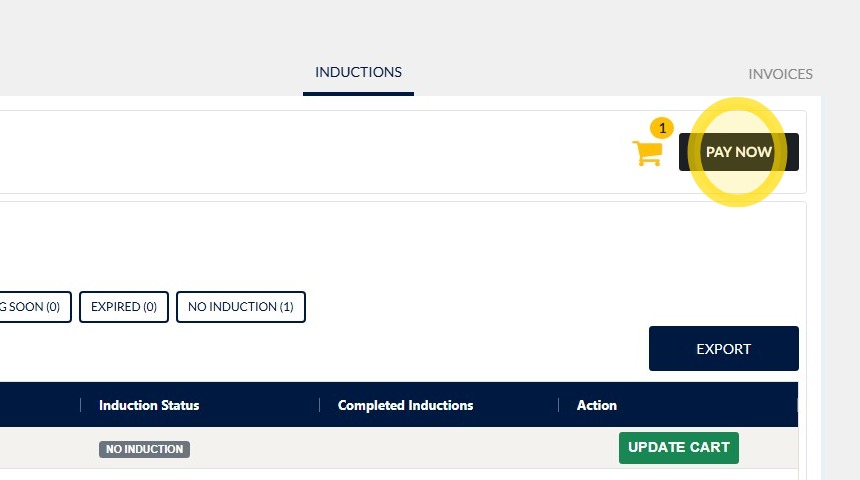
6. Click Pay Now at the top of the screen.
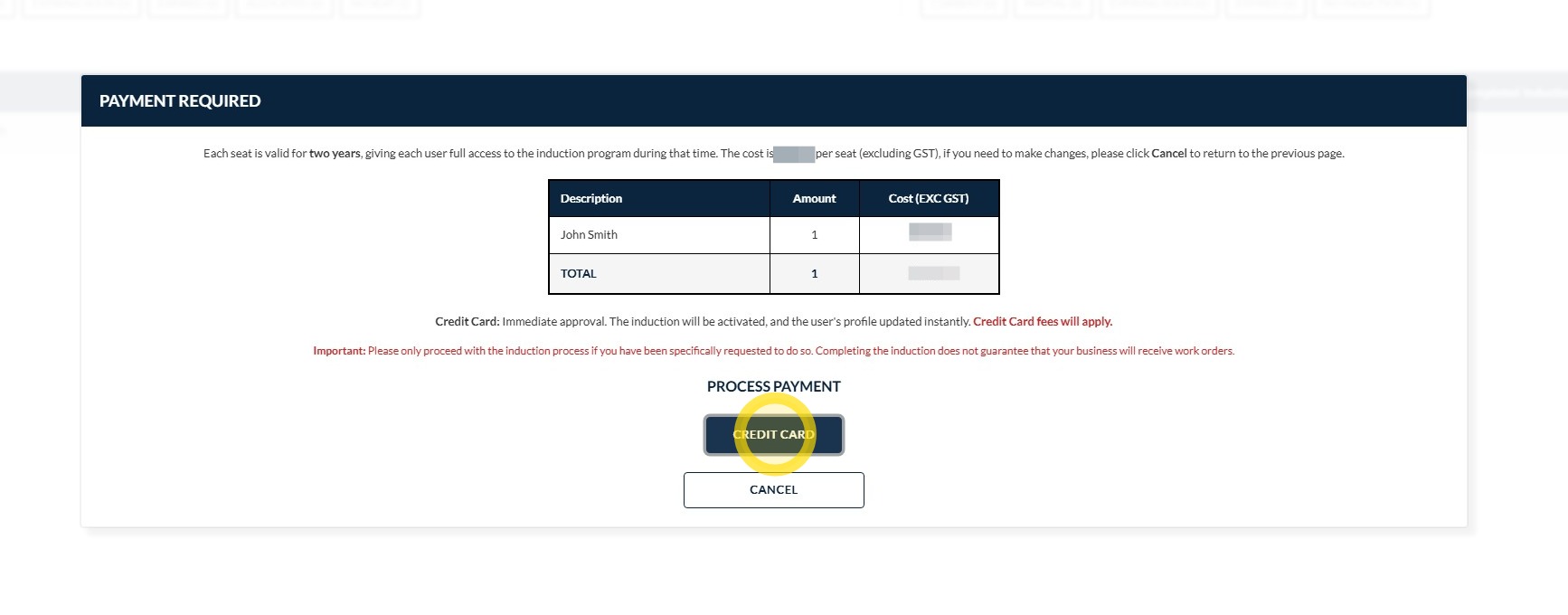
7. Click Credit Card.
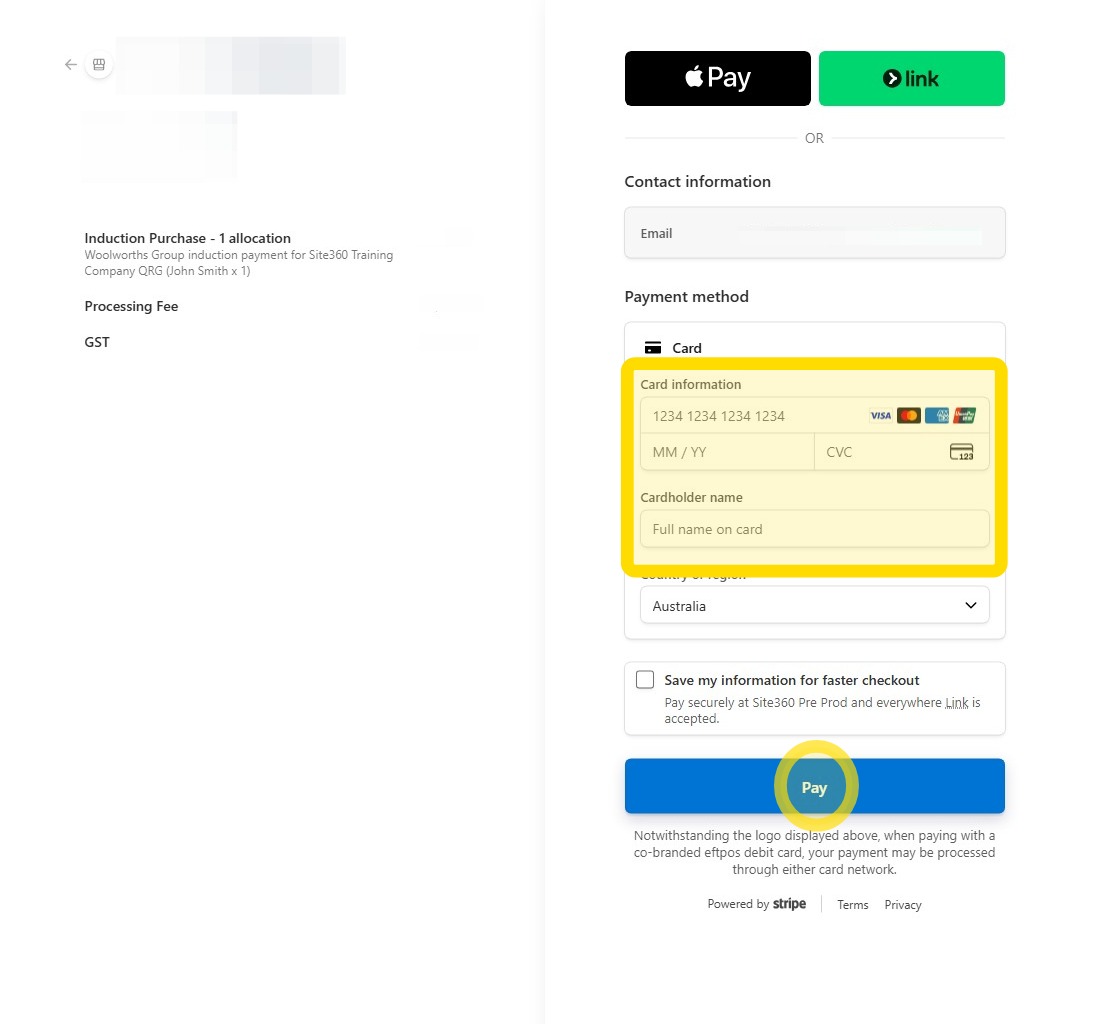
8. Enter your card details and click Pay.
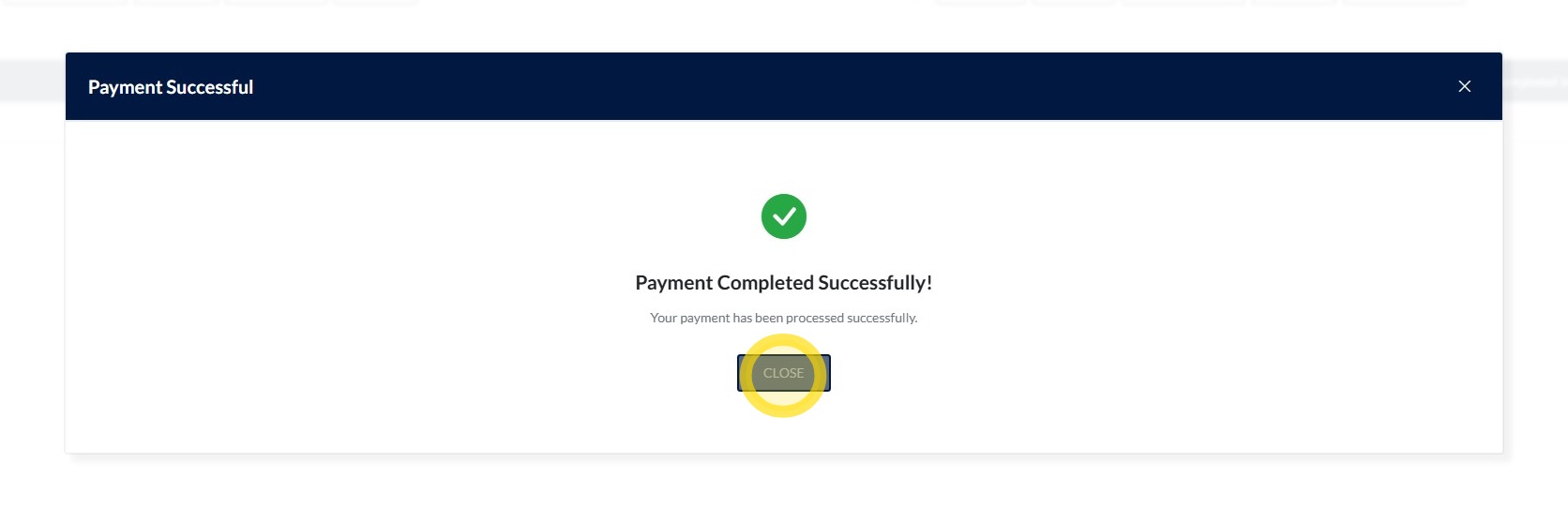
9. Click Close to return to the previous screen.
The induction seat has now been successfully paid for and assigned to your team member.
The assigned induction will now be available for the team member to complete within the app.
Verifiying Induction Details
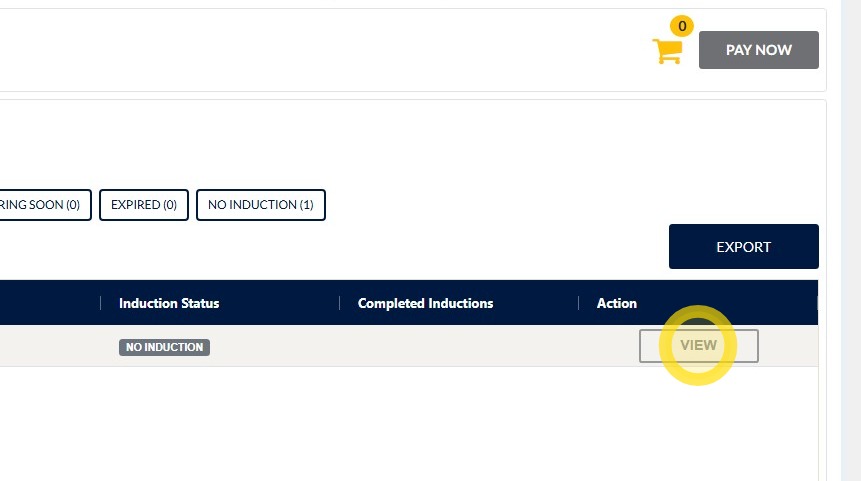
10. Click View to view the individual's induction details.
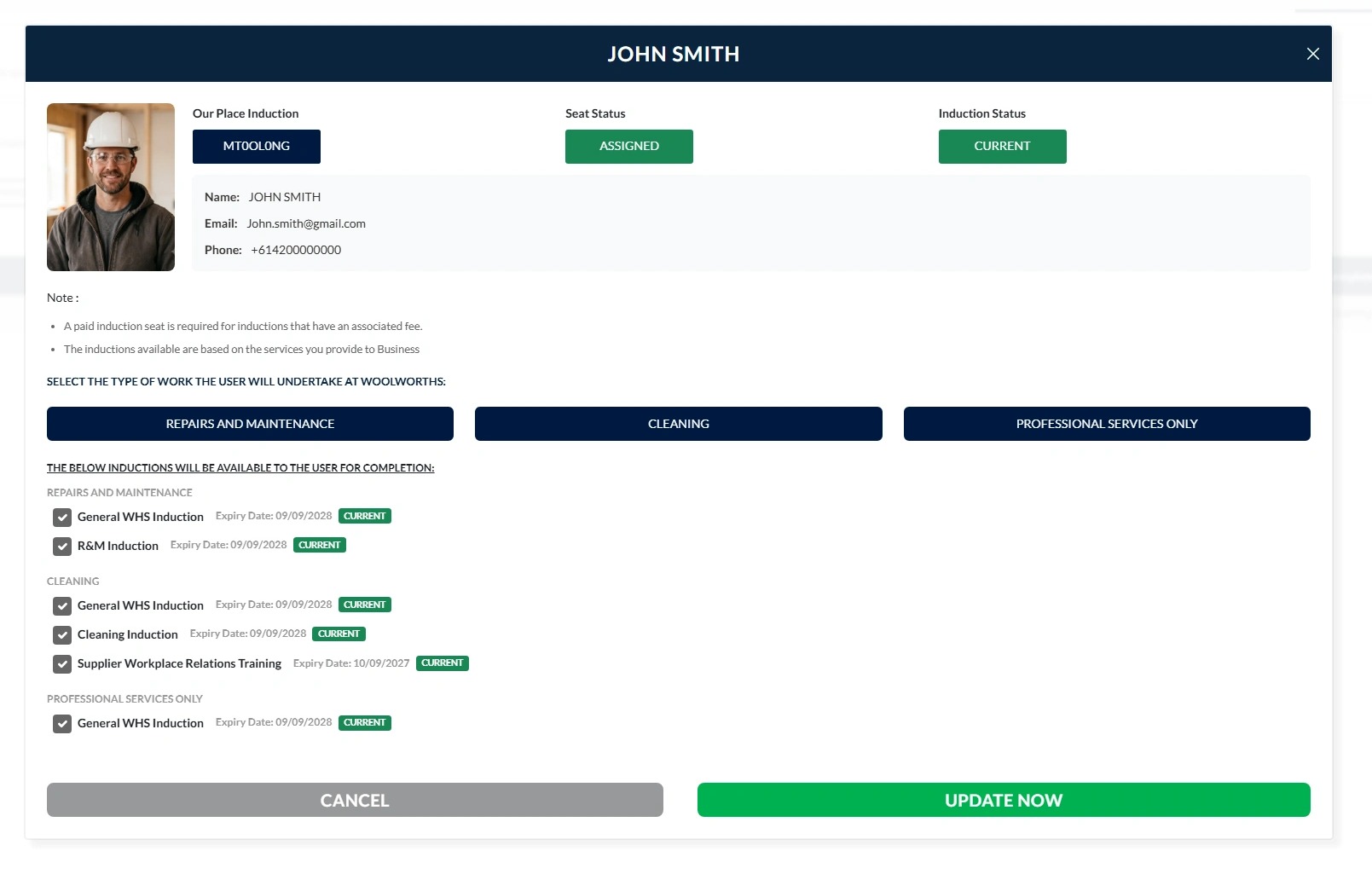
11. When your team have completed all inductions, it will show as per below.
Technical and Compliance Support
If you require help and guidance, you can find more helpful guides on the Help & Resources page found on the wowcontractor.com website, alternatively please contact the support or compliance team at Site360.
Phone - AUS 1300 853 990 | NZ 0800 115 710
Email - support@site360.io or compliance@site360.io


