
Registering your Company as a Subcontractor
Made by Support Site360 with Scribe
This guide shows subcontractors how to complete onboarding after a direct contractor sends an invitation, covering account setup, login, accepting the business relationship, and submitting a risk profile with service details. It also points to where to get technical or compliance help and provides support contact details.
Please note: Your direct contractor must send you an invitation email before you can register as a subcontractor.
If you have not received an invitation email, please contact your head contractor and request that they send one to you.
Once you have received the invitation, you can follow the registration process and complete your subcontractor onboarding requirements.
Account Registration
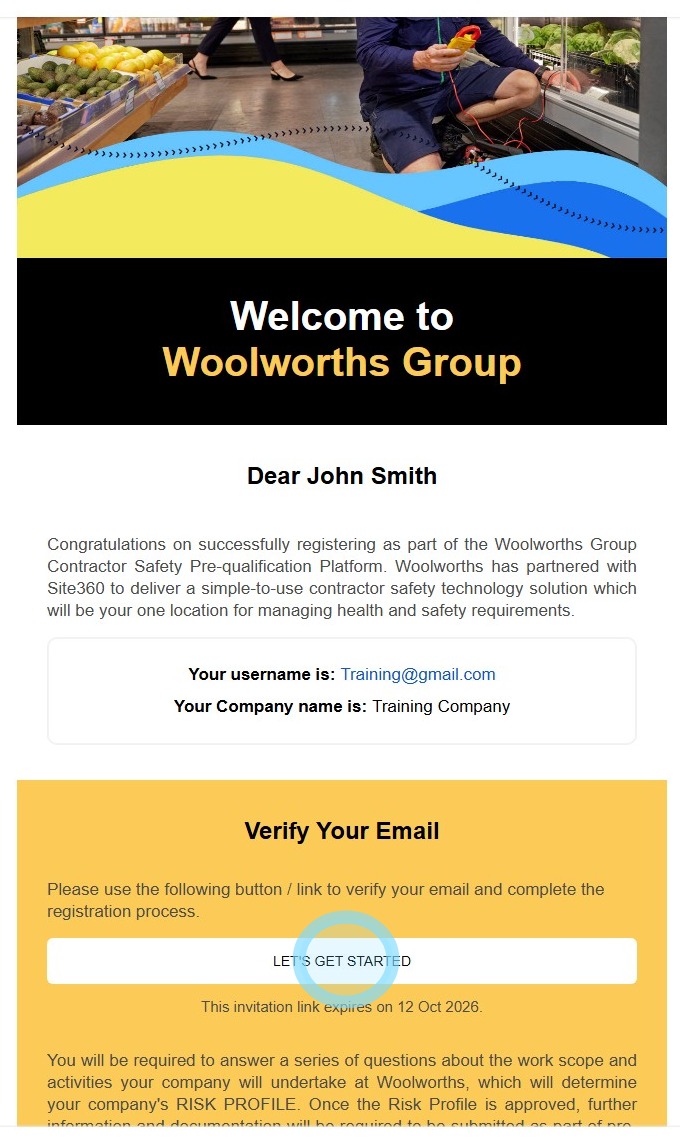
1. Open your invitation email and click Let's Get Started to begin the registration process.
You will be directed to the registration page, where you can create your company profile and complete the required onboarding steps.
Please note: If you cannot locate the invitation email, check your junk or spam folder before contacting your head contractor for assistance.
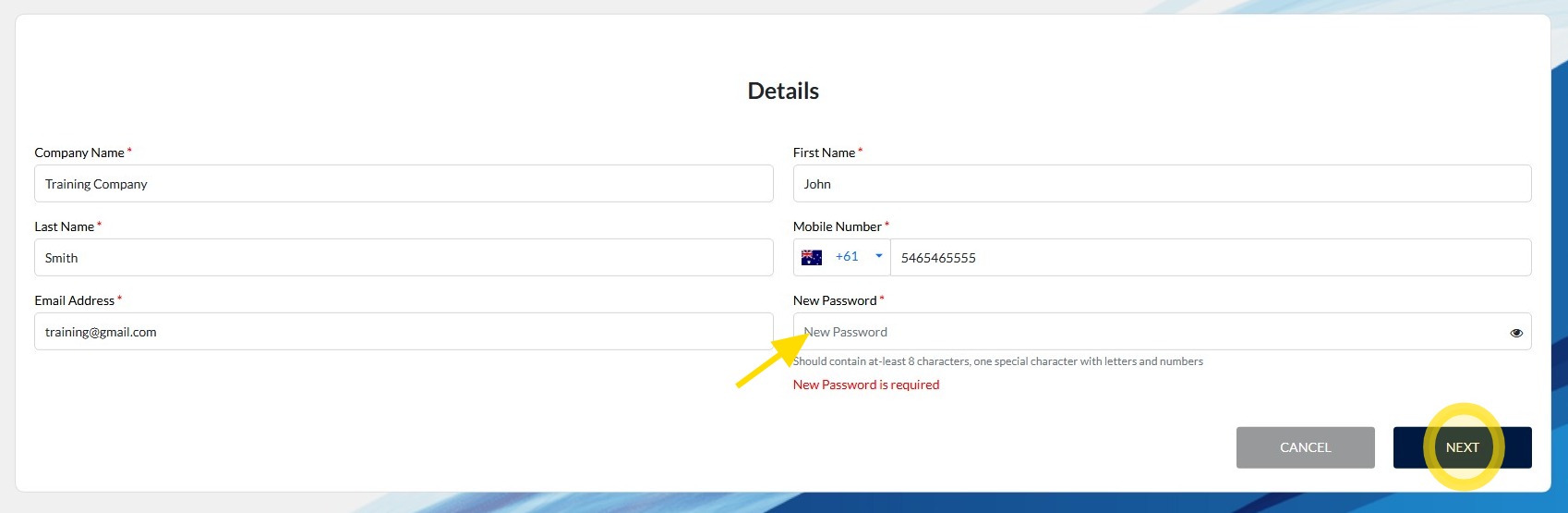
2. Check that your details are correct, create a password, and then click Next to continue.
Please note your password should contain at-least 8 characters, one special character with letters and numbers.
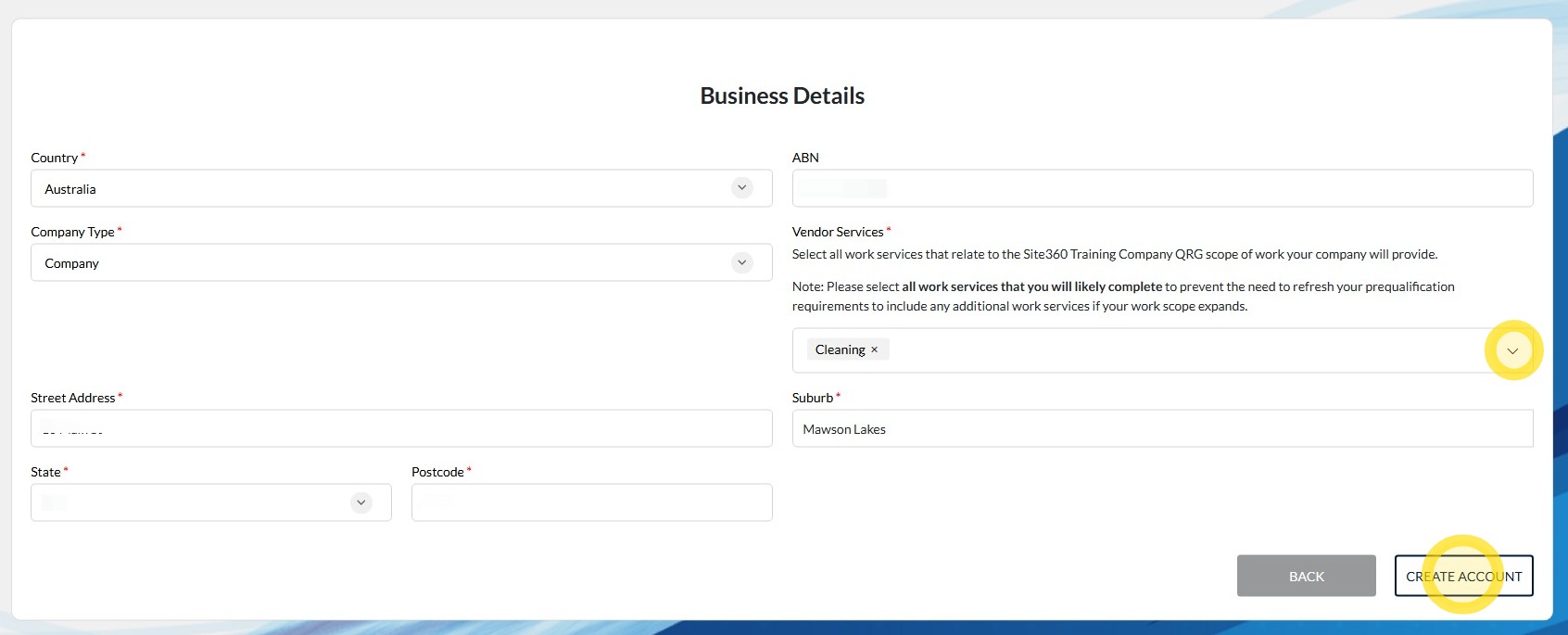
3. Check your business details, then select your vendor service(s) by clicking the field under Vendor Services and choosing the appropriate option(s).
Once you have confirmed your business details and selected your vendor service(s), click Create Account to complete the registration process.
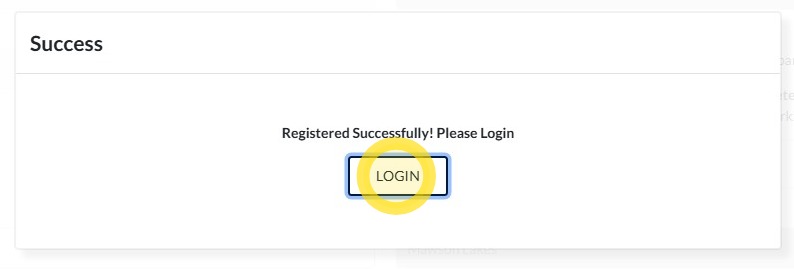
4. Click Log In.
Logging In
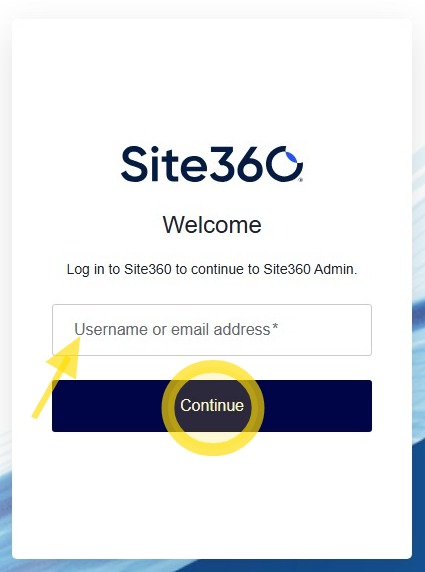
5. Enter your email, then click Continue.
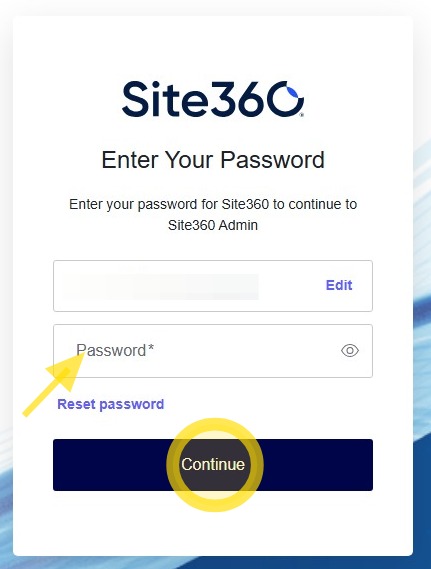
6. Enter your password, then click Continue.
Relationship Acceptance
7. Once you have logged in click Accept for the invited business relationship.

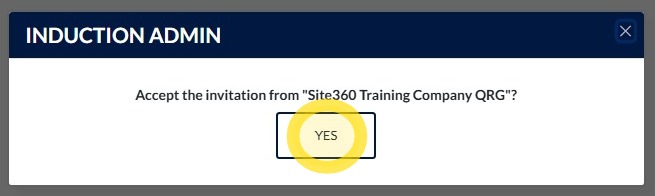
8. Click Yes to confirm the relationship.
Completing the Risk Profile
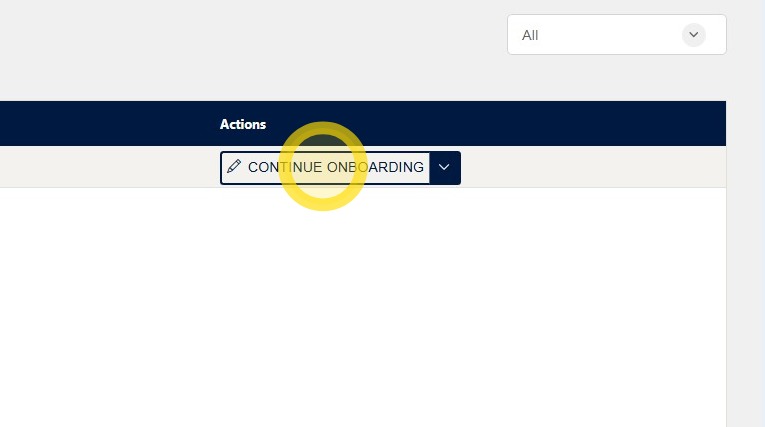
9. Click Continue Onboarding.
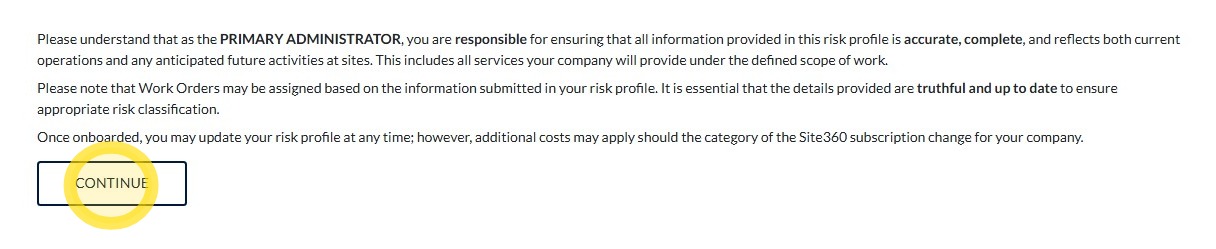
10. Read the information, then click Continue.
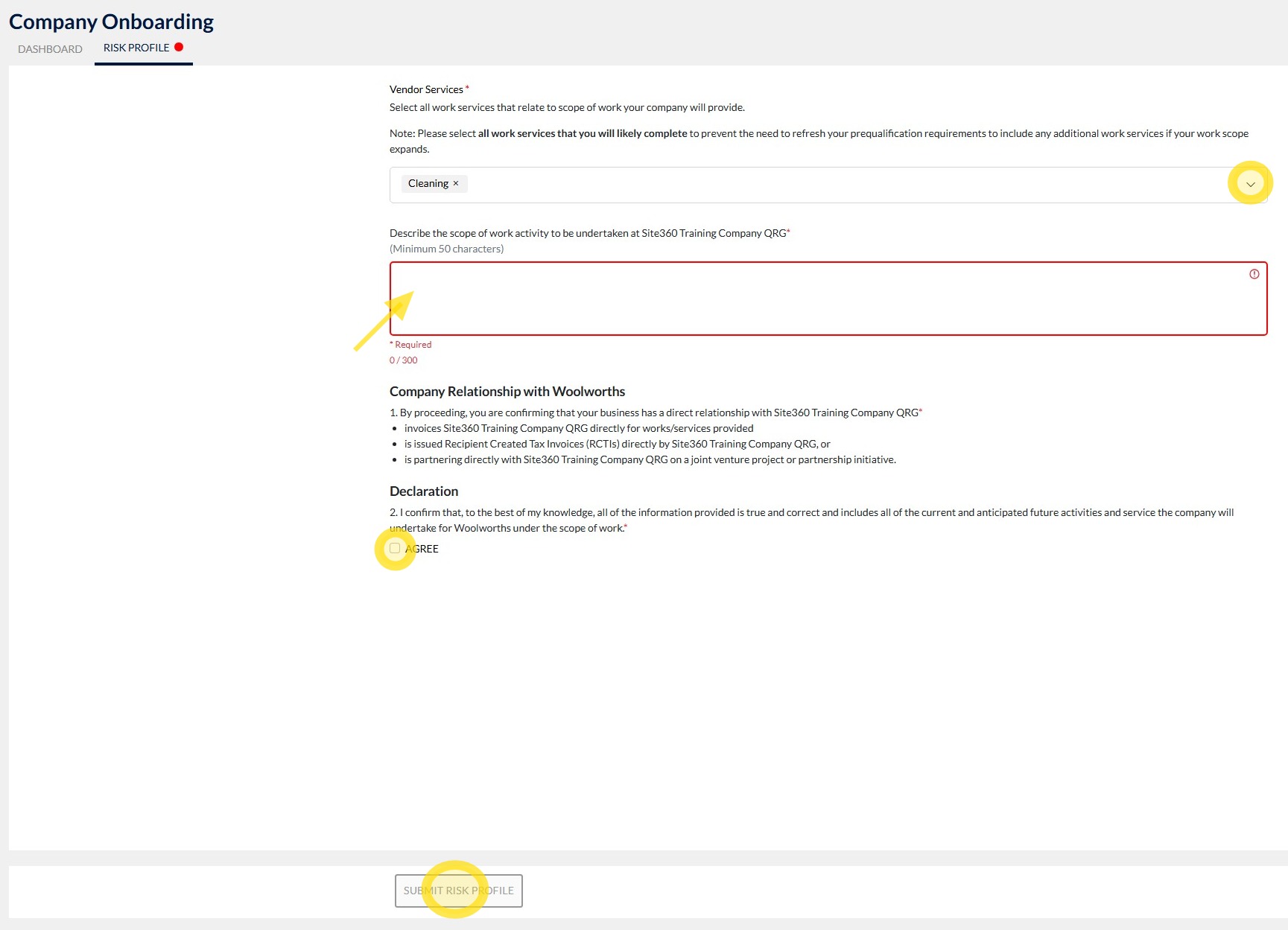
11. Your work services will be pre-populated based on the information provided during registration. To add additional services, click the drop-down arrow and select the relevant services from the list.
Describe the scope of the work activities provided.
Read the declaration and tick the box next to Agree and then click Submit Risk Profile.
Technical and Compliance Support
If you require help and guidance, you can find more helpful guides on the Help & Resources page found on the wowcontractor.com website, alternatively please contact the support or compliance team at Site360.
Phone - 1300 853 990
Email - support@site360.io or compliance@site360.io


