
Registering Your Merchandising and Demonstrator Business with Woolworths Group
Made by Support Site360 with Scribe
This guide walks you step-by-step through registering a merchandising or demonstrator business with Woolworths Group, from creating an account on the WOW Contractor site and verifying your ABN to setting up a primary administrator and activating the Site360 portal. It explains how to select vendor services, complete onboarding (including risk/profile declarations), and where to get technical or compliance help.
Accessing the WOW Contractor Website
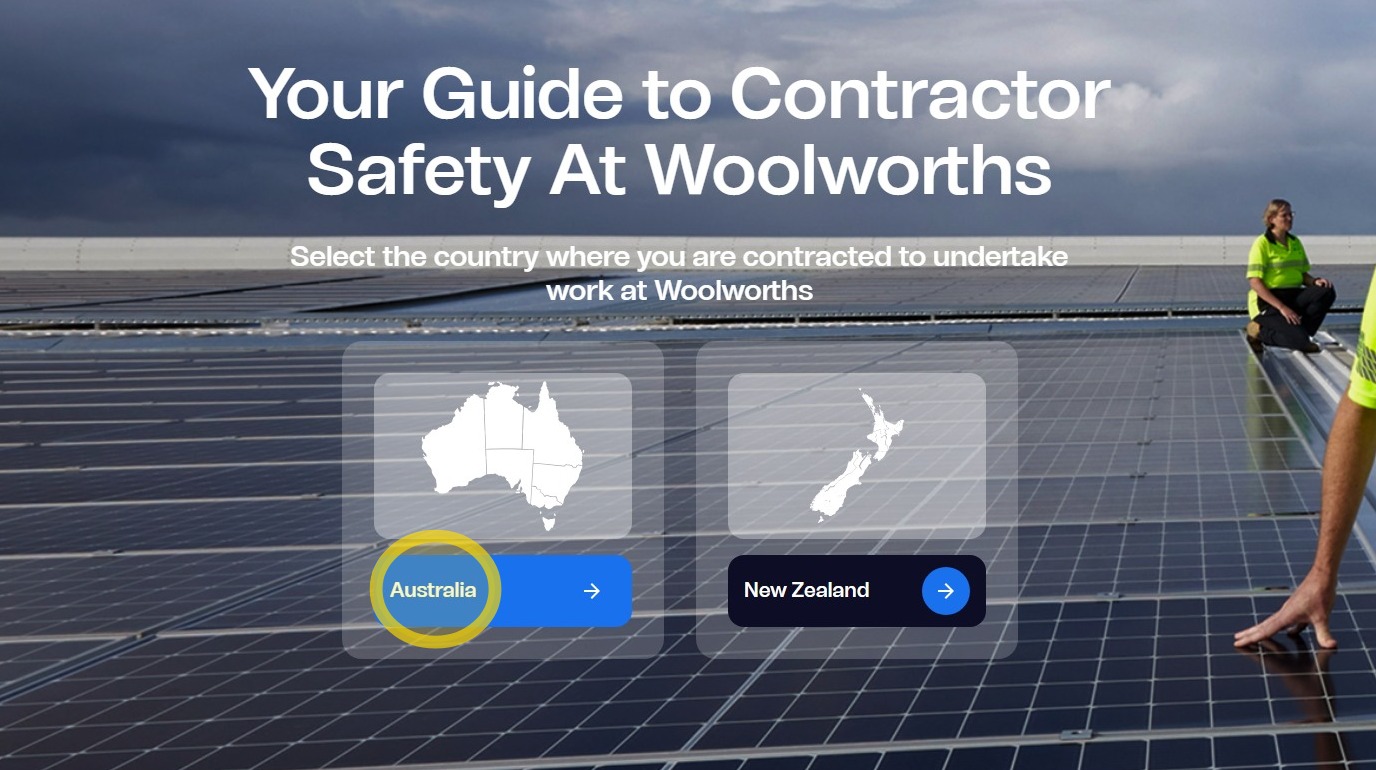
1. Go to wowcontractor.com and select Australia.
Please note this process is best completed on a computer or laptop.
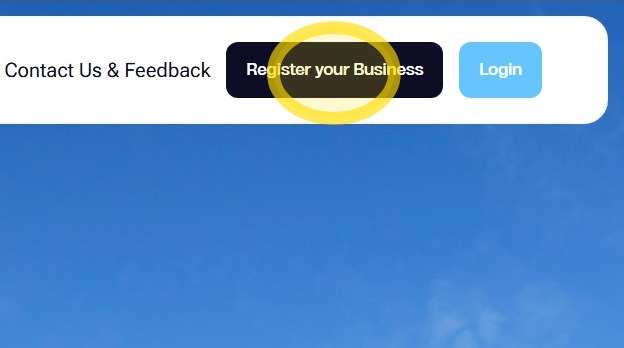
2. Click Register Your Business in the top-right corner of the page to begin the business registration process.
Completing the Company Registration Form
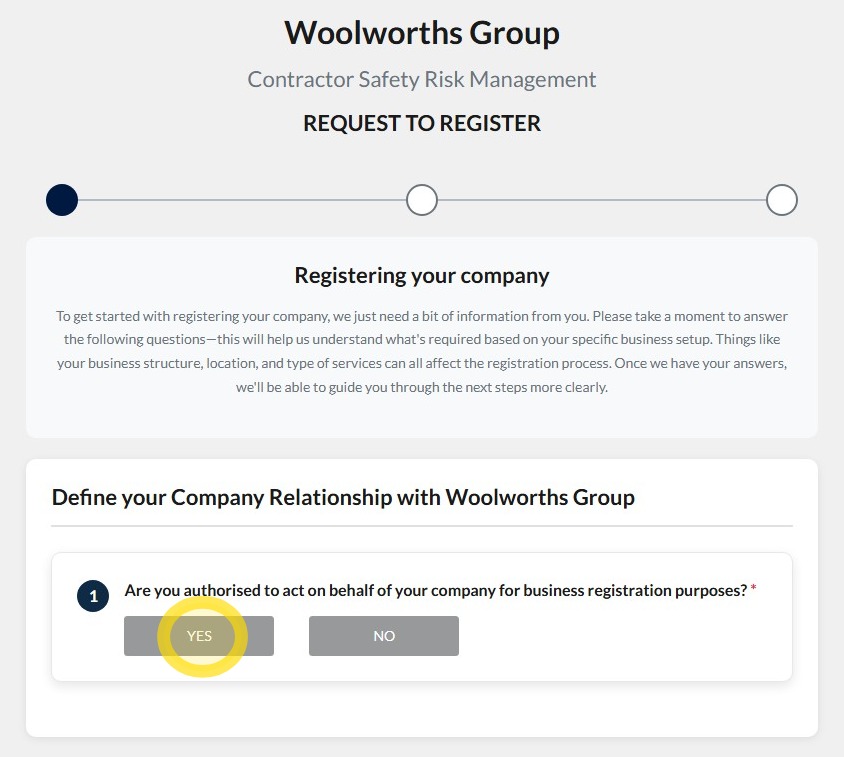
3. Click Yes to confirm that you are authorised to act on behalf of your company.
By selecting Yes, you acknowledge that you have the authority to register and manage your company's information within the system on behalf of the business.
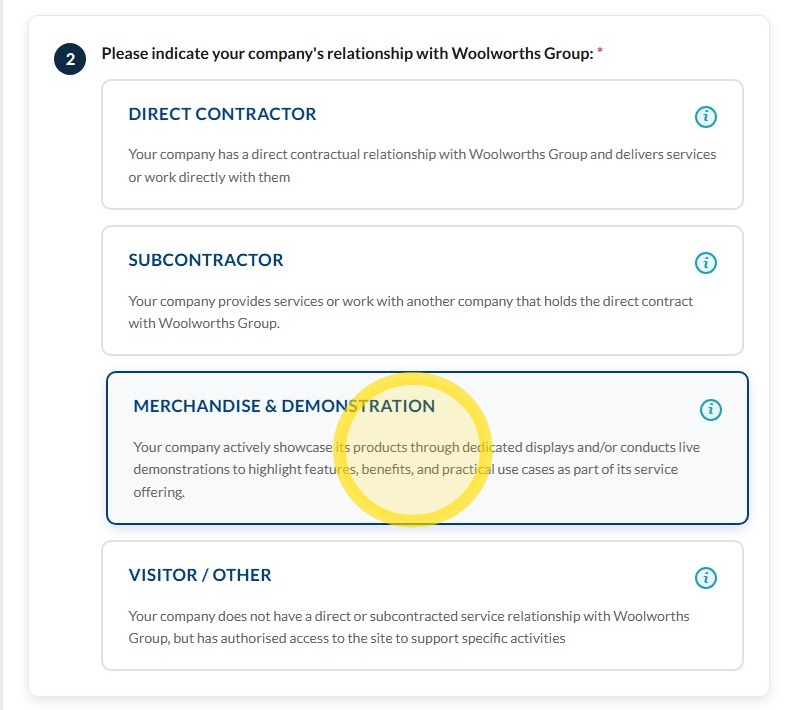
4. Select Merchandise & Demonstration as your company's relationship with Woolworths Group.
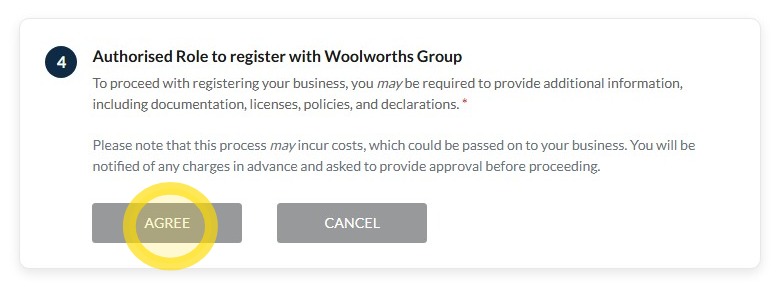
5. Click Agree if you are authorised to register your company with Woolworths Group.
By selecting Agree, you confirm that you have the authority to act on behalf of your company and accept the requirements associated with registering and onboarding with Woolworths Group.
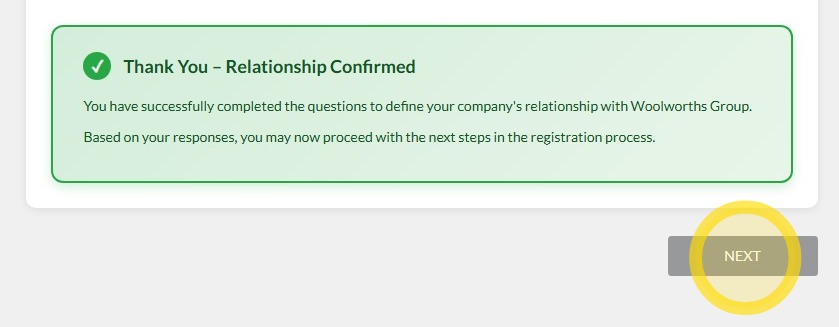
6. Your registration has now been confirmed.
Click Next to proceed to the next stage of the onboarding process.
Completing the Company Information Form
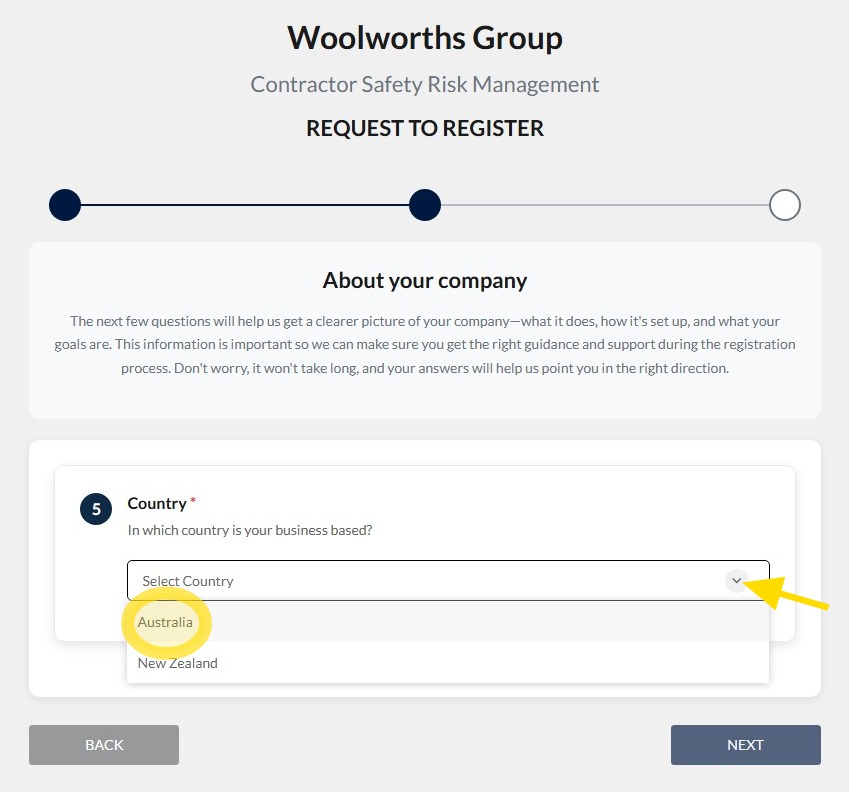
7. Click the arrow and select Australia from the Country drop-down menu.
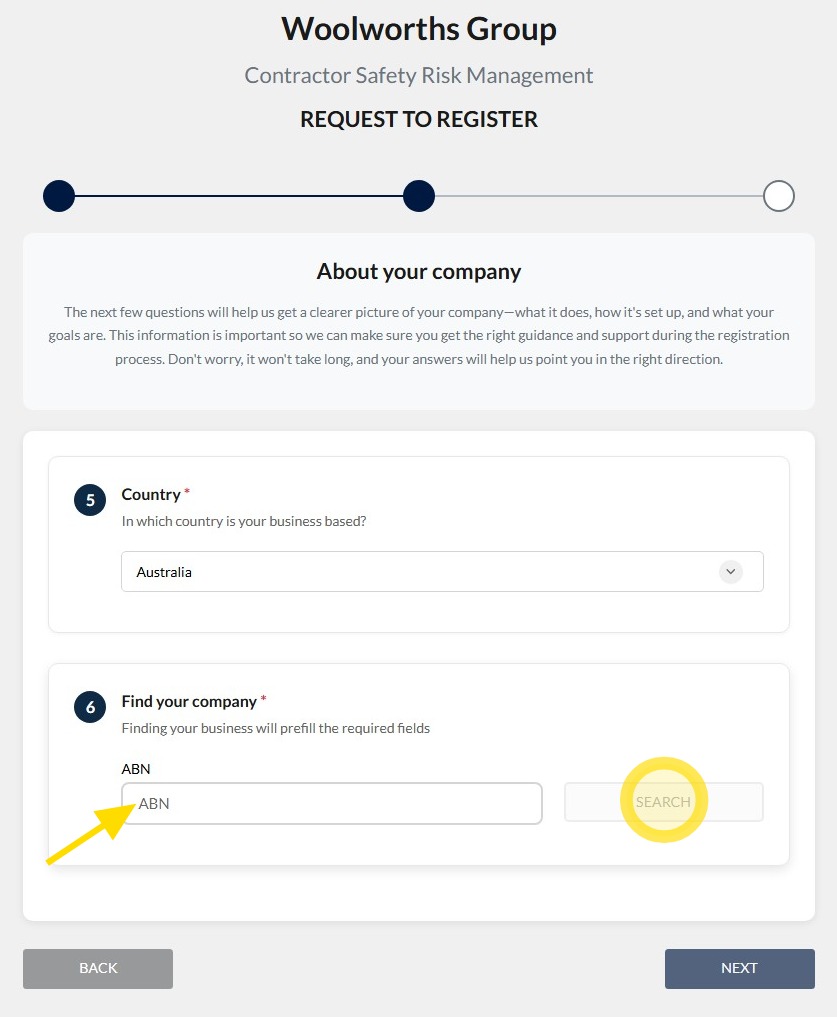
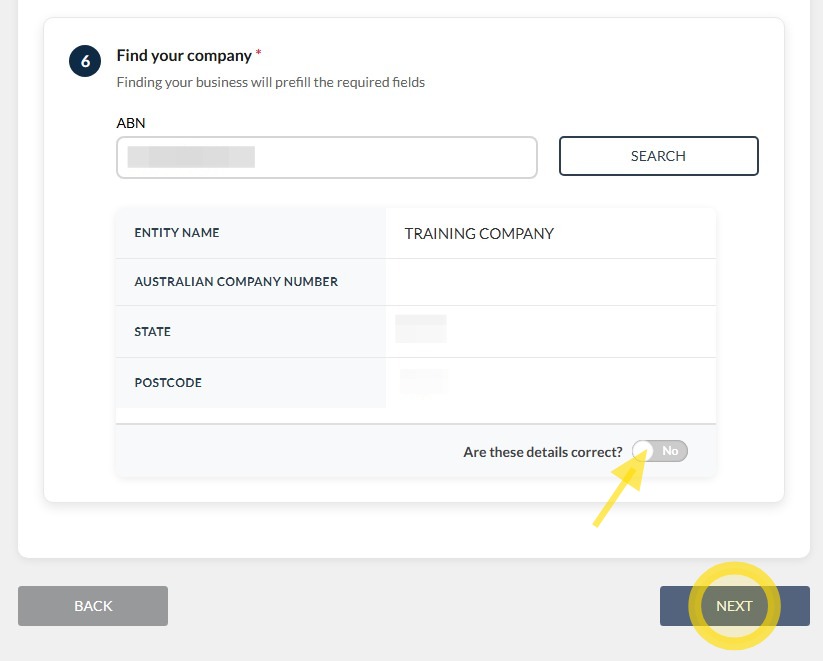
8. Enter your company's ABN number, then click Search.
9. Toggle the switch to Yes to confirm that the displayed company details are correct, then click Next to continue.
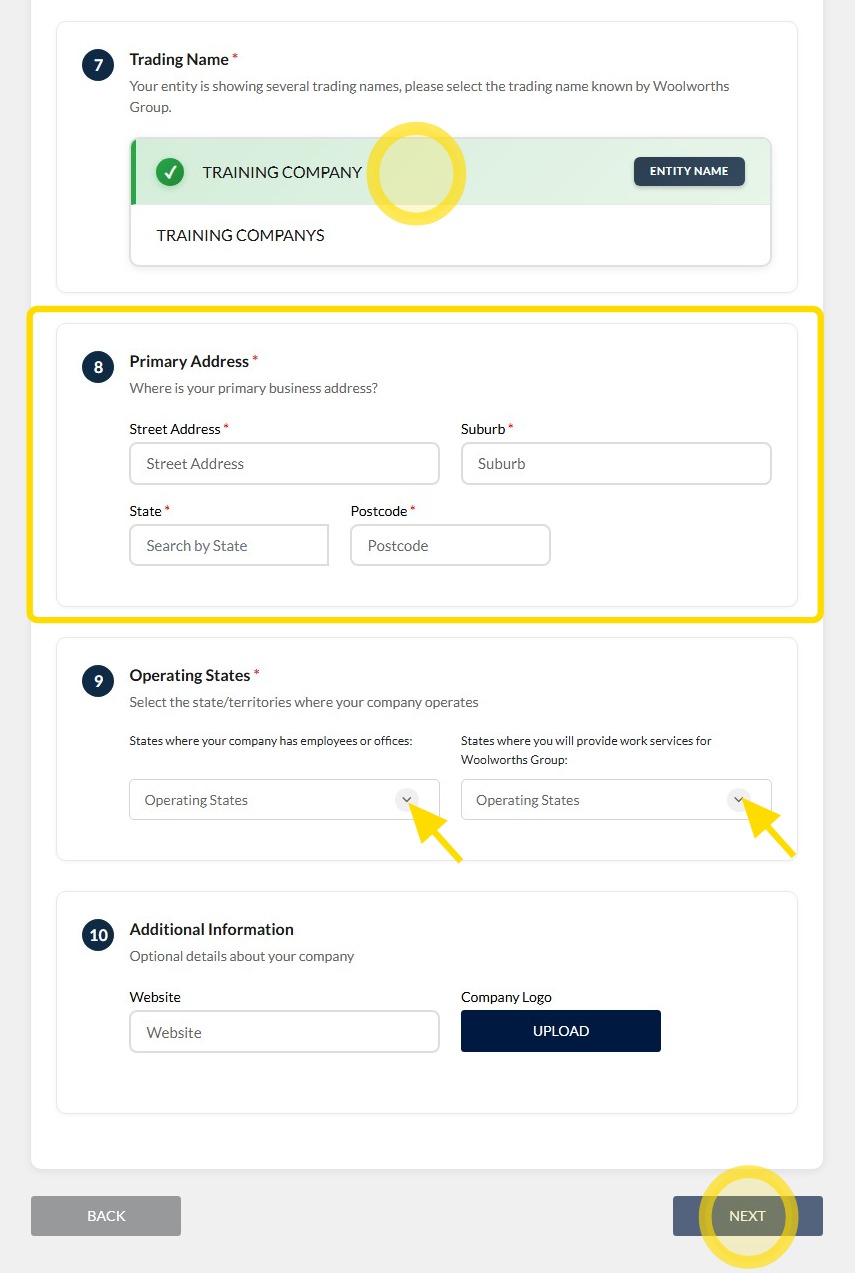
10. Select the name you would like displayed for your company.
Please note: These options are sourced from your ABN registration details, and you can only select one name from the list provided.
Enter your company's primary business address, including the:
- Street Address
- Suburb
- State
- Postcode
Click the drop-down arrow next to Operating States and select the state(s) where your company operates and provides services for Woolworths Group.
Once all required information has been entered, click Next to proceed to the next stage.
This completes the Company Information section of the registration process.
Setting Up A Primary Administrator
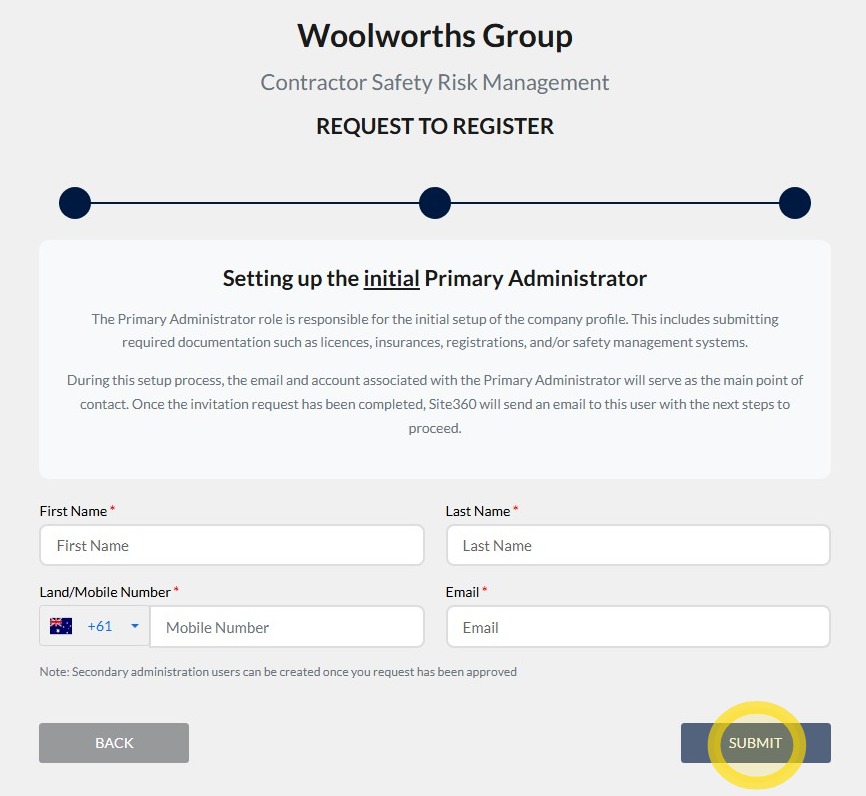
Please note the primary administrator will be responsible for completing the company prequalification steps. Additional administration users can be set up once the company has completed the onboarding process.
11. Enter First Name, Last Name, Mobile Number and Email for the initial Primary Administrator.
Once you've entered the details press Submit.
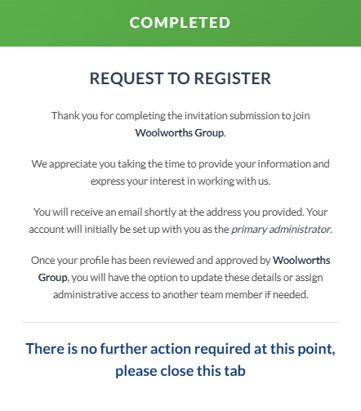
12. Your company registration request is now complete. You can close your browser. Please wait for a Welcome to Woolworths Group email.
Activating your Site360 Company Administration Portal
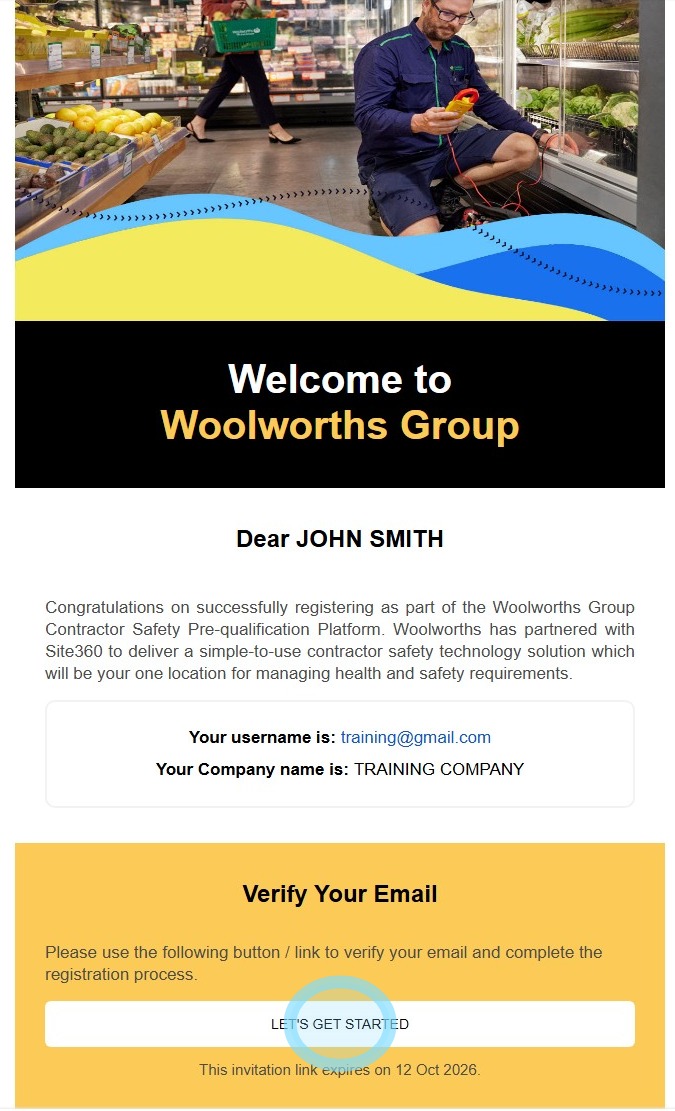
13. Open your Welcome to Woolworths Group invitation email and click on Let's get Started to activate your company's administration portal.
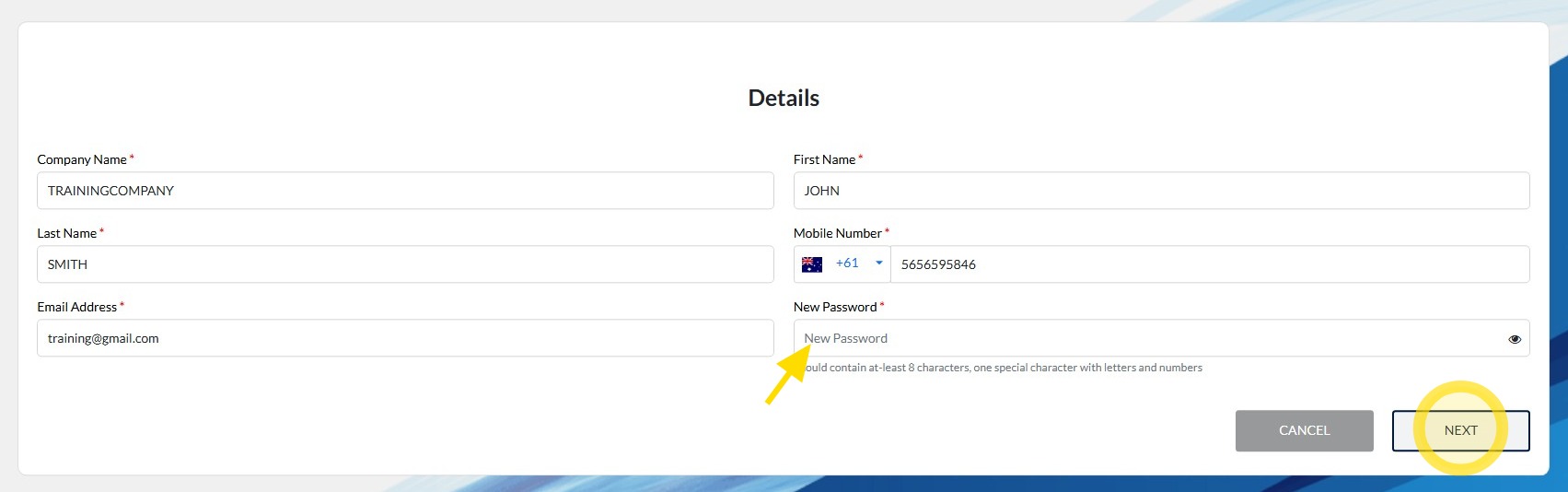
14. Your information will prefill from the information provided in your registration form. You will need to click New Password and enter a password.
Please note your password should contain at-least 8 characters, one special character with letters and numbers.
Once you've entered your password click on Next.
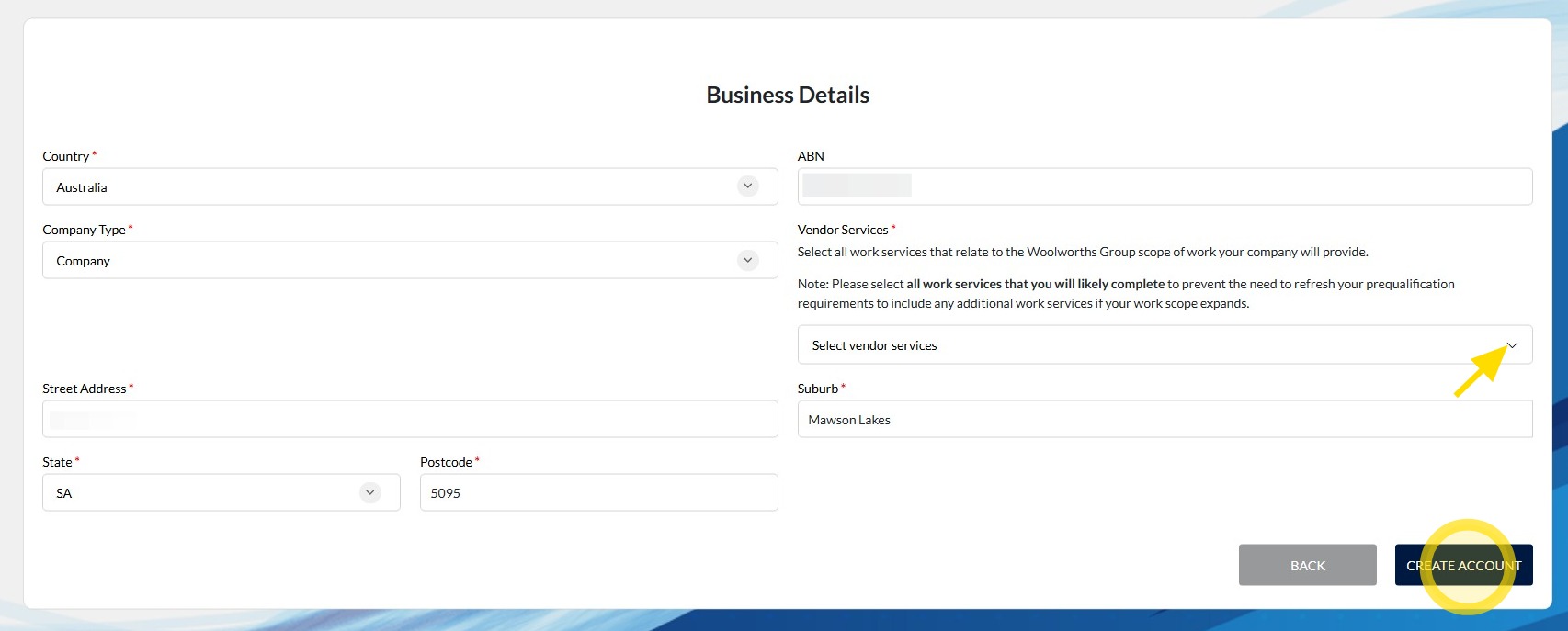
15. You will need to add the services your company provide. Click Select vendor services and select the options for each service you provide to Woolworths Group.
Once you have selected all of your vendor services, click create account.
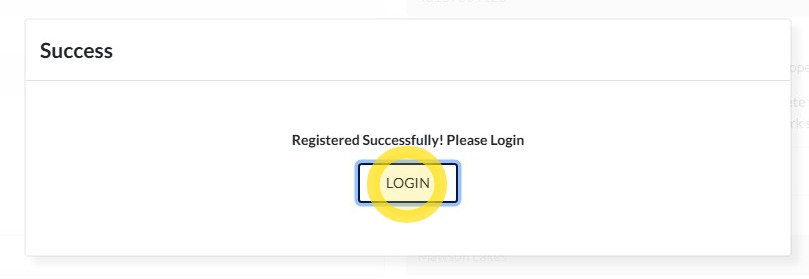
16. Click Log In to access your new account.
17. Click Username or email address and enter your email, then click Continue.

18. Click Password and enter your password, then click Continue.

Accepting the Woolworths Group Invitation
19. Click Accept for the Woolworths Group relationship invitation.

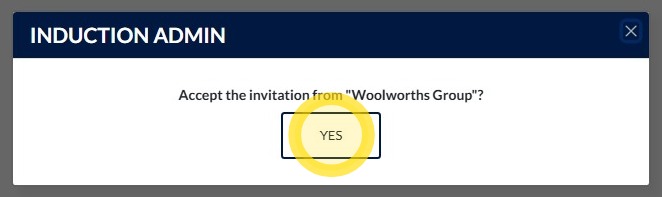
20. Click Yes to finalise the acceptance.
Company Onboarding
21. Click Continue Onboarding on the right side under Actions.

22. Read the information and click Continue.

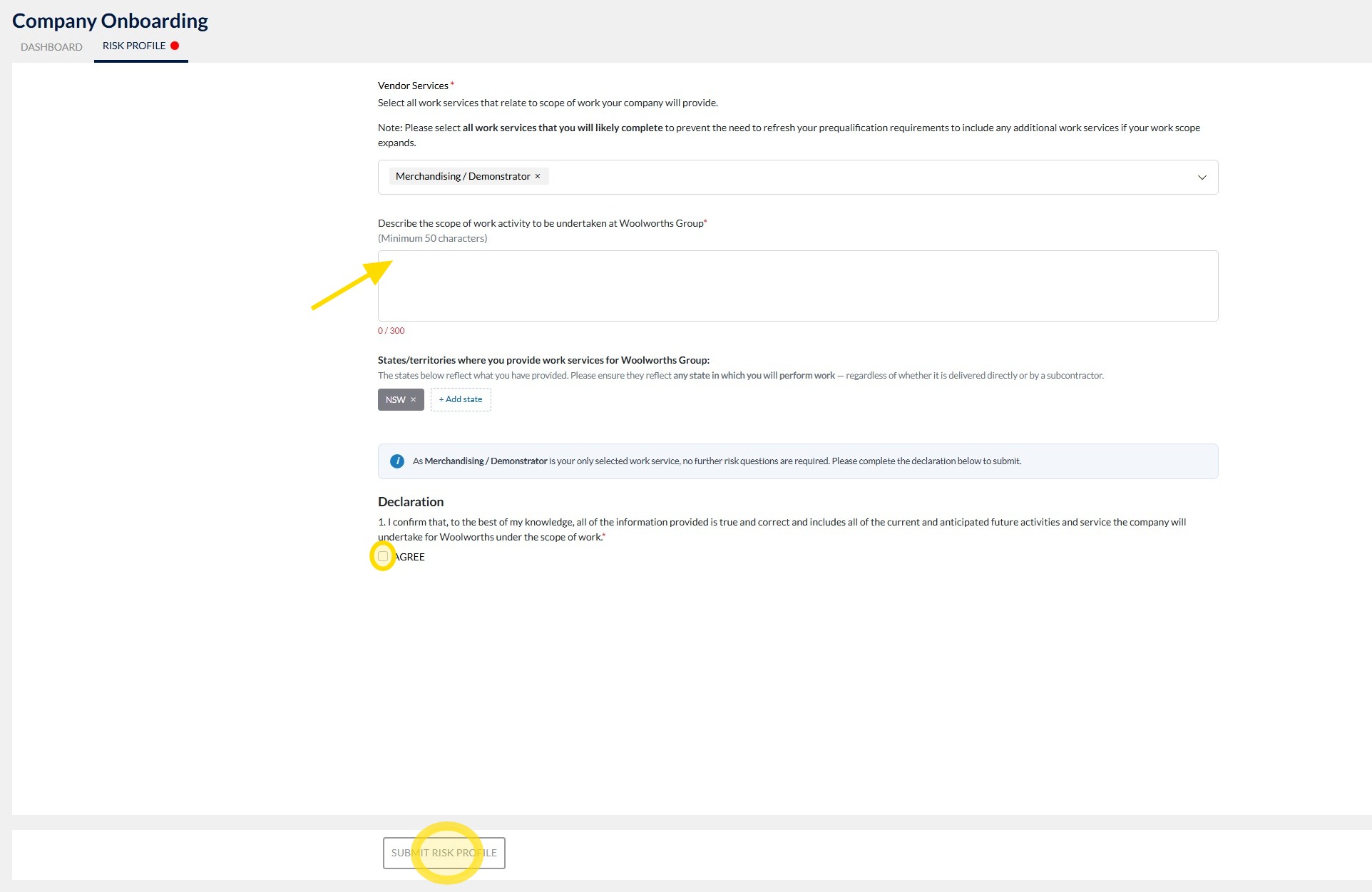
23. Your work services are pre-filled from your registration. To add more, click the 'drop-down arrow' and select your services from the list.
Describe the scope of the work activities provided.
Read the declaration and tick the box next to Agree and then click Submit Risk Profile.
Technical and Compliance Support
If you require help and guidance, you can find more helpful guides on the Help & Resources page found on the wowcontractor.com website, alternatively please contact the support or compliance team at Site360.
Phone - 1300 853 990
Email - support@site360.io or compliance@site360.io


