
Updating Your Email In the Woolworths Group Visitor App
Made by Support Site360 with Scribe
This guide quickly shows how to change the email tied to your Woolworths Group Visitor App profile and verify the update. It covers editing your profile, updating your email, confirming the change using a PIN, then check your details. If you have issues, it points you to Help & Resources or Site360 support team.
Updating Your Email
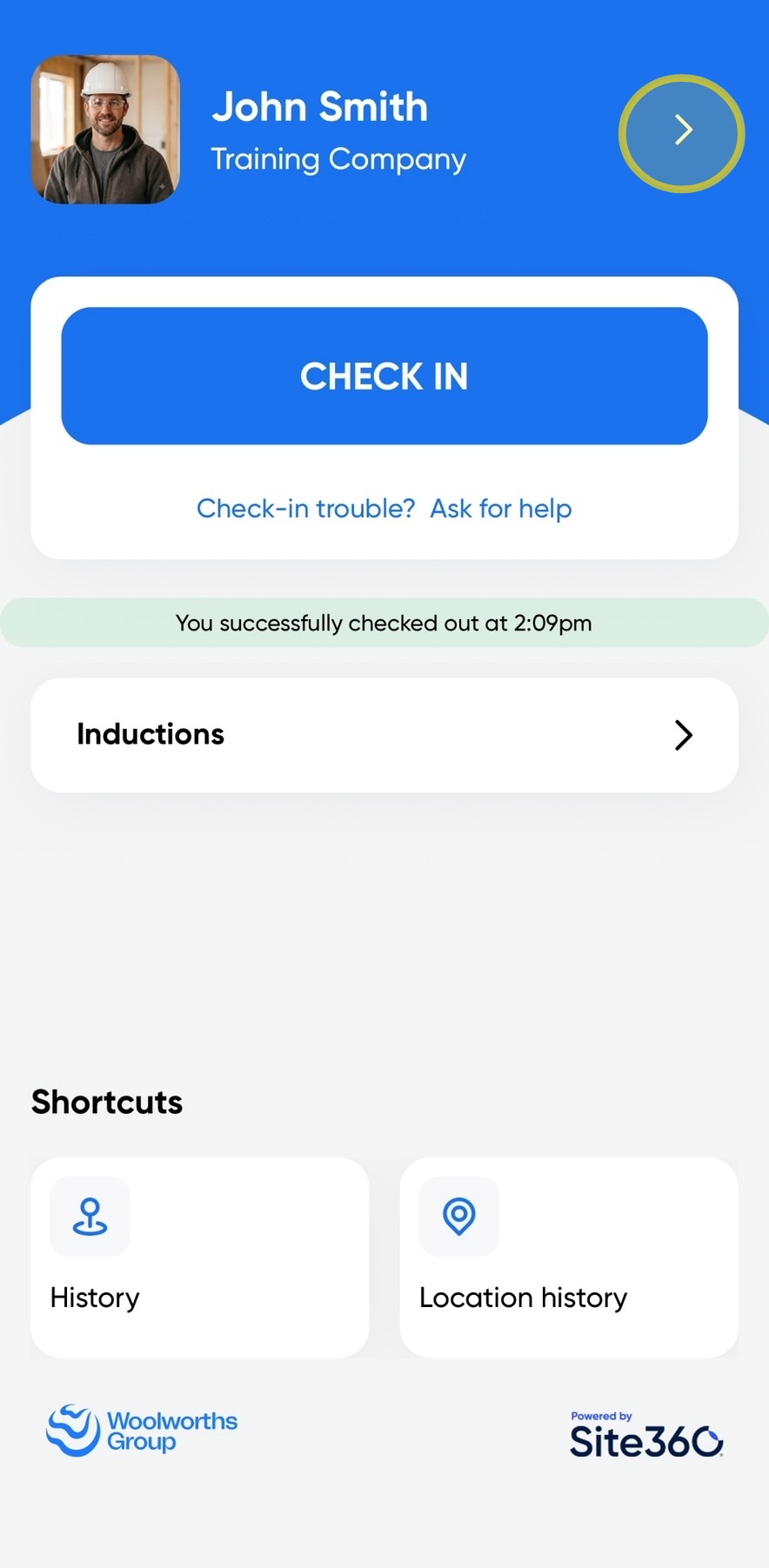
1. Click the arrow in the top-right corner of the screen to access your profile.
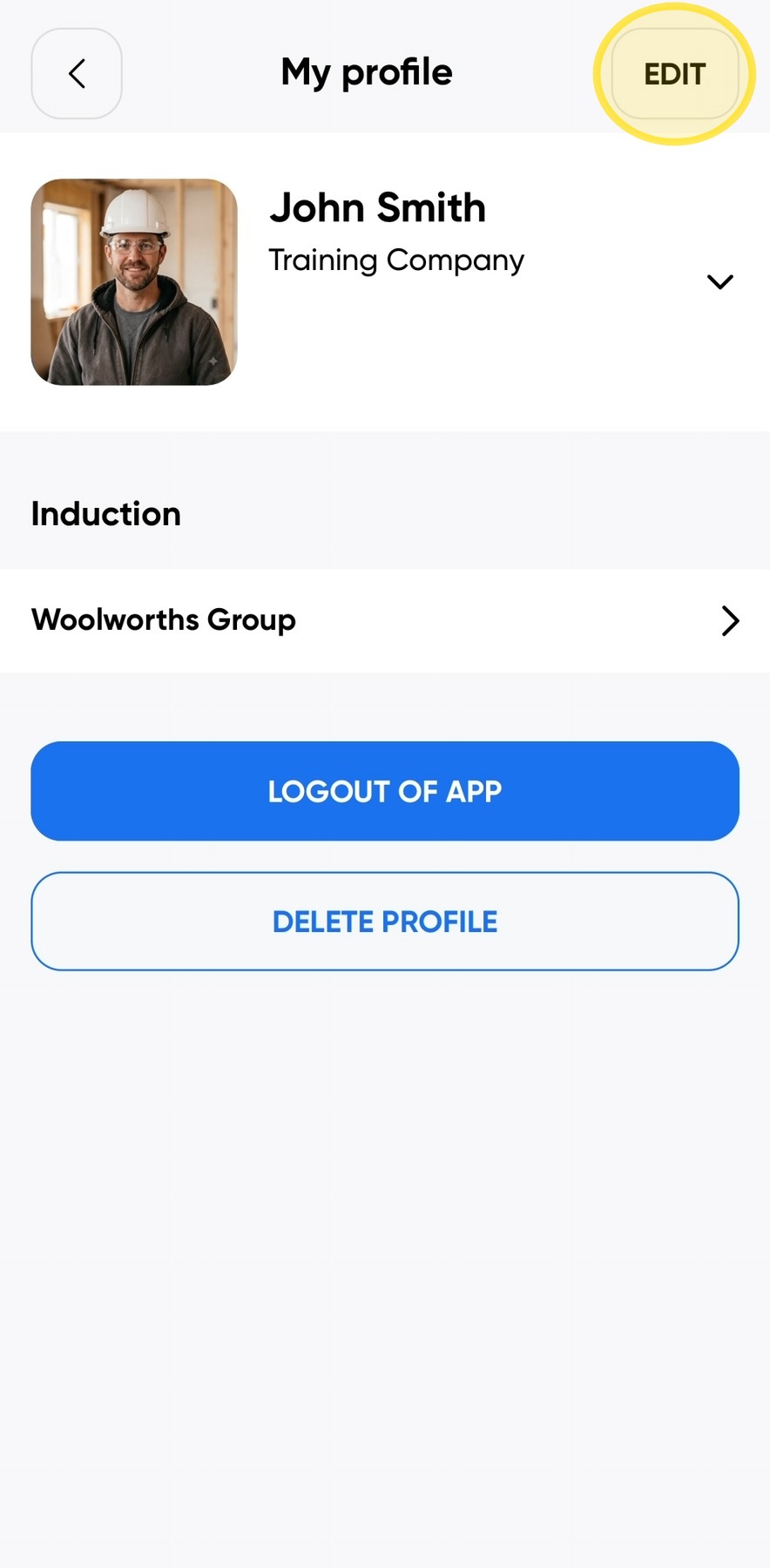
2. Click Edit in the top-right corner of the screen to update your profile information.
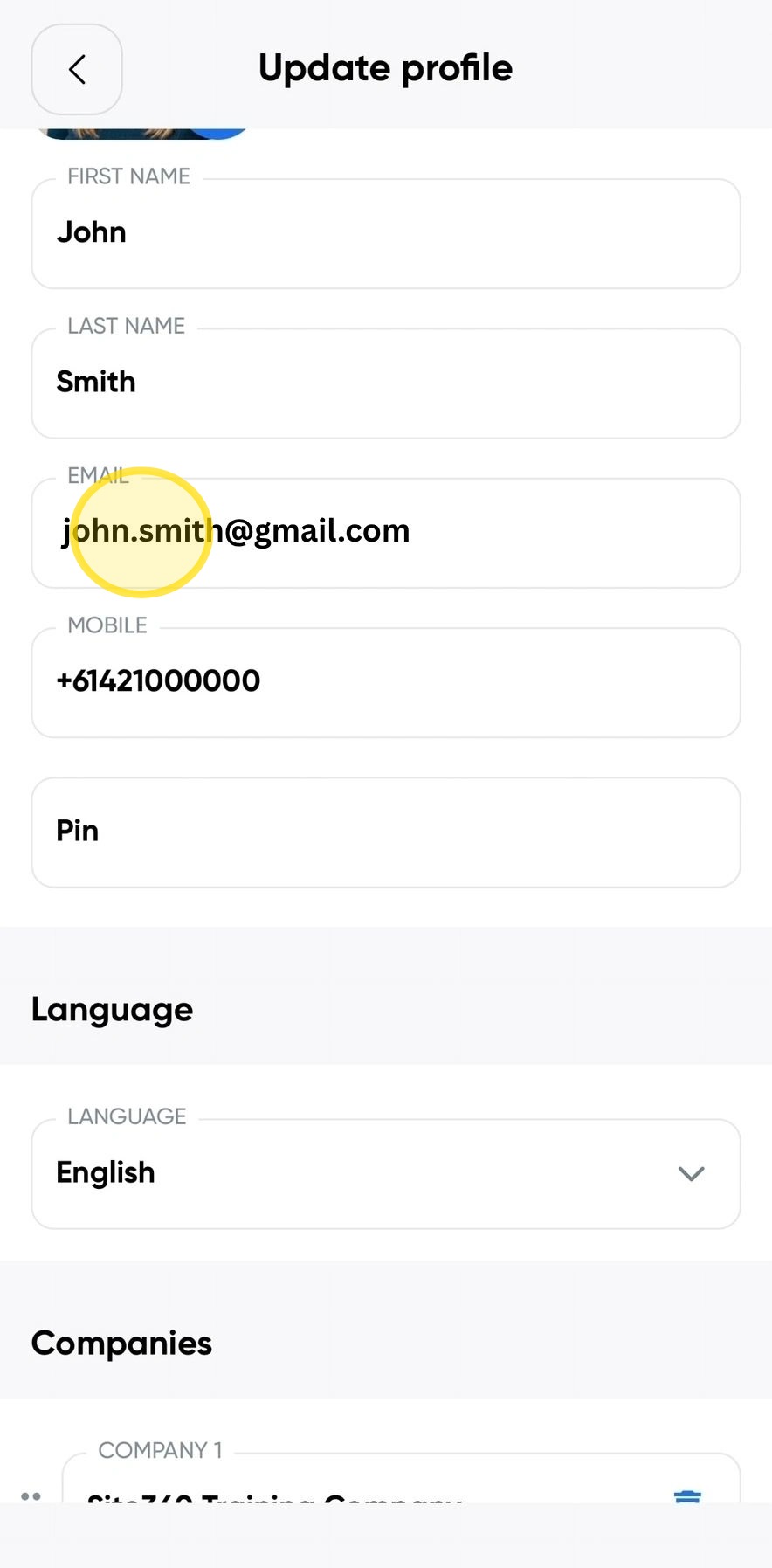
3. Click on the Email field and enter your new email address.
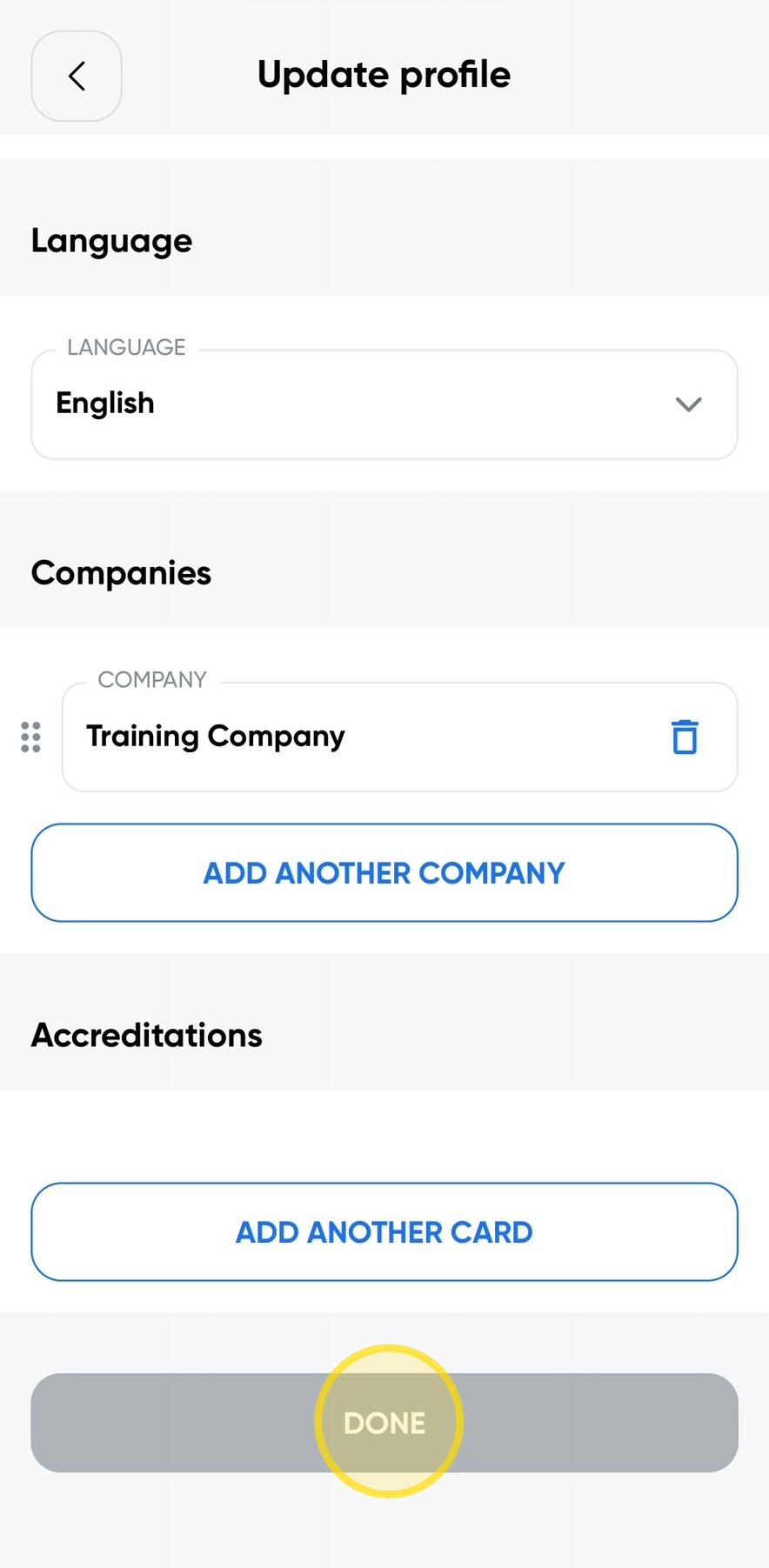
4. Scroll to the bottom of the page and click Done to save your changes and update your profile.
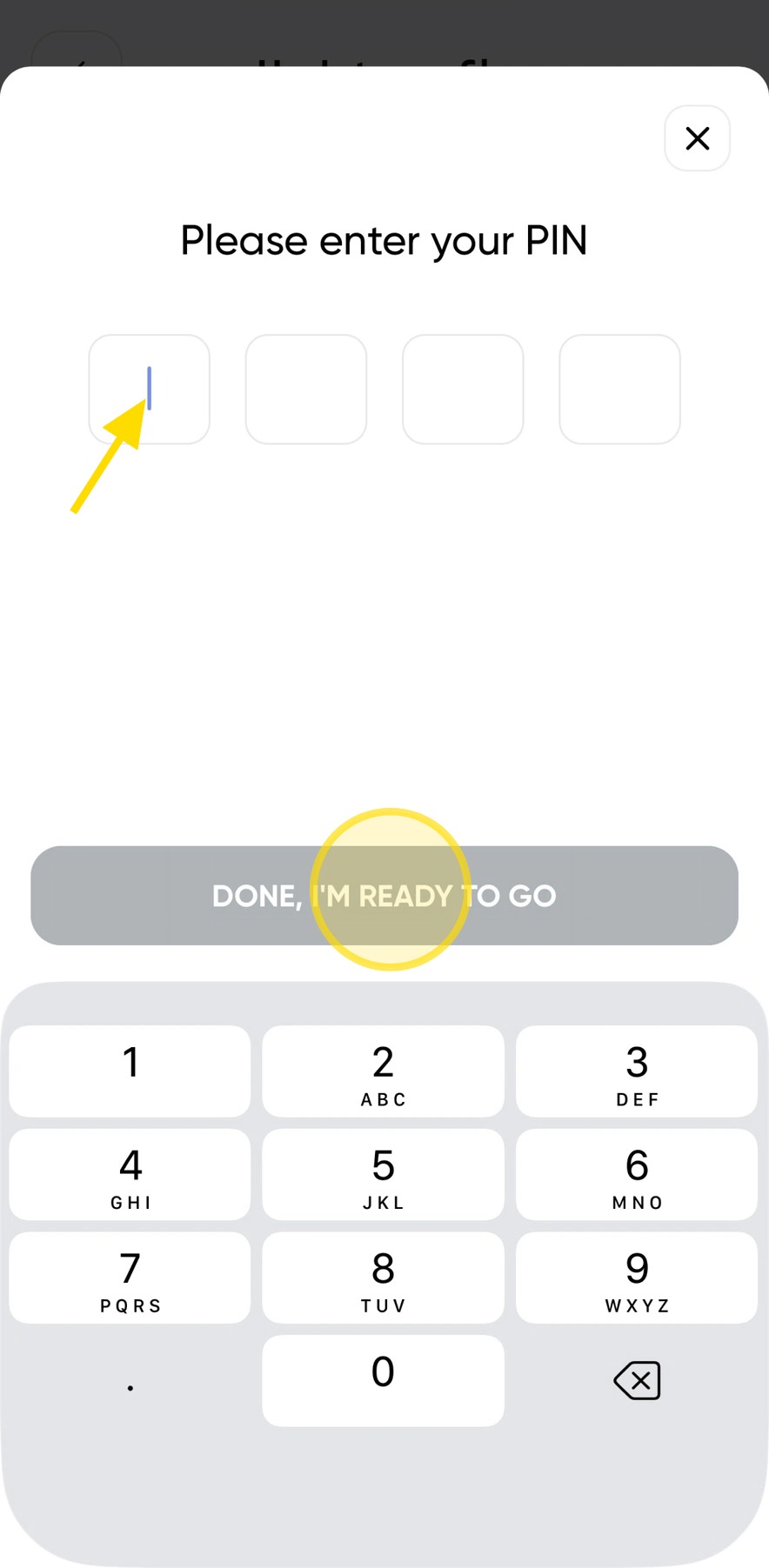
5. Enter your PIN, then click Done, I'm Ready To Go to confirm your changes.
Your profile will then be updated with your new email address.
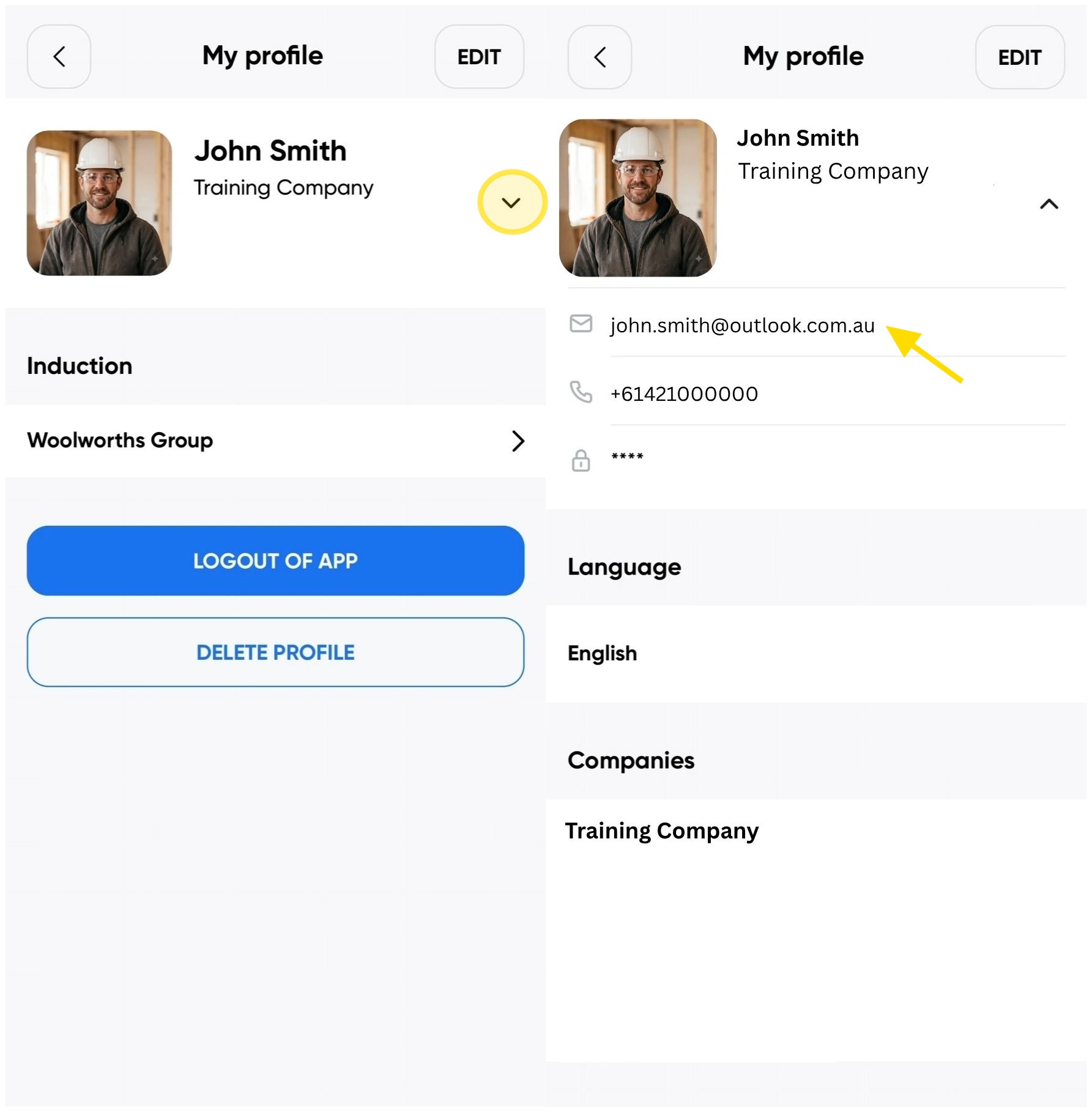
6. Go to your Profile and click the down arrow to view your account details.
Confirm that your email address has been updated and is displayed correctly.
Woolworths Group Visitor App
Technical Support
If you require help and guidance, you can find more helpful guides on the Help & Resources page found on the wowcontractor.com website, alternatively please contact the Support team at Site360.
Phone - AUS 1300 853 990 | NZ 0800 115 710
Email - support@site360.io


