
Uploading your Pegasus Card in the Woolworths Group Visitor App
Made by Support Site360 with Scribe
This guide shows, step-by-step, how to add your Pegasus (WOW Induction) card to the Woolworths Group Visitor App so your profile accurately reflects your accreditation. It explains uploading or taking a photo, entering card number and expiry, saving changes, and confirming with your PIN. Support contacts are provided if you need help.
Uploading your Pegasus Card
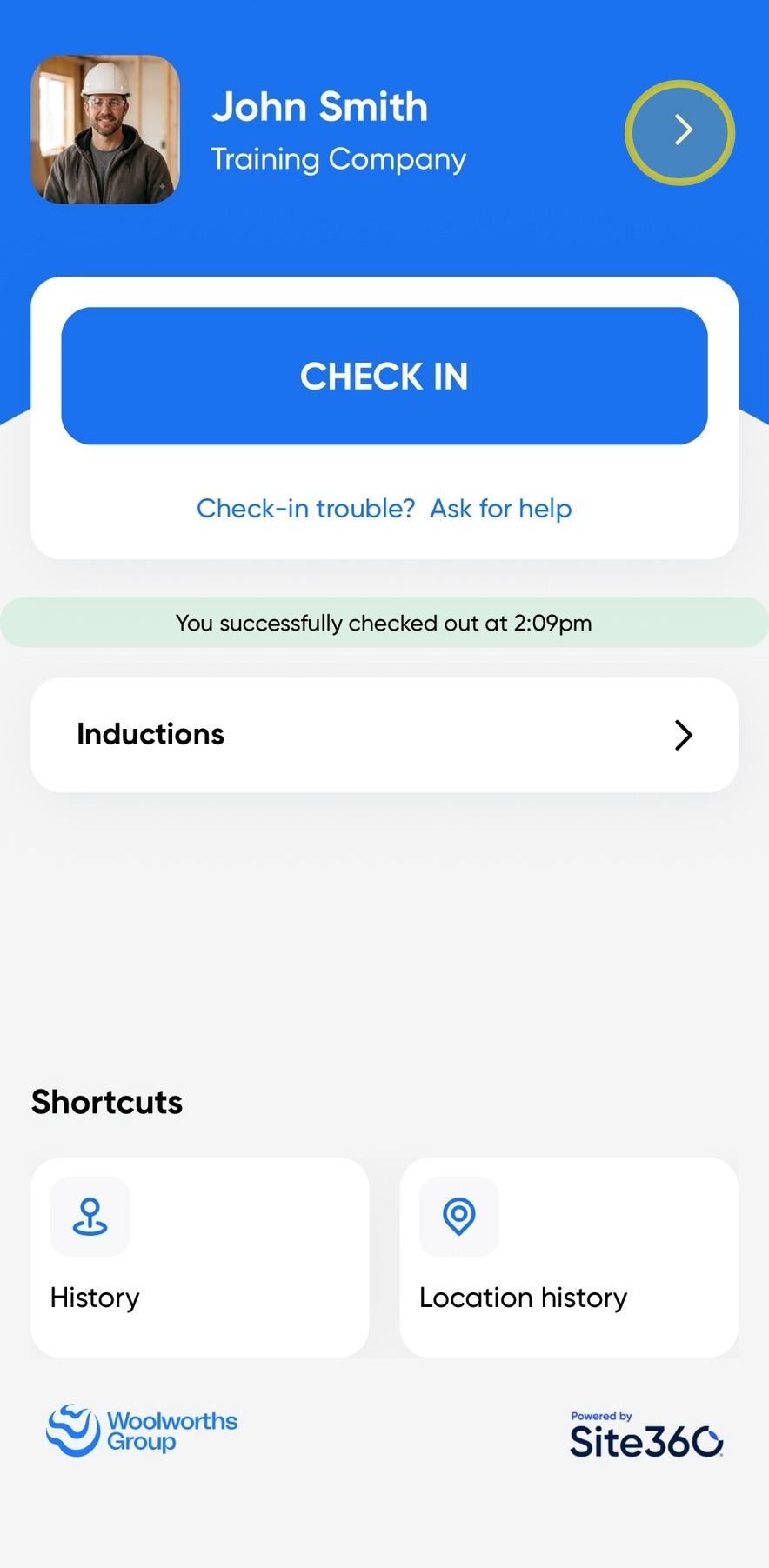
1. Open the Woolworths Group Visitor App on your device, then click the arrow in the top-right corner of the screen to access your profile.
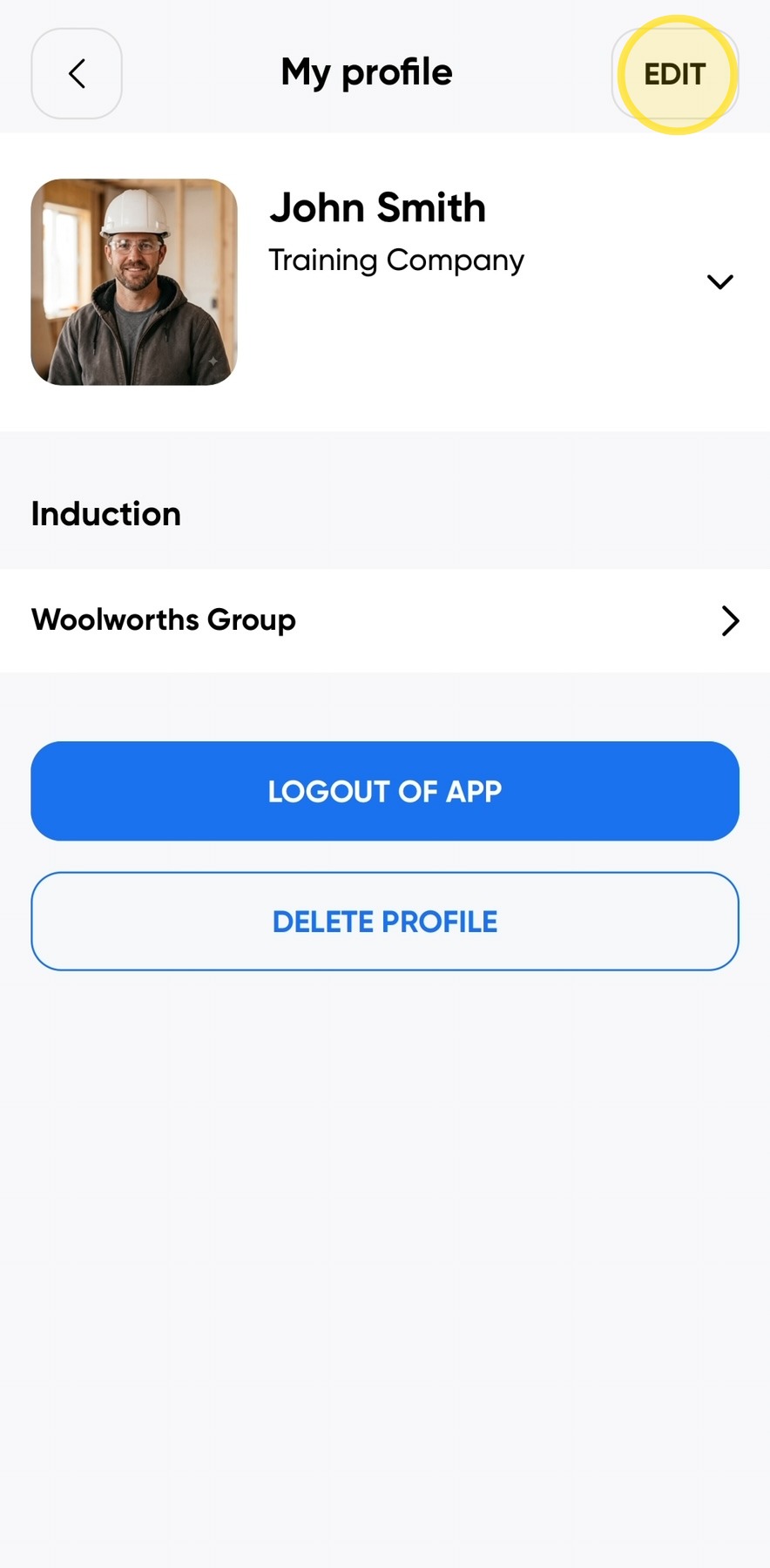
2. Click Edit in the top-right corner of the screen.
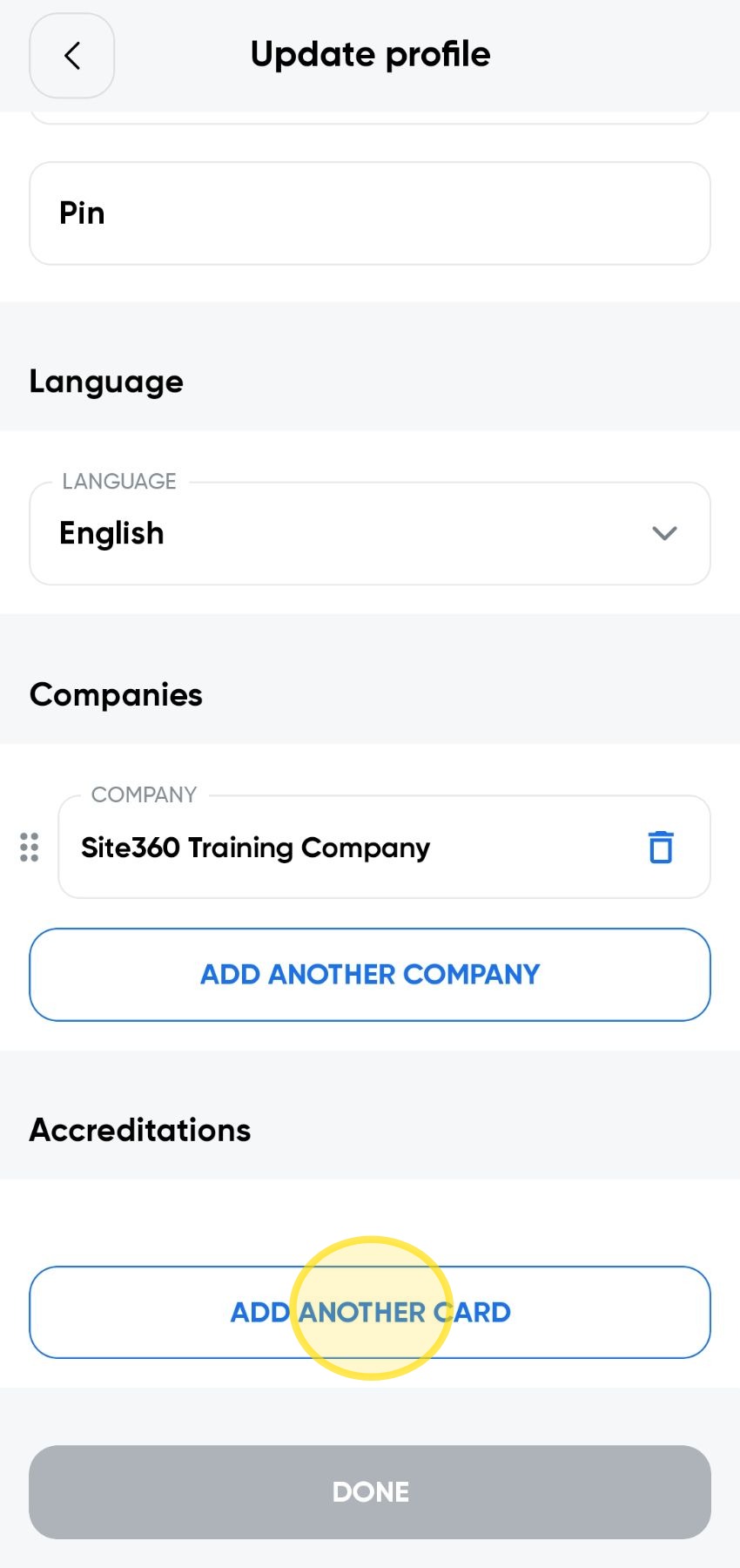
3. Scroll down to the Accreditations section and click Add Another Card.
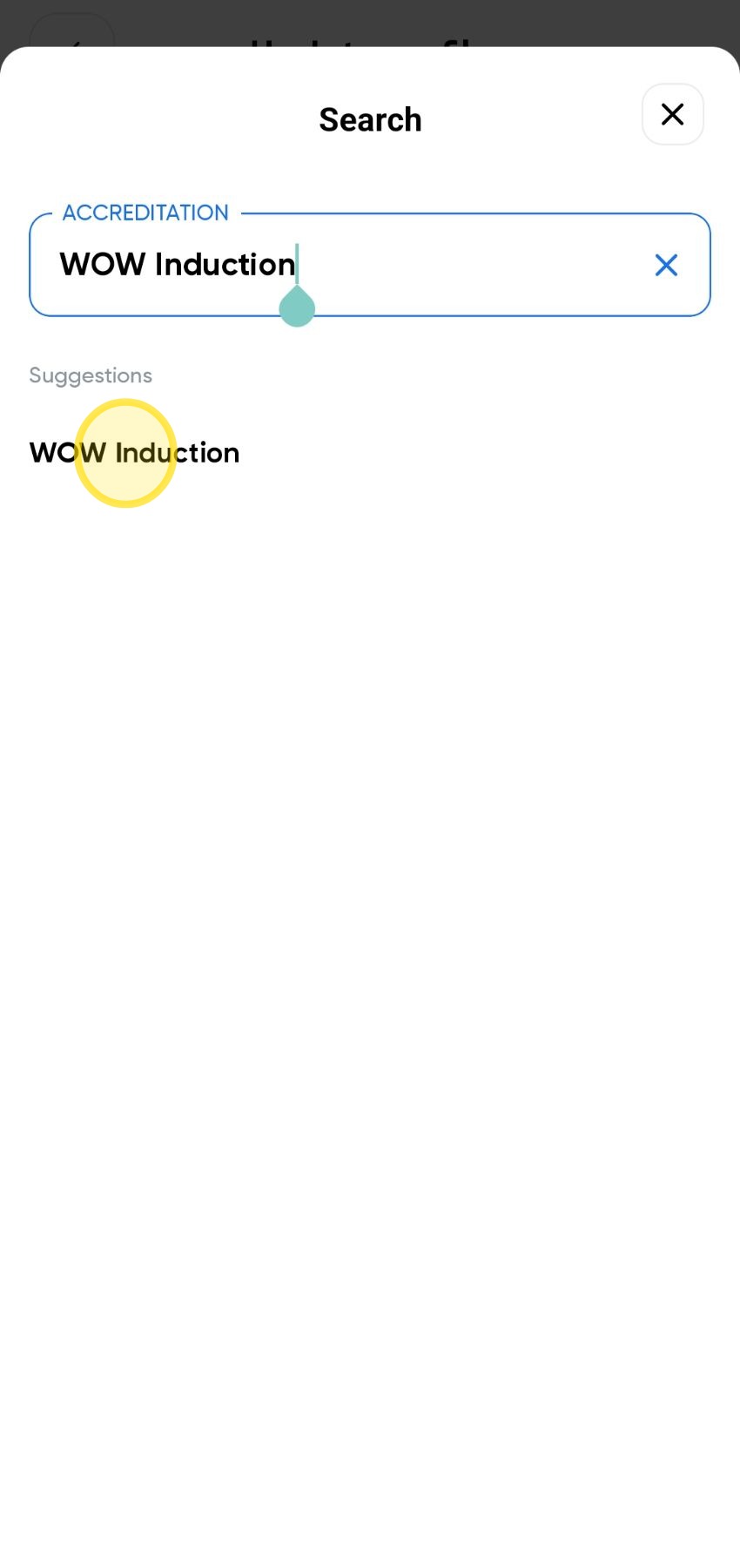
4. Start typing WOW Induction in the accreditation search field, then select WOW Induction from the list of results that appears.
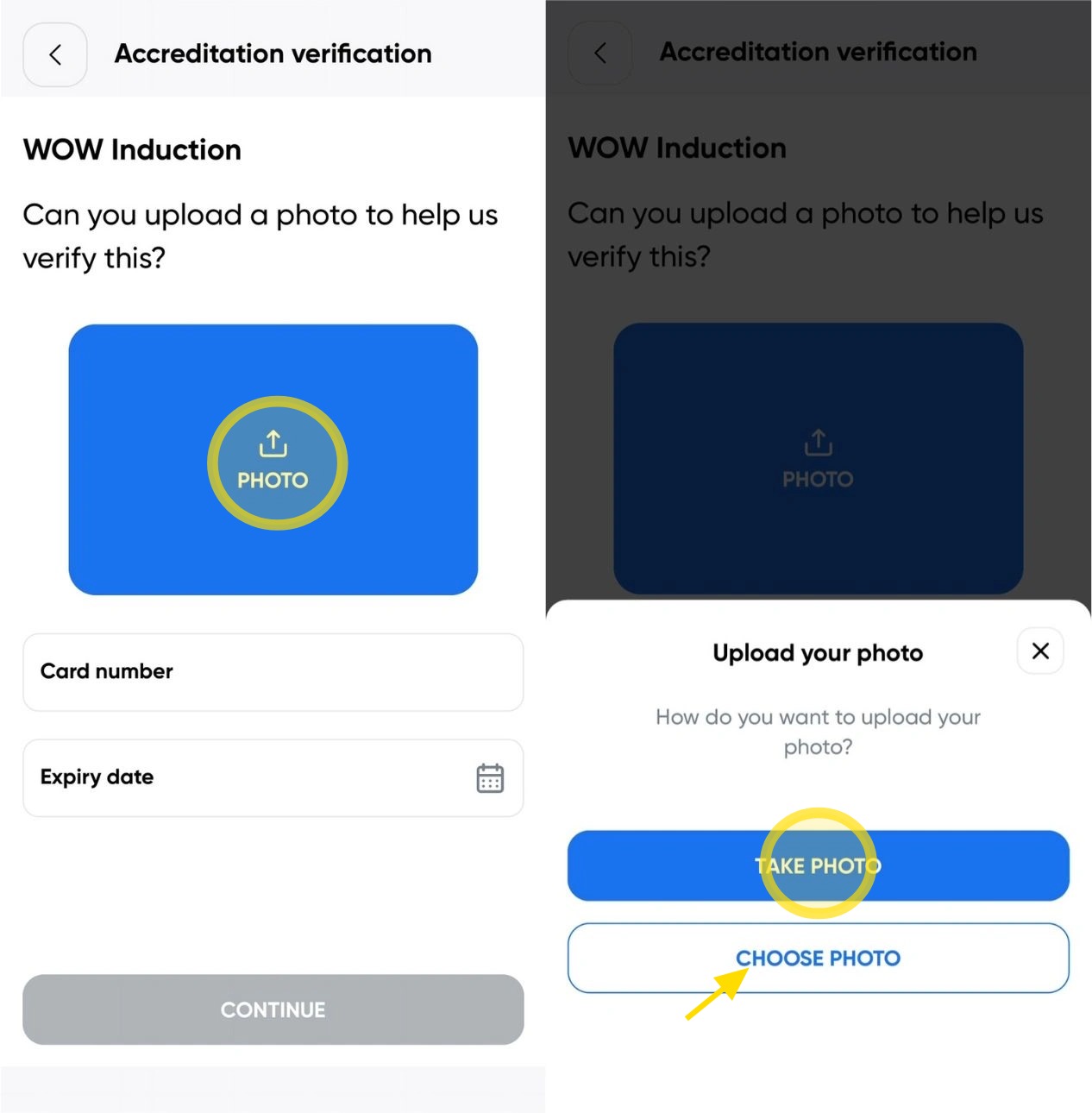
5. Tap the photo box to upload the image.
Click Take Photo to take a new photo, or Choose Photo to select an existing photo from your camera roll.
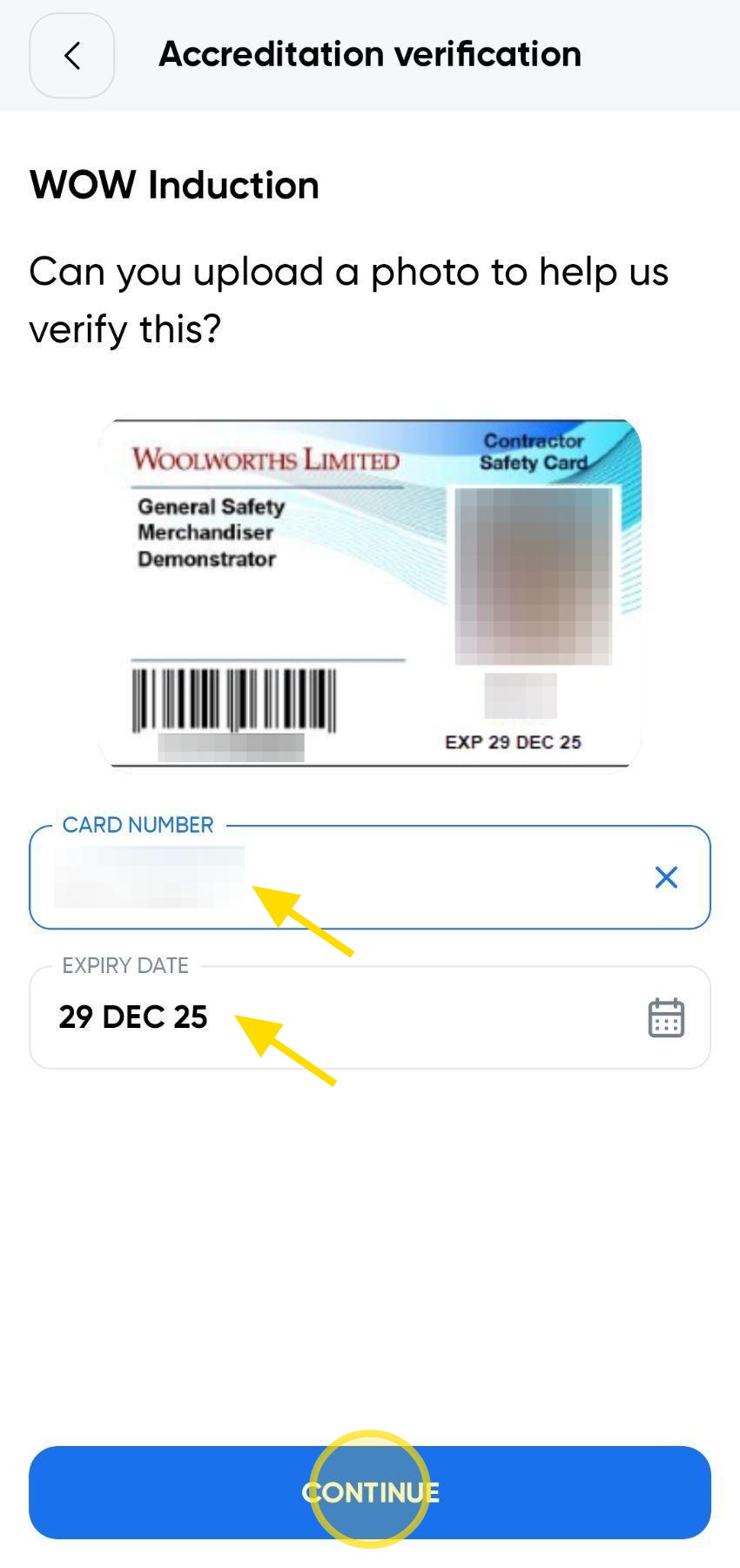
6. Enter your Card Number and Expiry Date, then tap Continue.
Ensure the details entered match the information shown on your accreditation card before proceeding.
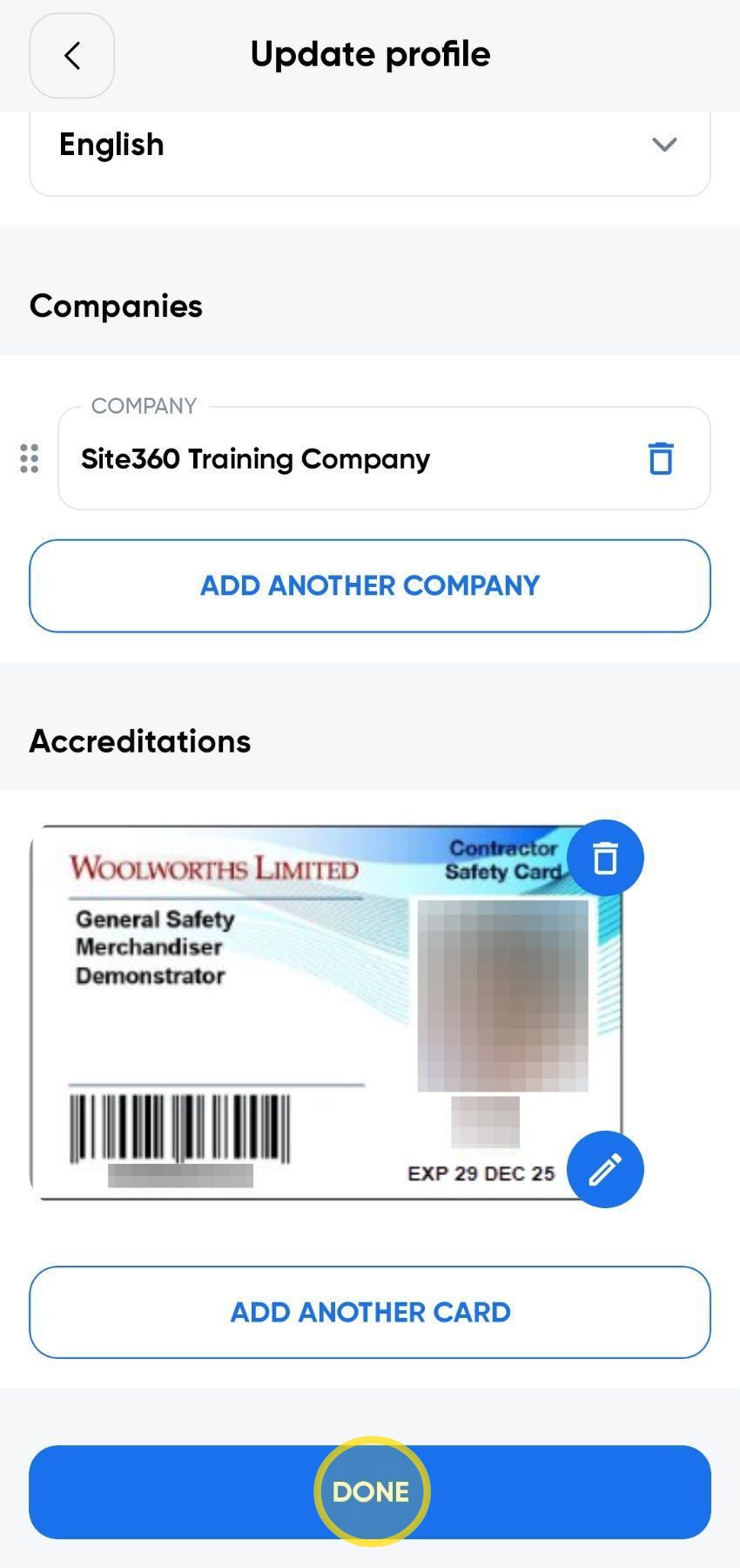
7. Scroll to the bottom of the page and click Done to save your changes and update your profile.
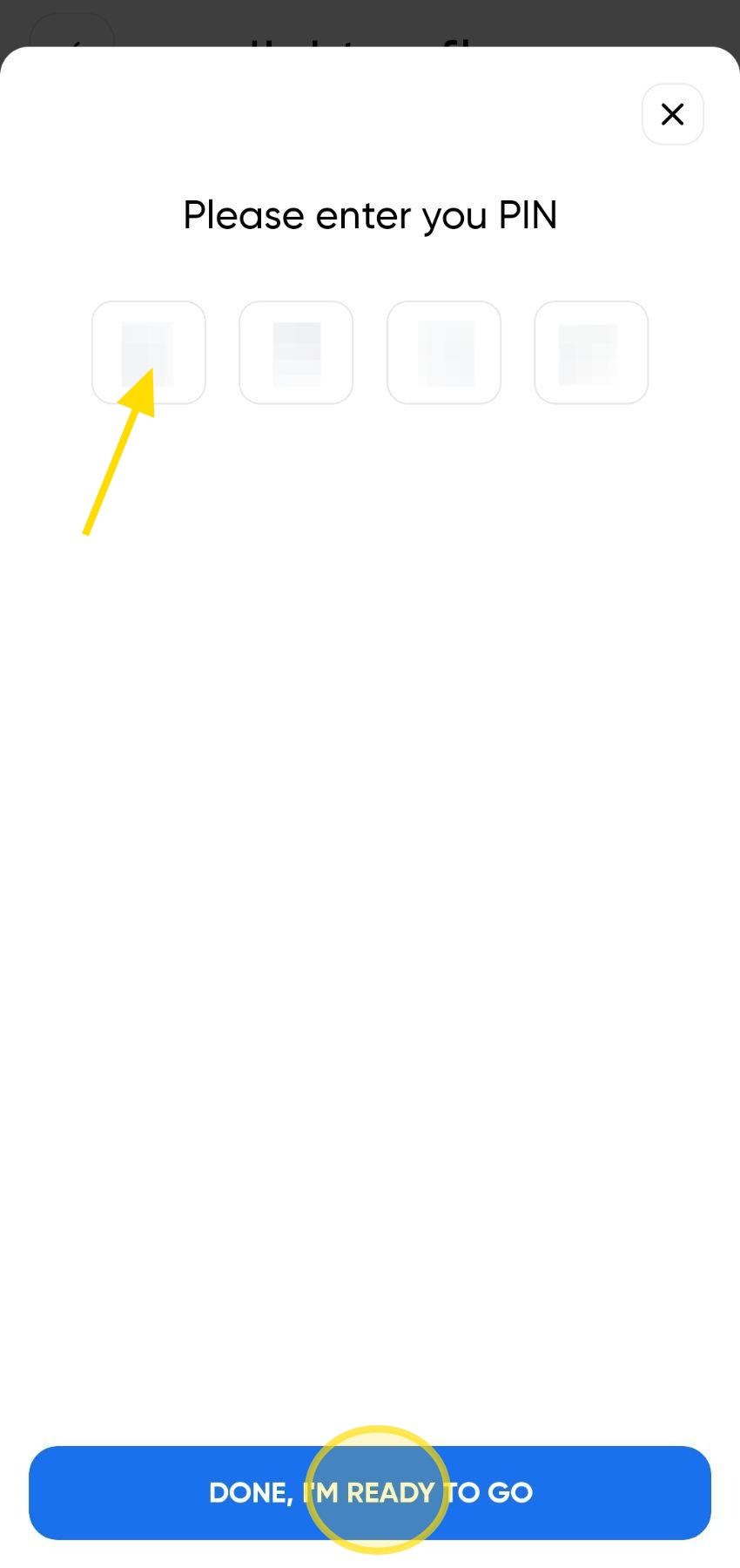
8. Enter your PIN, then click Done, I'm Ready To Go to confirm your changes.
Your profile will then be updated with your Pegasus card.
Woolworths Group Visitor App

Technical Support
If you require help and guidance, you can find more helpful guides on the Help & Resources page found on the wowcontractor.com website, alternatively please contact the Support team at Site360.
Phone - AUS 1300 853 990 | NZ 0800 115 710
Email - support@site360.io


